

ProductProduct Product refers to anything (an idea, item, service, process or information) that meets a need or a desire and is offered to a market, usually but not always at a price. Pricing
This release includes major updates to Product Pricing, introducing a multi-layered pricing engine for Pipeliner. This includes new admin-level entities for “Price Schedules” and accountAccount Account refers to a record of primary and background information about an individual or corporate customer, including contact data, preferred services, and transactions with your company.-specific “CustomerCustomer Customer is an individual or an organization that purchases a product or signs up for a service offered by a business. Prices“. A new “Pricing Logic” flow determines which price (from the Price List, a Price Schedule, or a Customer Price) is prefilled when adding a product to an Opportunity or Quote. This update also overhauls the Price List admin area, introducing “Active” states, availability rules, and a new “List Price” system default.
Product Pricing is enabled from the Automation Hub and the Admin can choose to use Customer Price and/or Price Schedule. Note that the selected option(s) control the visibility of other features (e.g., Account tab, Price Schedule admin).
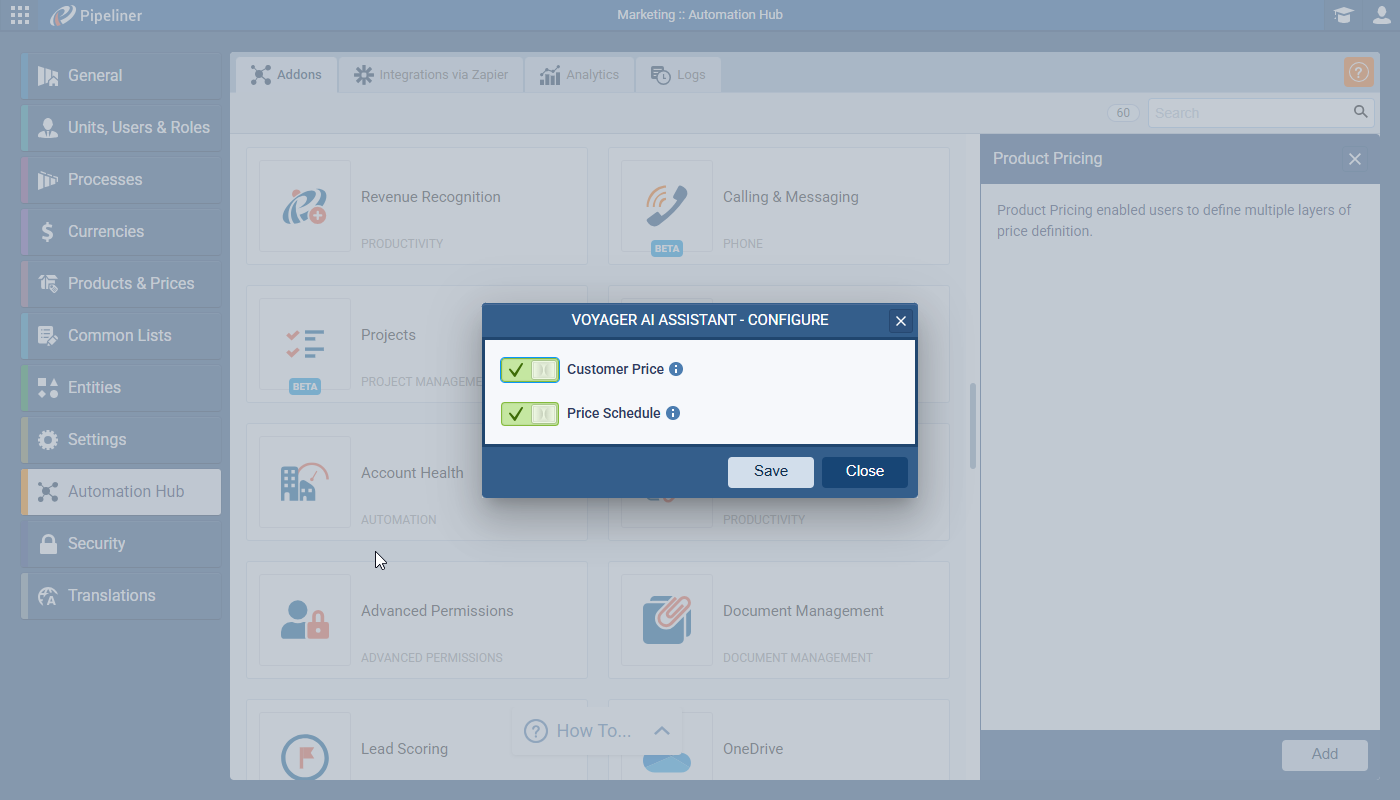
- Customer Price — Enabling this option will provide users with an option to set specific price for any product for every Account separately
- Price Schedule — Enabling this setting will gives users an option to create a special type of Price Lists named Price Schedules. These can be used to create sets of products, used by different segments of your customers.
Price Schedule
Enabling Price Schedule adds a new admin sub-section: Products & Pricing › Price Schedules. Price Schedules are used automatically by Pricing Logic and are not directly selected by users.
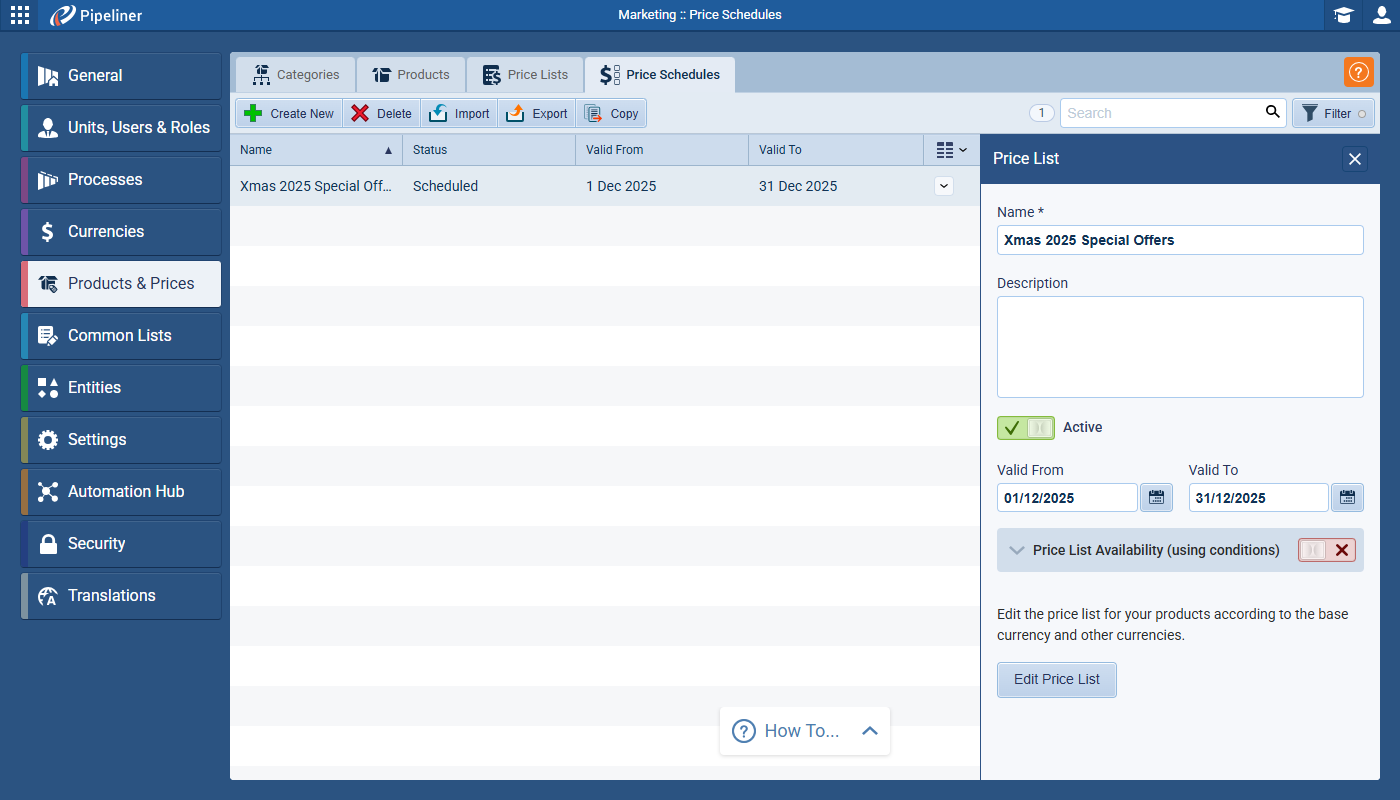
In the Price Schedule List View, Admins can “Create New“, and “Delete” (when one or more records are selected). Displayed columns include Name, Description, Status, Valid From, Valid To. The Status shows if the Price Schedule is Inactive, Active, Scheduled or Expired. Admins can use the Filter option to “Show only active Price Schedules” and a “Valid From/To” date range filter.
The creation/edit process is identical to that of a Price List, including the “Active” toggle, optional dates, and availability rules. Each schedule defines a list of products with flat prices for available currencies.
Customer Price
Enabling Customer Price adds a new tab to the Account record — Products Pricing. Users will only be able to update account-based product prices if they have “Write” access to the Account record
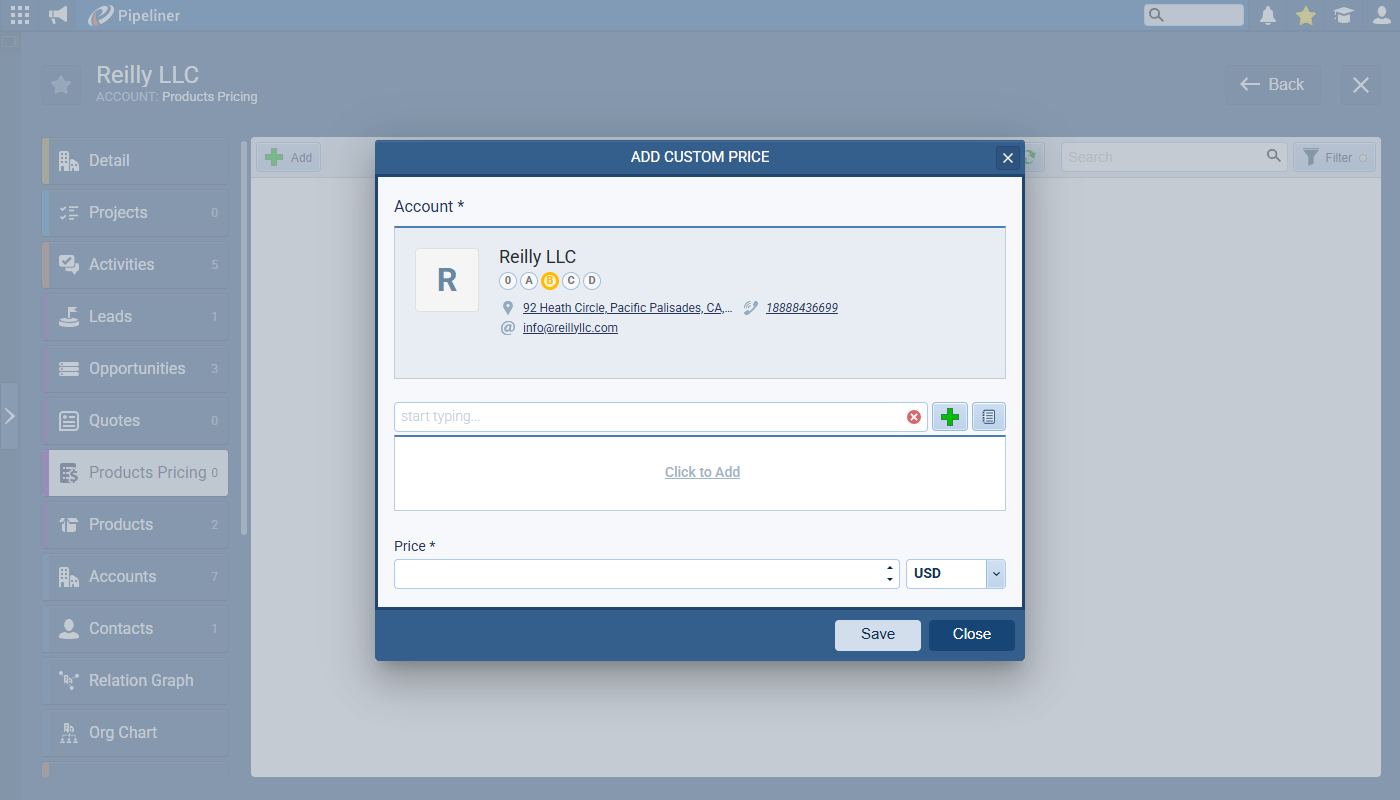
Users will click on “Add” to add a new custom price, the Account will be pre-selected and the userUser User means a person who uses or consumes a product or a service, usually a digital device or an online service. then needs to add the Product and the Price (0 is a valid value). On save, if the (Product, Currency) combination already exists for this Account, a message will show: “Customer Price for selected currency already exists.”
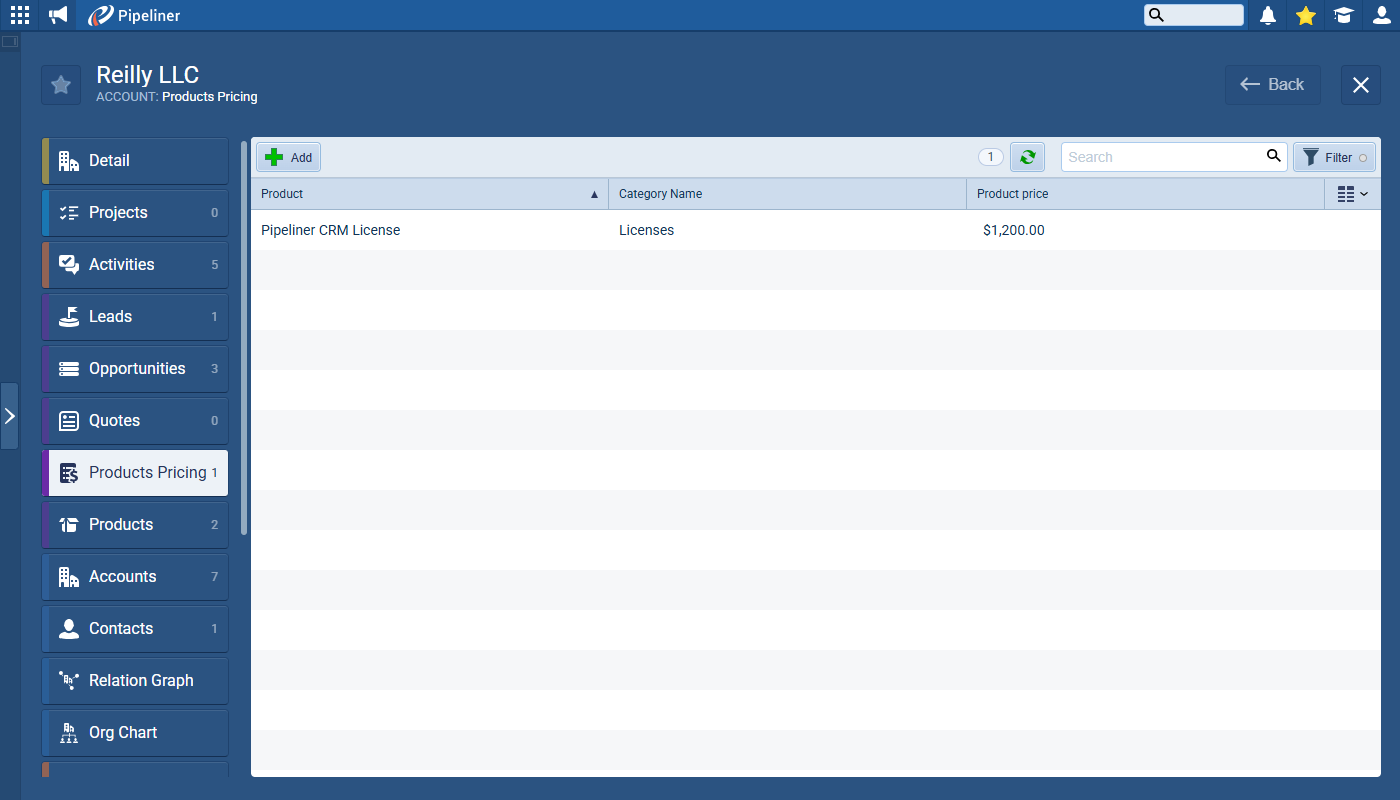
In the Products Pricing List View, users can “Add” or “Delete” Product Prices. The displayed columns include Product Name (pinned), Product Category, Customer Price. The Customer Price column is inline-editable (value and currency). On save, if an inline edit results in a (Product, Currency) combination that already exists, a message will display to the user : “Customer Price for selected currency already exists.” Users will also see the Record count, Refresh, Search, and a Filter by “Product Category“.
Products — Price Lists
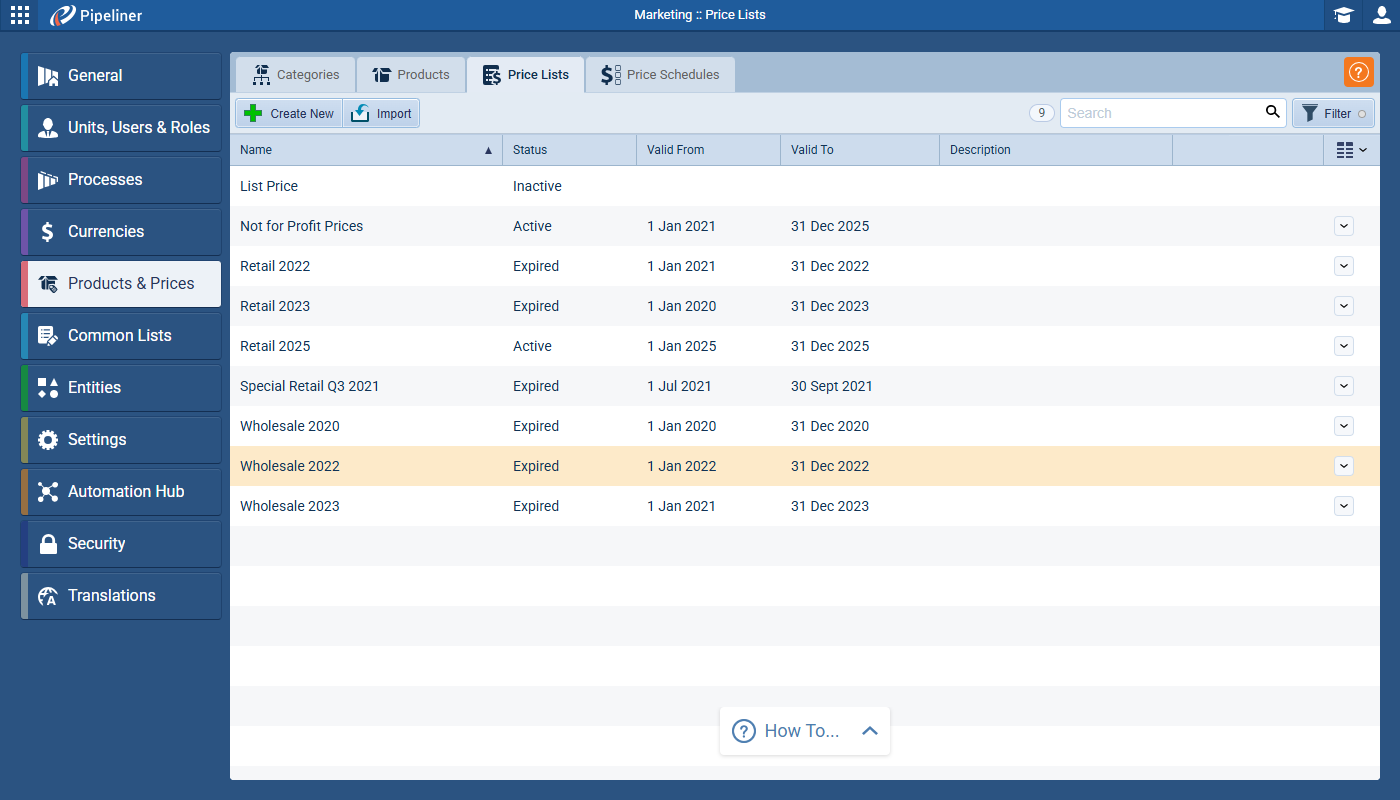
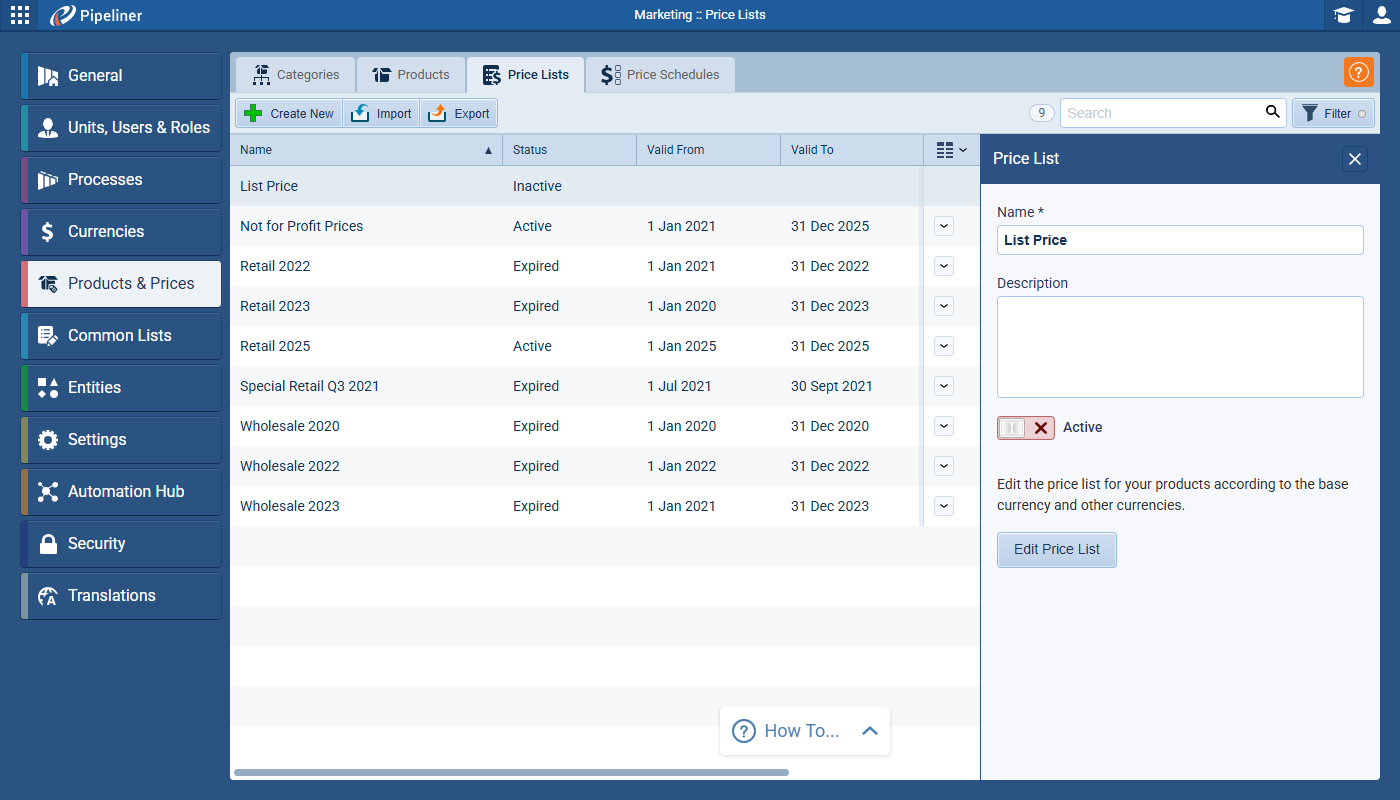
In Products & Prices › Price Lists, in the List View a new Status column has been added. Values include:
- Inactive: The Price List record’s Active toggle is off.
- Active: Active toggle is on, and the current date is within the “Valid From“/”Valid To” range (if set).
- Scheduled: Active toggle is on, but “Valid From” is in the future.
- Expired: Active toggle is on, but “Valid To” is in the past.
There is also a new filter option: “Show only active Price Lists” (toggle, off by default).
Creating or Editing a Price List is now a 2-step process. Admins will first enter the details of the Price List:
- “Valid From” and “Valid To” fields are now optional.
- A new “Active” switch is added (on by default during creation). “Valid From”/”To” fields are only enabled if “Active” is on.
- The “Active” status and date fields determine the Active/Scheduled/Expired status.
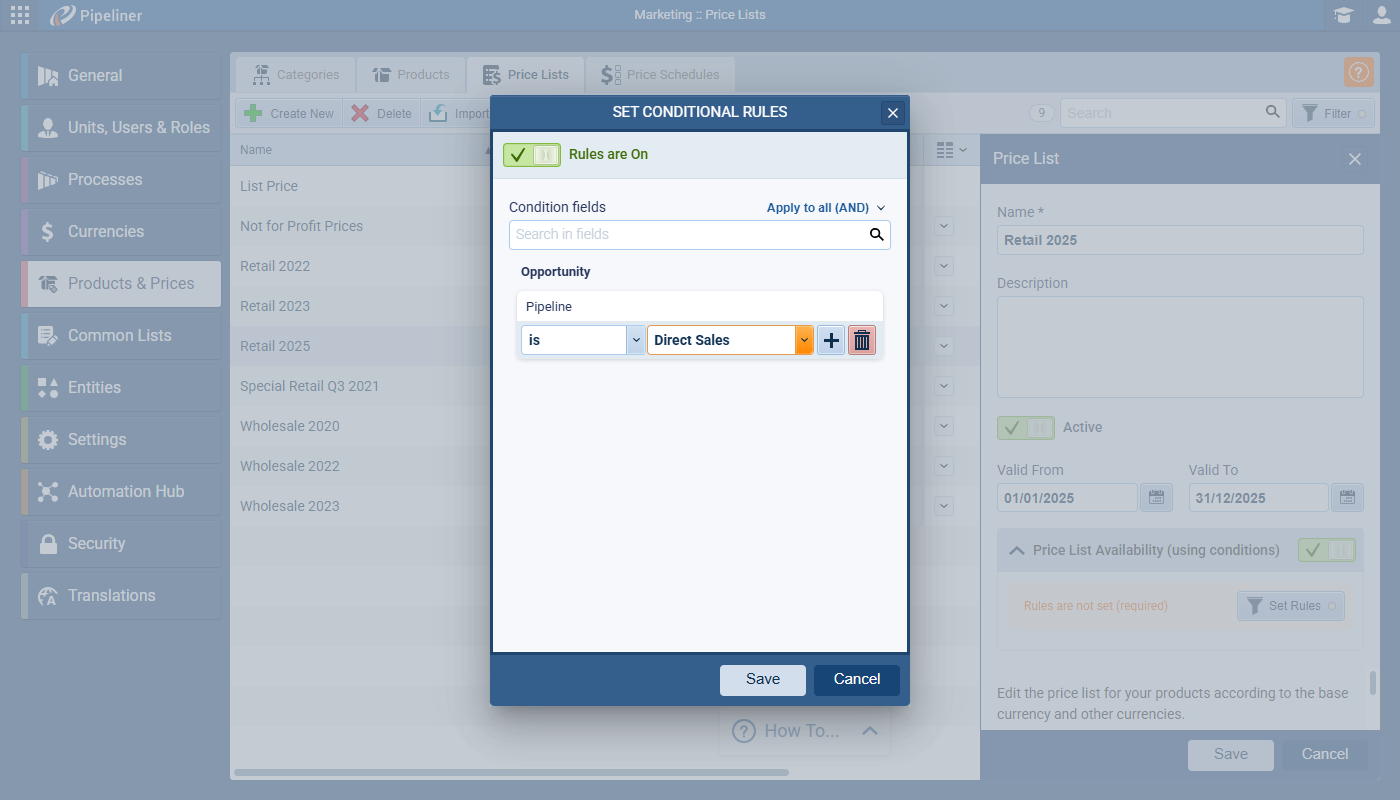
- There is a new setting: “Price List Availability (using conditions)“. This allows the definition of filters based on Account, Opportunity, and Quote fields to determine when the Price List is available for users to select. These filter rules are applied based on the record type (Opportunity/Quote) and its linked Primary Account.
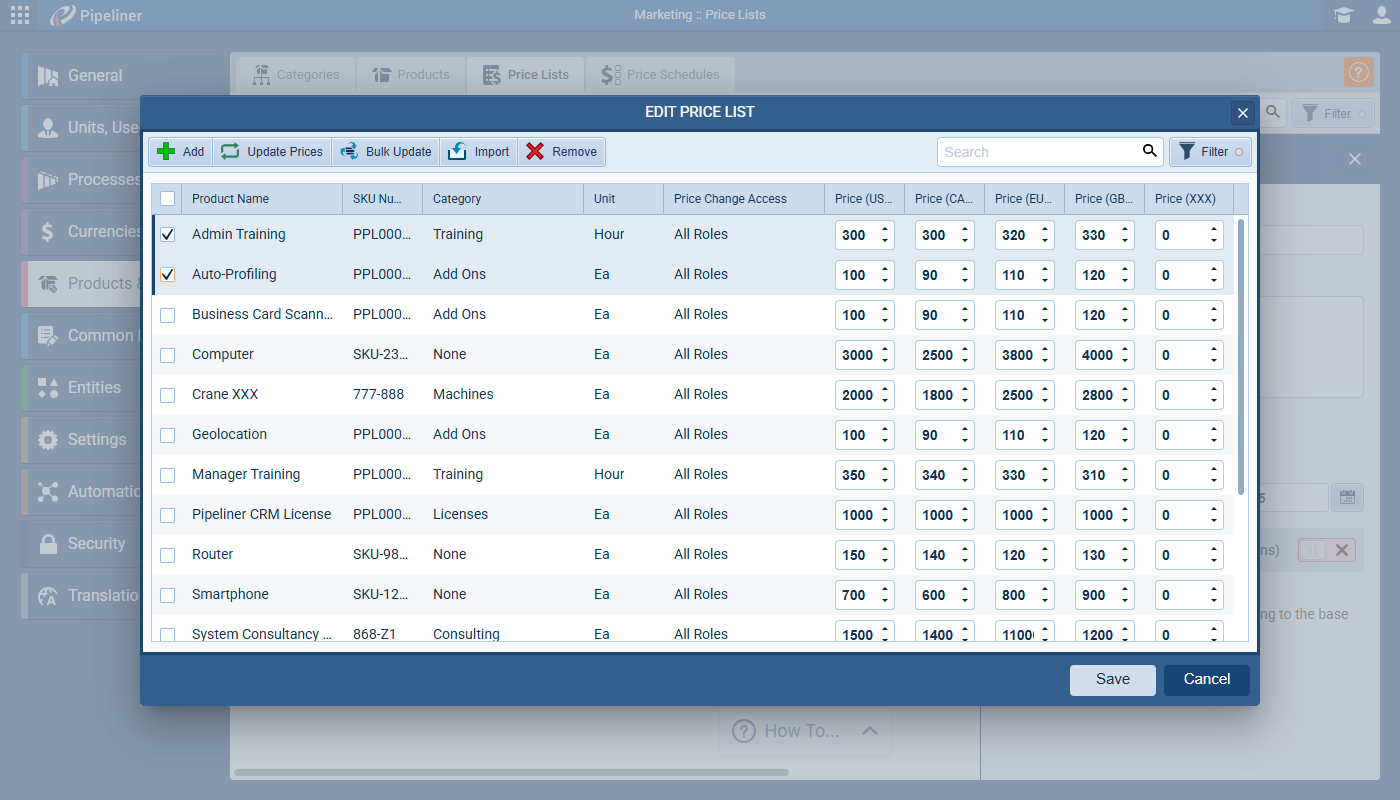
Step 2 is to add the Products using the “Edit Price List” button as new Price Lists are created “empty” by default. Admins must manually add products to the list using the “Add” action. Products not explicitly listed in a Price List will not be available in Opportunities/Quotes when that list is selected.
When editing products and adding prices, Admins can Add, Bulk Update or Import prices and, when one or more products is selected, Update Prices or Remove.
System Default “List Price” Price List
A new default Price List record named “List Price” is automatically created and cannot be deleted. It is “Inactive” by default and has no additional settings (e.g., availability rules). When a new Product record is created, it is automatically linked to the “List Price” record and, when a an existing Product is removed, it is automatically removed from “List Price“. When editing the “List Price” record, the “Add“, “Import“, and “Remove” actions are hidden.
Opportunity/Quote Detail — Products & Services section
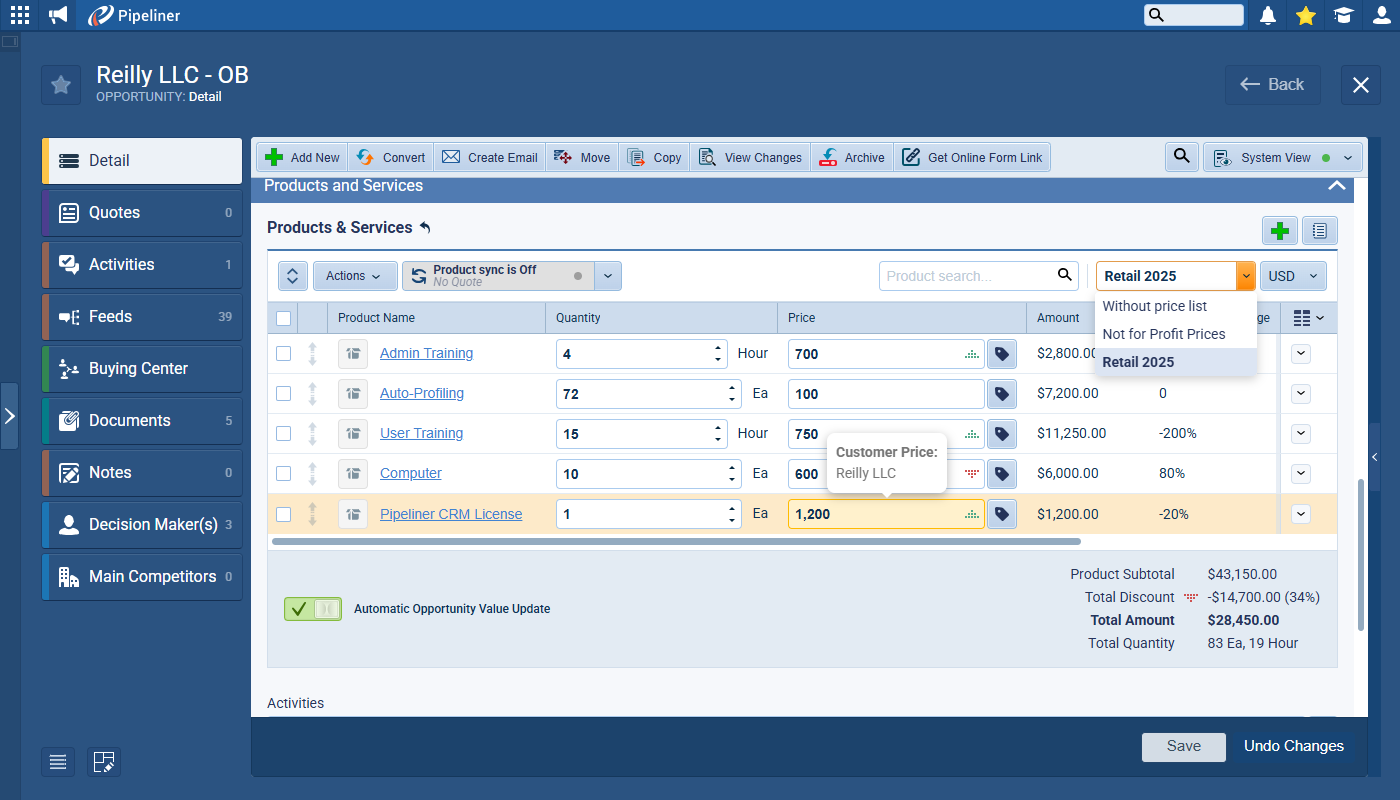
Only Active price lists that satisfy their availability rules are shown in the dropdown. The price list dropdown is has the following sort order:
- Without price list
- Price lists with “Valid From”/”Valid To” (Sorted by “Valid To” closest to Today, then “Valid From” closest to Today).
- Price lists without dates, except “List Price” (Sorted alphabetically).
- List Price (always last).
When creating a new Opportunity or Quote, the first price list after “Without price list” is selected by default. If a user manually selects a different price list, that selection is saved as a User Setting and becomes their default for new records.
If a previously selected price list is no longer available, it is shown in the dropdown, but is unusable. On save, the system checks if the selected Price List is still available per the “Available Price Lists” logic. If not, a validation error will be shown.
Product Price Input & Tooltip
- If the “Pricing Logic” applies an override (Customer Price or Price Schedule), a prefill state indicator is shown.
- Rolling over the price input shows a tooltip explaining the override (e.g., “Customer Price: ACME Company” or “Price Schedule: ABC”).
Pricing Logic
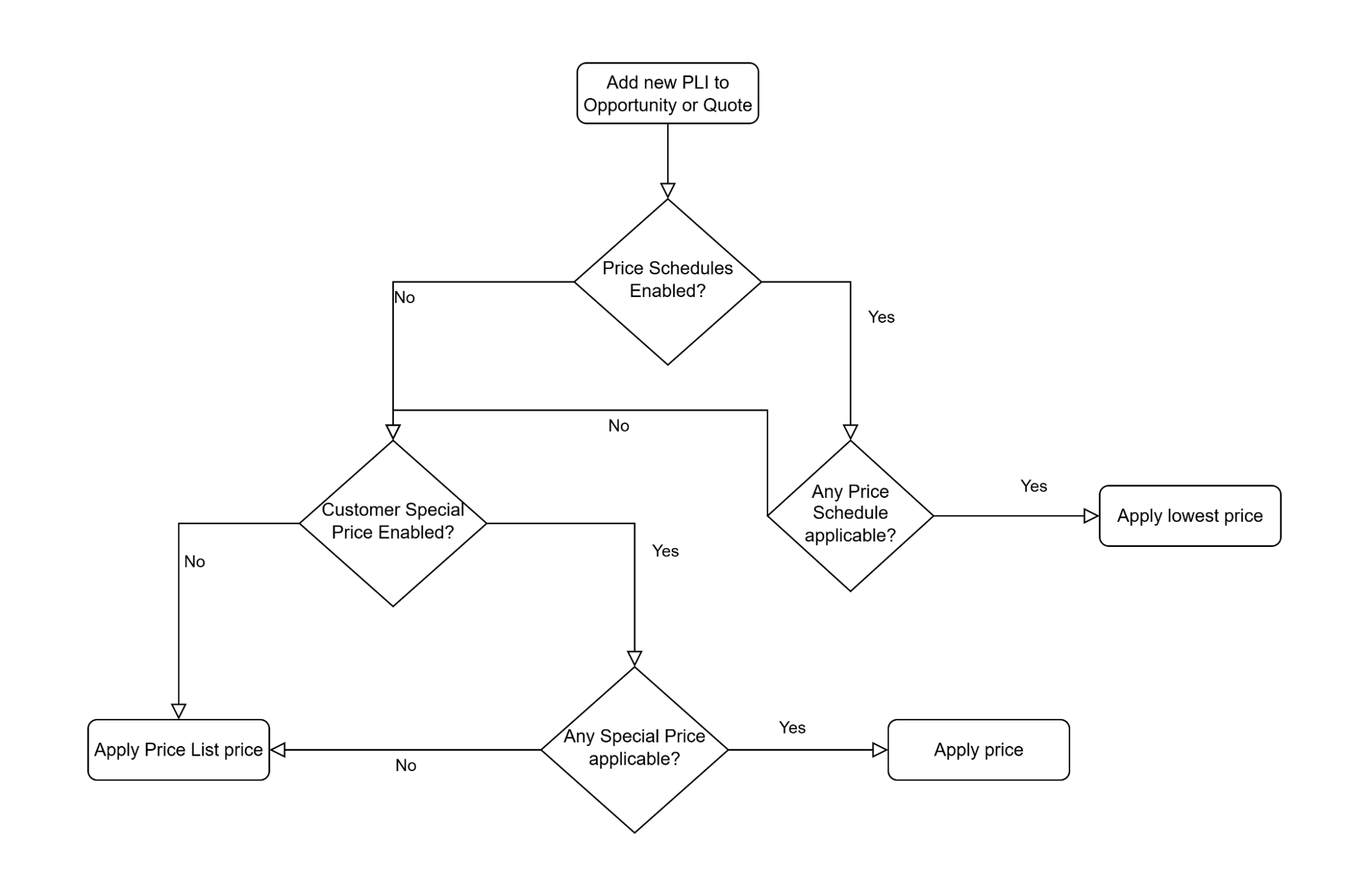
- This logic flow determines the prefilled price when a new Product Line Item (PLI) is added to an Opportunity/Quote.
- Start (Add new PLI).
- Check: “Price Schedules Enabled?”
- If YES: Check: “Any Price Schedule applicable?”
- If YES: Apply “Apply lowest price” (from applicable schedules).
- If NO: Proceed to Customer Price check (Step 3).
- If NO: Proceed to Customer Price check (Step 3).
- If YES: Check: “Any Price Schedule applicable?”
- Check: “Customer Special Price Enabled?”
- If YES: Check: “Any Special Price applicable?”
- If YES: Apply “Apply price” (the special price).
- If NO: Apply “Apply Price List price”.
- If NO: Apply “Apply Price List price”.
- If YES: Check: “Any Special Price applicable?”
Fullsize Screenshots ⤵
SSO Login Improvement
This feature overhauls the mobile login experience by introducing a new “Sign in with QR Code” method. This involves changes to the mobile app’s sign-in flow, the web application’s “User Profile Settings” section, and a new administrative toggle in the Customer Portal.
Mobile App: 3rd-Party SSO Flow (Android)
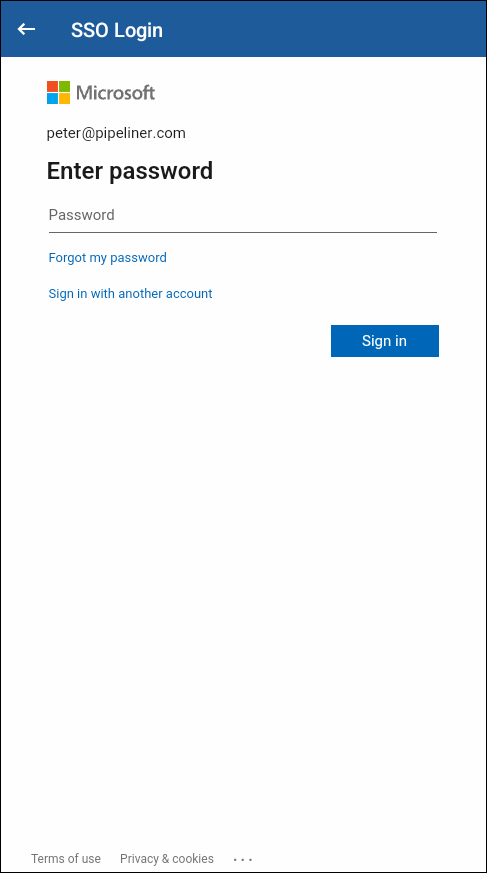
For 3rd-party identity provider (IDP) authentication, the login page will now open in the device’s default system browser instead of an in-app view. This change ensures the URL is visible to the user for security verification.
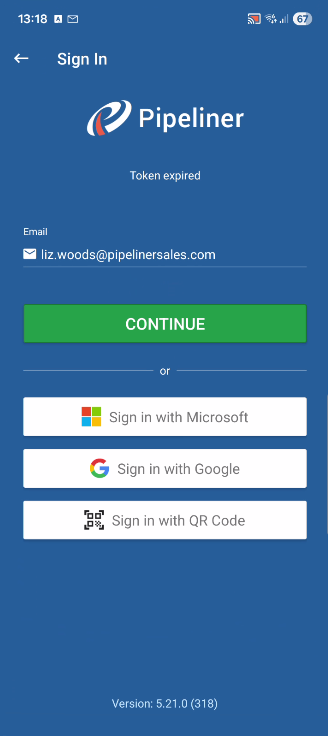
Mobile App: Main Sign-in Screen
A new button has been added to the sign in screen, which navigates the user to the new “Sign In with QR Code” screen.
This screen opens a QR Code Scanner within the app and successfully scanning a valid Pipeliner Sign In QR Code will automatically sign the user into the mobile app.
Note that if a user is a member of spaces under multiple subscriptions, where some have QR Code login enabled and others do not, the user will need to re-verify using a different method when switching between those spaces.
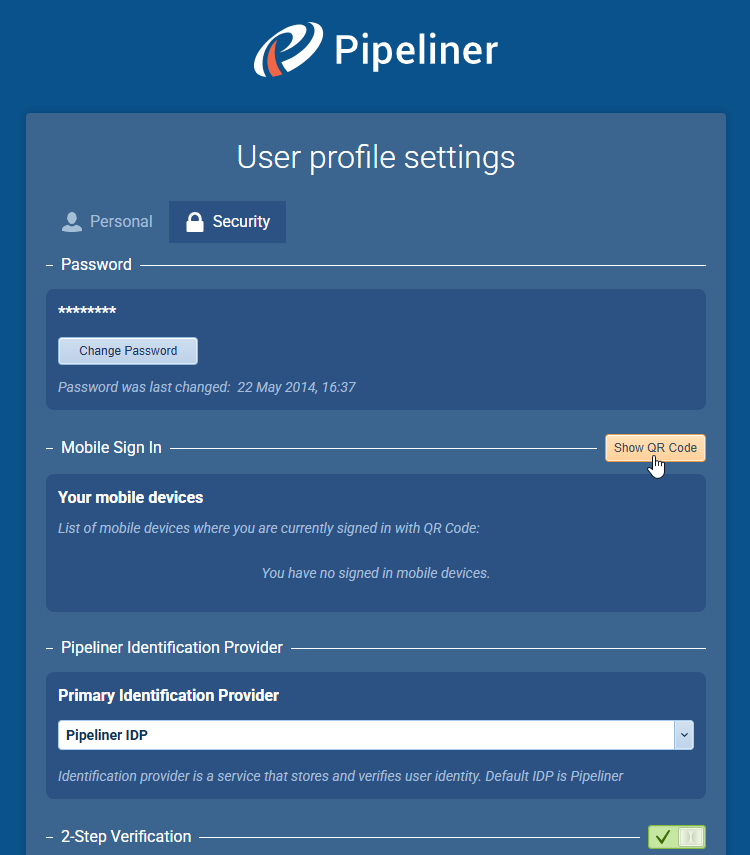
Web App: User Profile › Security Settings
A new section named Mobile Sign In was added under the “Password” section which includes a Show QR Code button which opens the QR Code generation window. This area lists all mobile devices that have logged in to the user’s account using a QR Code. Each logged in device will show
- Mobile OS icon
- Device model name
- Timestamp of the QR code sign-in
Each device in the list will have a Sign out button that will sign the user out of the Pipeliner mobile app on that specific mobile device.
NOTE: If the QR Code login is disabled in Customer Portal, the button will be disabled.
Web App: ‘QR CODE SIGN IN’ Window
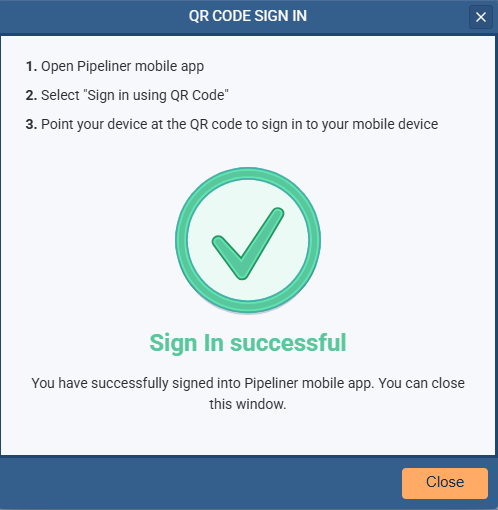
A unique, one-time-use QR code will be generated and displayed for 60 seconds. The user will need to scan this code within the Pipeliner Mobile App to log in on the app.
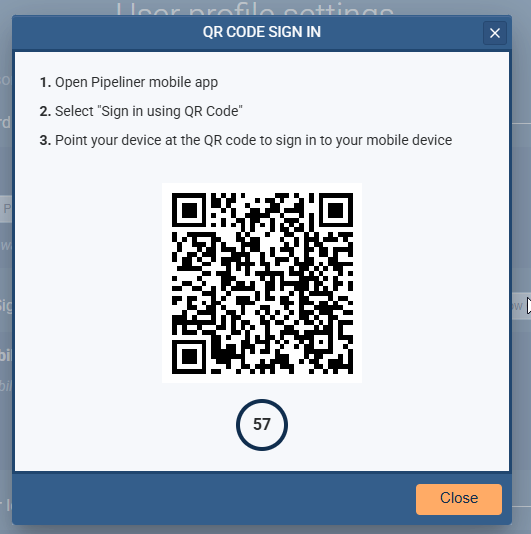
After the QR code is successfully scanned by a mobile device, the QR code image in the window is replaced with a green checkmark icon indicating the log in was successful.
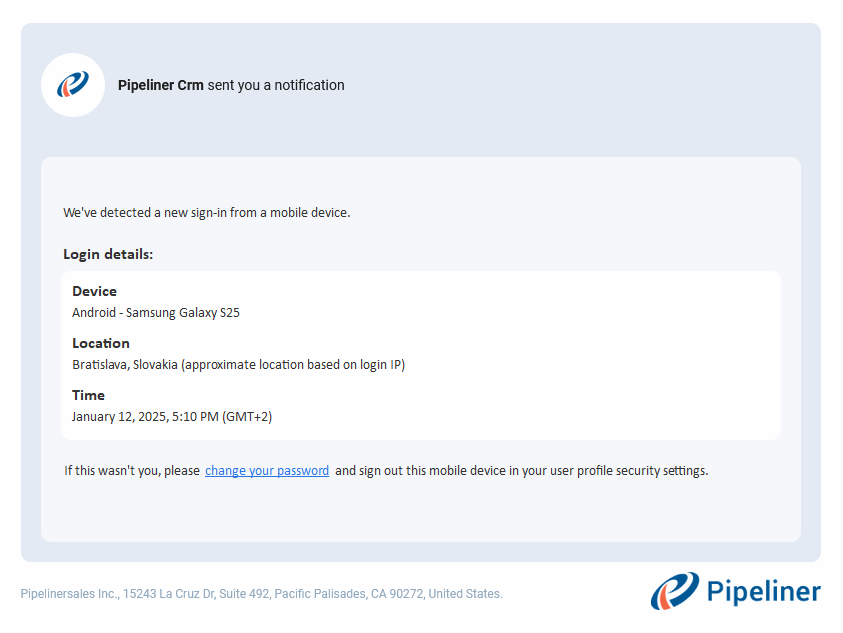
When Pipeliner detects a new sign-in using a QR code, the system will send an email notification to the user.
Customer Portal Admin Settings
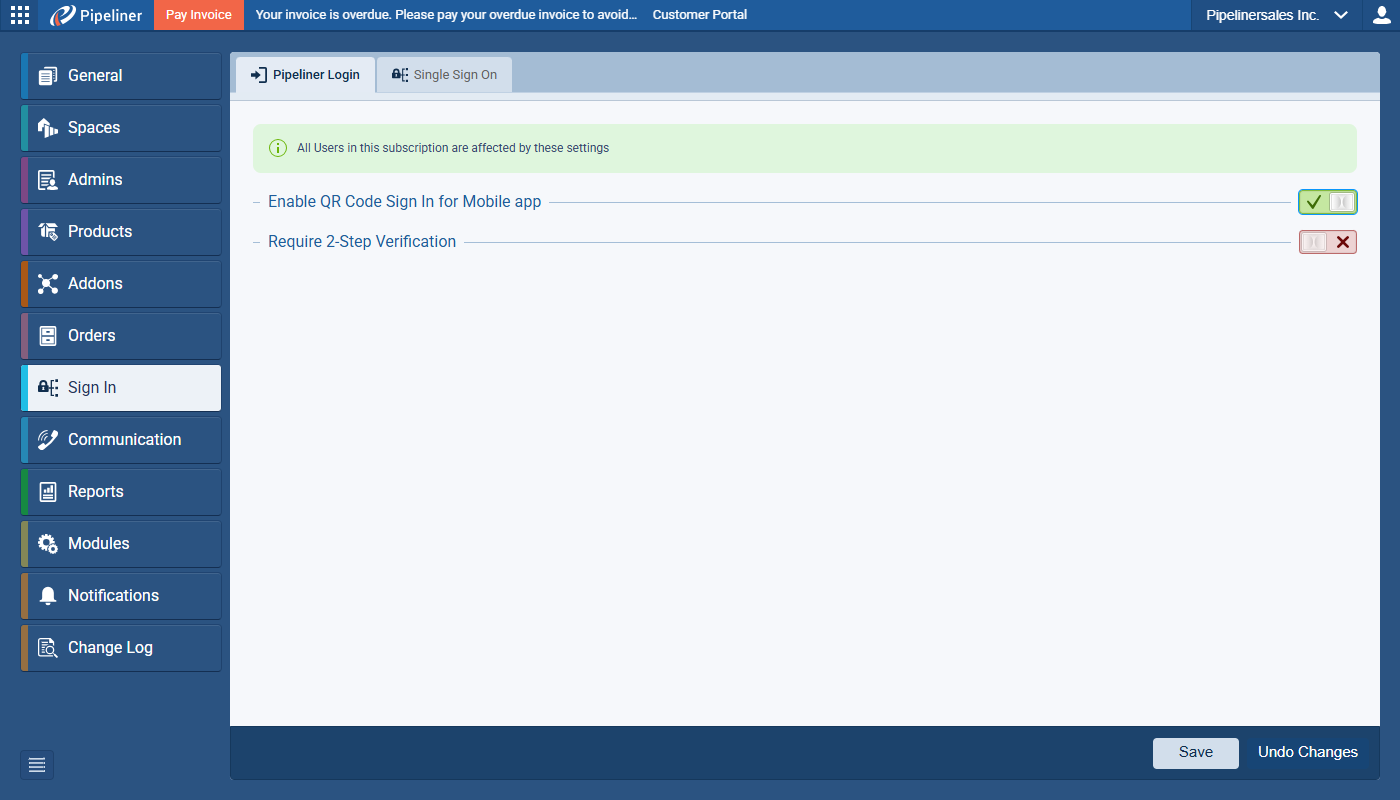
A new setting has been added to the Customer Portal under Sign In › Pipeliner Login to “Enable QR Code Sign In for Mobile app”. When ON: The users can generate new QR Codes in their user profile settings.
NOTE: Turning this toggle OFF will not sign out users who are already logged in via QR Codes but will not allow them to generate new ones.
Various Improvements
As part of our ongoing usability enhancement program, we’ve updated the following features.
Insights — Configurable “value field”
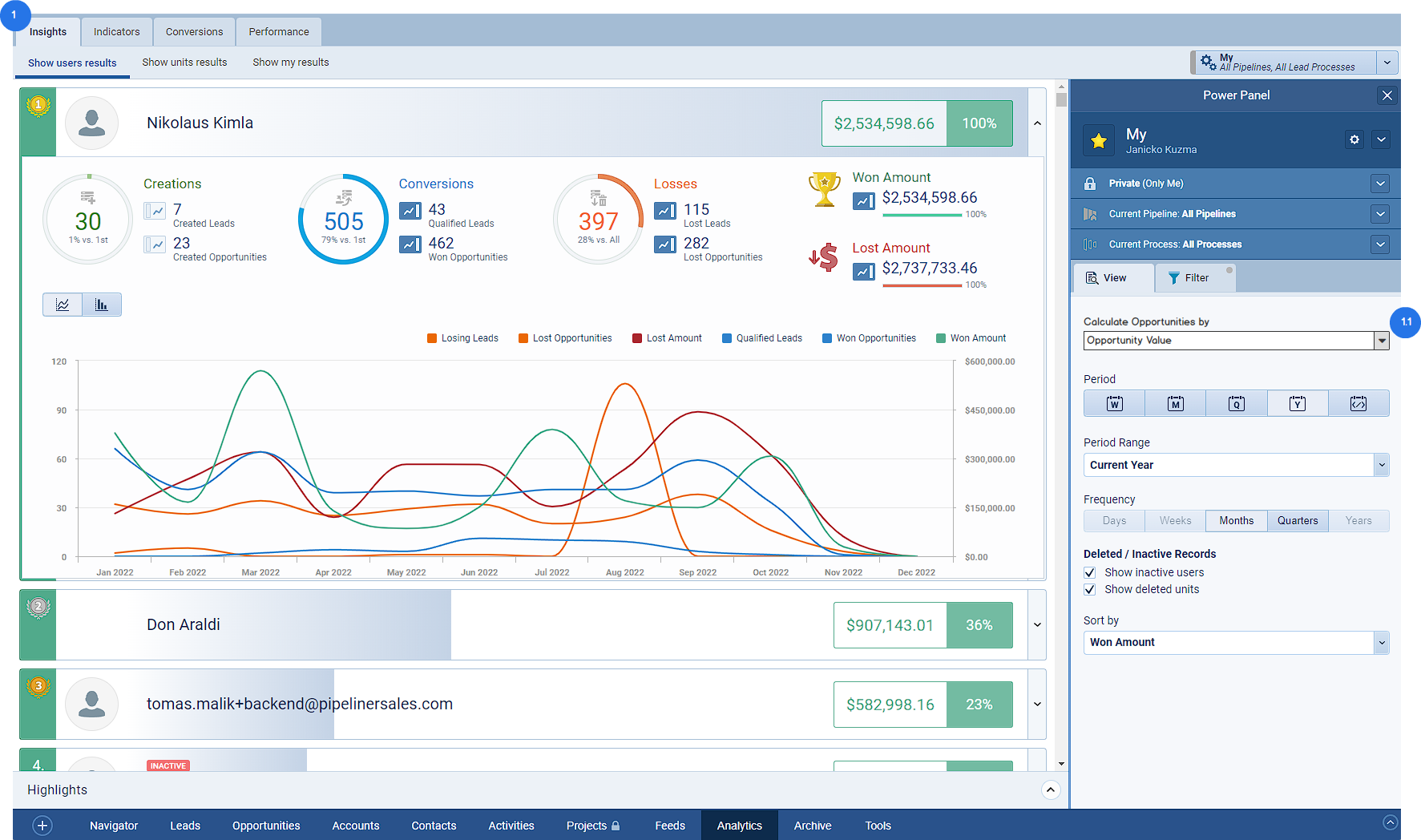
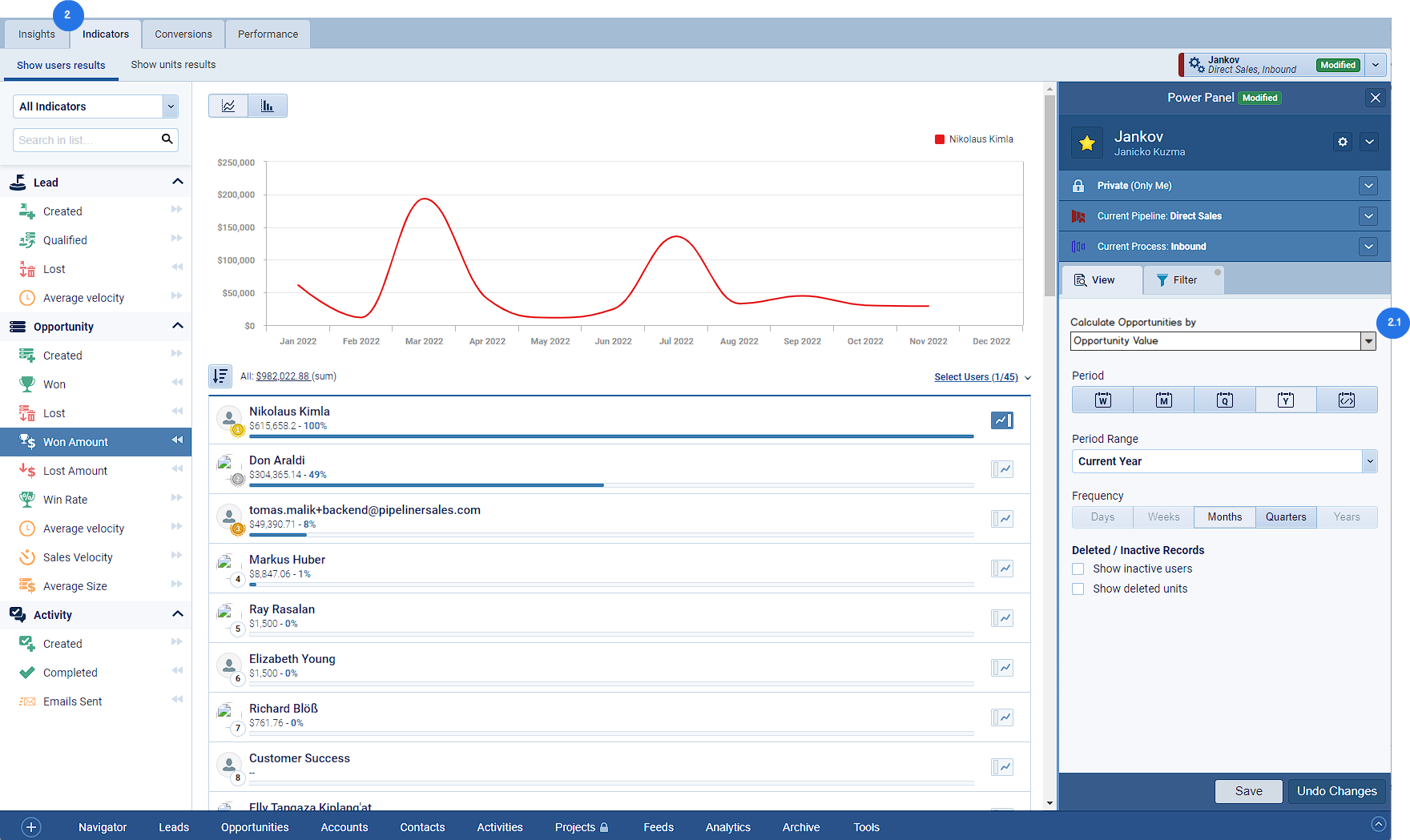
This feature introduces a new configuration option within the Insights “Power Panel“. It allows a user to select which numeric Opportunity field (including custom fields) should be used for all opportunity-related calculations across the Insights, Indicators, and Performance tabs. This replaces the previous hard-coded reliance on “Opportunity Value”.
- A new dropdown selector labeled “Calculate Opportunities by” has been added to the Power Panel view. This setting is available in all three Insights tabs.
- The dropdown list will be populated with all numeric fields from the Opportunity entity, including custom fields.
- The default field for all tabs (for both existing and new profiles) will be “Opportunity Value“.
- This setting is stored within the user’s profile settings.
Impacted Calculations
‘Insights’ Tab
- The selected field will drive the “Won Amount” (Sum and charts).
- The selected field will drive the “Lost Amount“ (Sum and charts).
- The sorting of Insights results will also be updated based on the selected field’s value.
‘Indicators’ Tab
- The selected field will affect the “Won Amount“ (Sum and chart).
- The selected field will affect the “Lost Amount” (Sum and chart).
- The selected field will affect the “Sales Velocity” (Sum and chart).
- The selected field will affect the “Average Size” (Sum and chart).
- The sorting of Users / Sales Units will also be based on this field.
‘Performance’ Tab
- The selected field will drive the “Open Opportunities” sum.
- The selected field will drive the “Lost Opportunities” sum.
- The selected field will drive the “Won Opportunities” sum.
- The selected field will drive the “Avg. Deal Size” sum.
- The “PipelinePipeline Sales pipelineis a visual representation of the stage prospects are in the sales process. overview by step” chart will be updated based on this field.
- The “Pipeliner overview by user” chart will be updated based on this field.
Reports — ability to see all scheduled reports
This feature introduces new administrative rights and a central “Manage Schedules” interface. This allows privileged users (e.g., managers) to view, edit, and delete all scheduled reports across the entire system, rather than being limited to only those they created themselves.
Admin — Roles Configuration Scheduling Rights
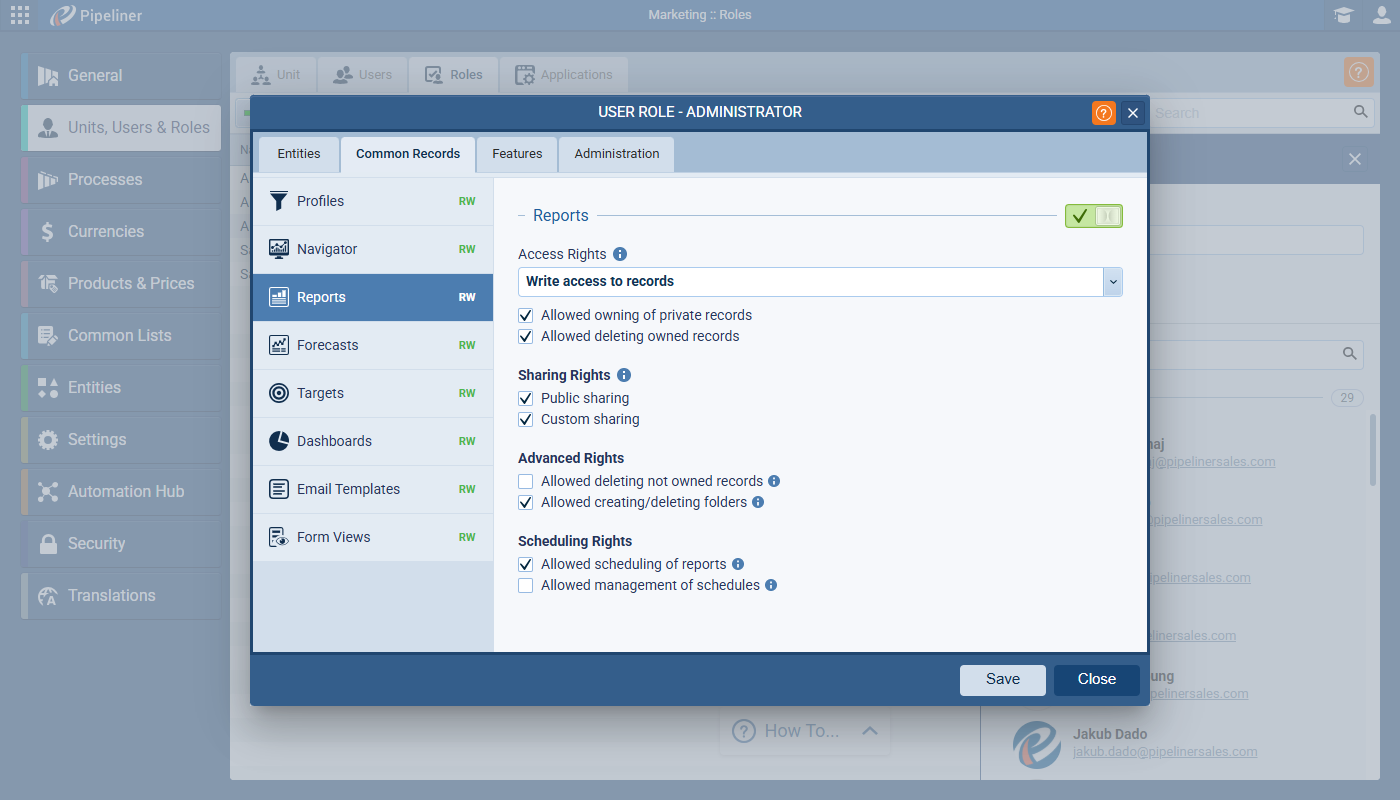
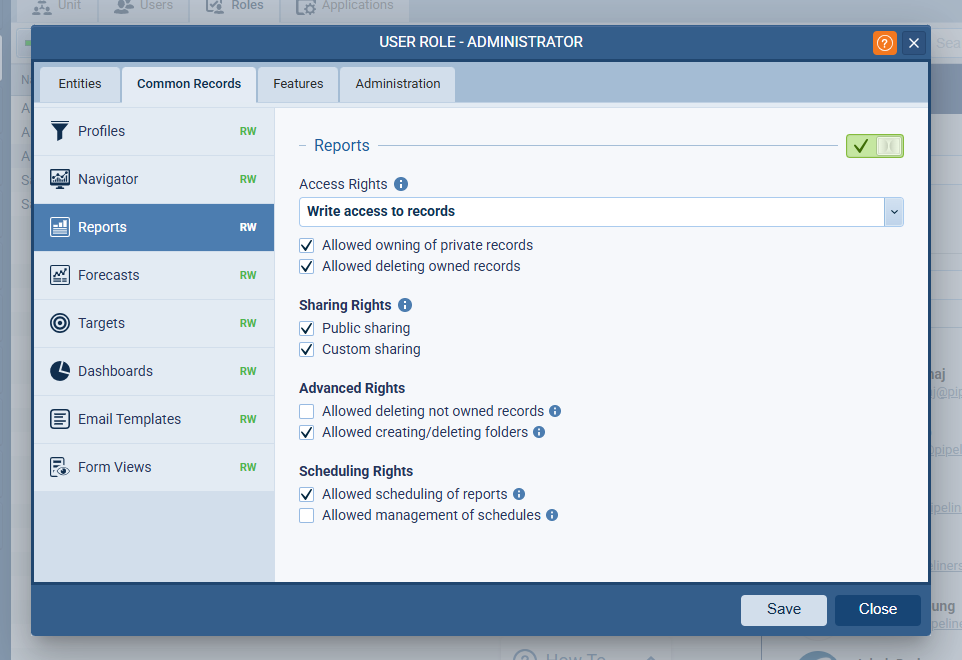
A new right, “Allowed management of schedules,” has been added under Admin › Roles › Features › Reports › Scheduling Rights. This option will be unselected by default in all roles after migration. When enabled, the user can manage schedules for all users.
A new toggle, “Allowed scheduling of reports” has also been added, which is selected by default post-migration. If unselected, the schedule button is hidden, and existing schedules are skipped.
A new right “Allowed owning of private records” has been added for Reports, behaving identically to other main entities.
CRM – Reports Interface
Users with the “Allowed management of schedules” permission will see a new “Manage Schedules” button within the Reports section. When clicked, this button opens a new list view titled “MANAGE REPORT SCHEDULES“.
“Manage Report Schedules” View
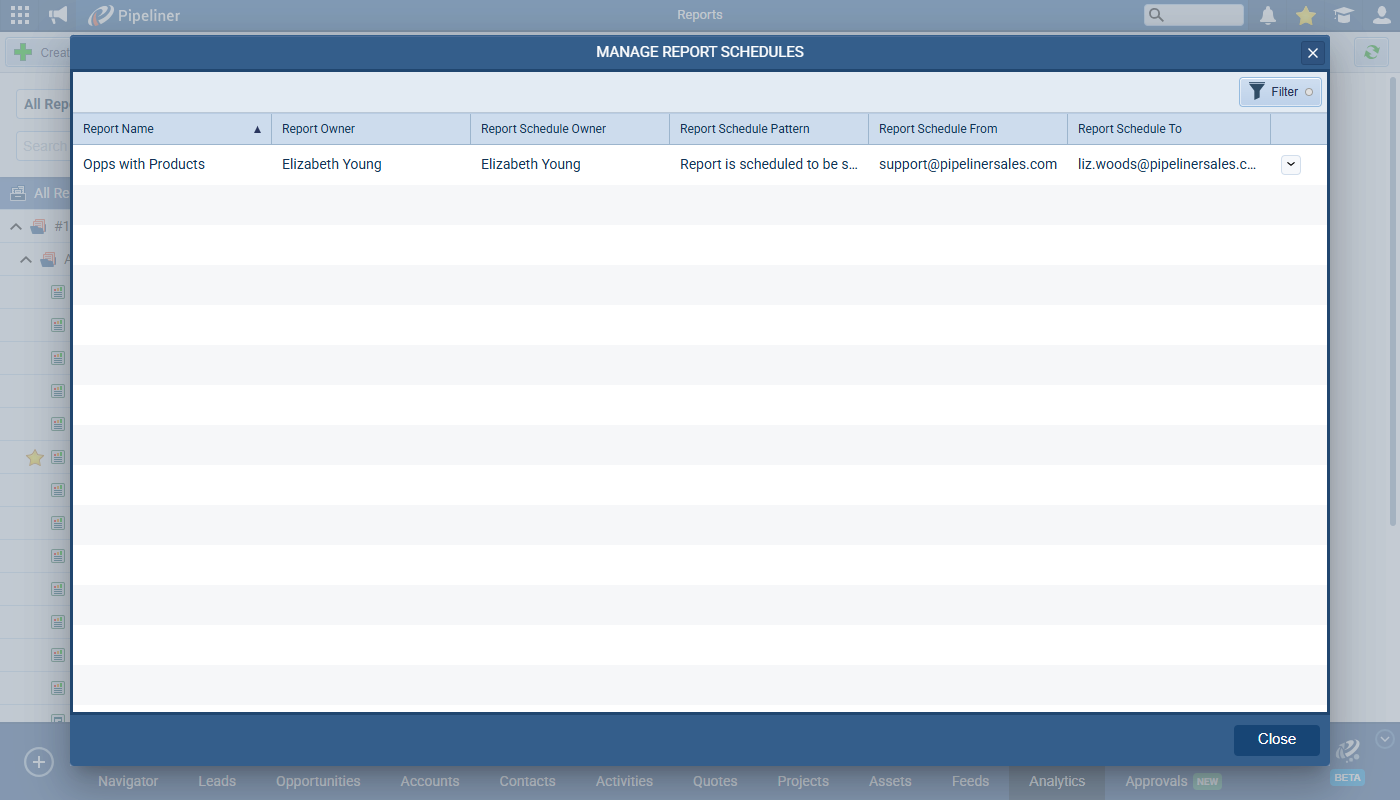
- This view provides “Edit“, “Delete“, and “Change Access” capabilities for all schedules.
- A standard “Owner” filter (All, Me Only, Selected) is included.
- The list view will display the following columns: “Report Name“, “Report Owner“, “Report Schedule Owner“, “Report Schedule Pattern“, “Report Schedule From“, and “Report Schedule To“.
- Permissioning Requirement for API users: A user with this management right must be able to read ReportScheduleEntity.report fields (e.g., name, ownerld) even if they lack read access to the underlying report itself.
Conditional Fields on Forms — Custom Expression
This feature enhances the conditional logic for form fields by adding a “Custom Expression (AND/OR)” option. This allows for the creation of complex conditional rules e.g., (1 OR 2) AND 3.
This new logic can be applied to three field settings:
- “Show Field (using conditions)“
- “Required field“
- “Read-only field“
When “Custom Expression (AND/OR)” is selected, the setup and behavior of this expression input is identical to its implementation in other areas, such as Filters and Automatizer processes
Activities: Filter possible Linked Items based on Criteria
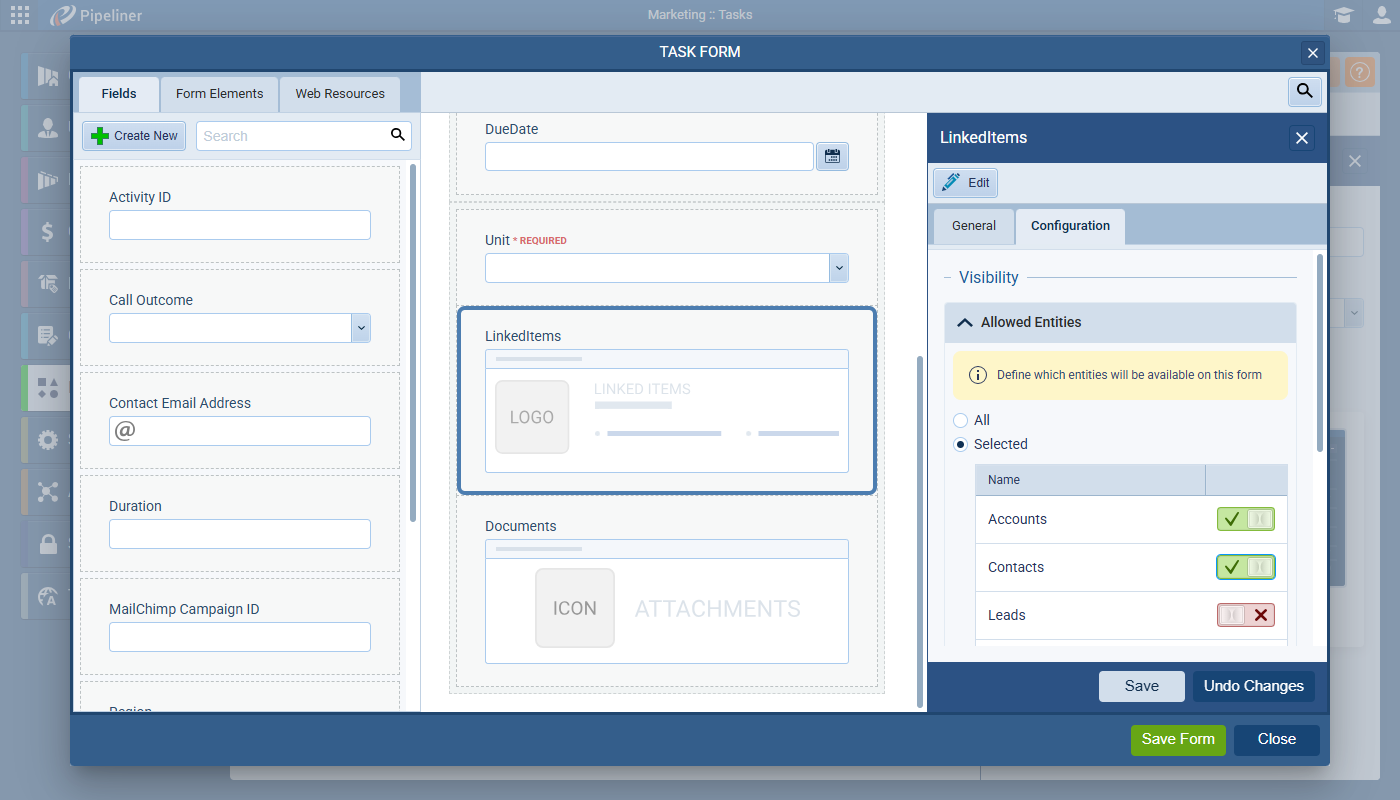
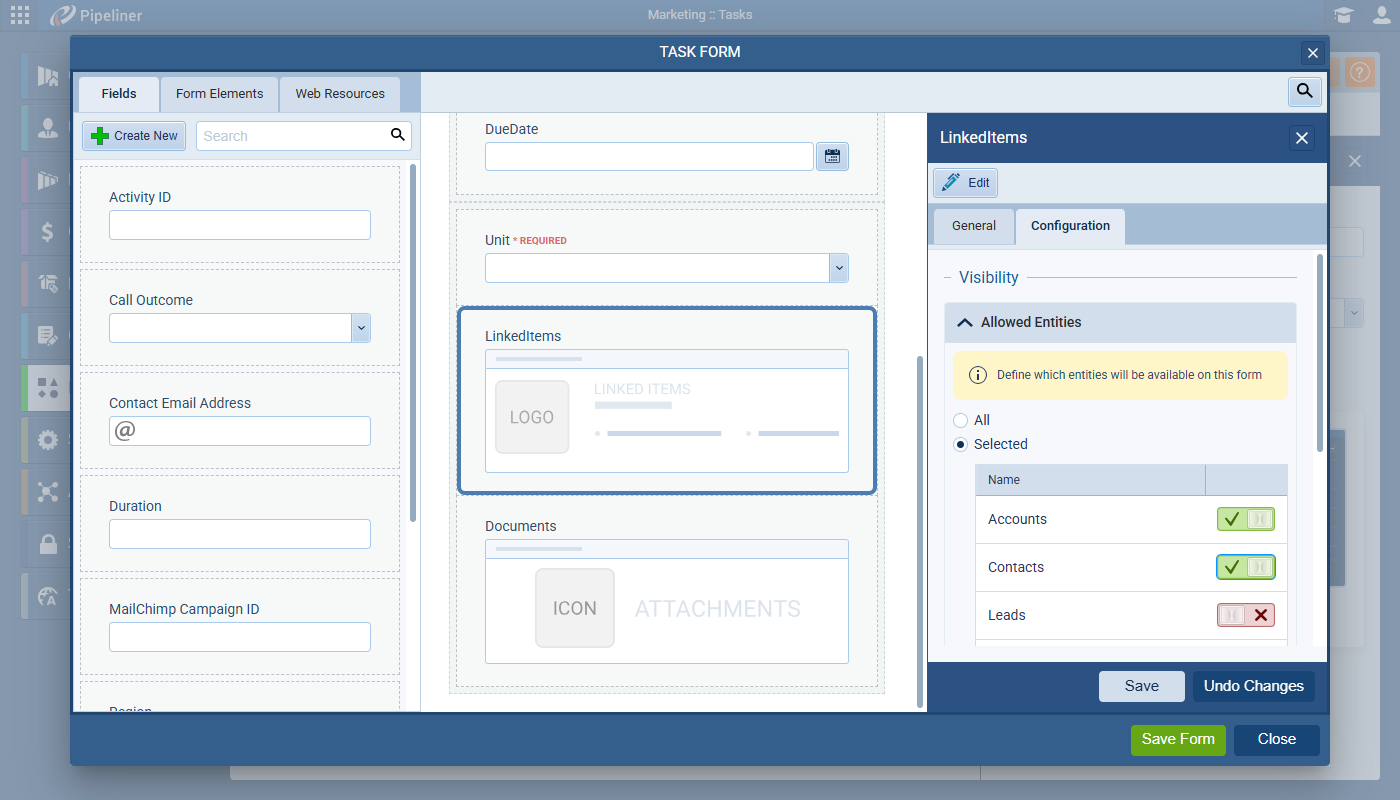
This feature adds a new configuration option to the “Linked Items” field on Activity forms (Tasks & Appointments). Administrators can now define a filter, on a per-form basis, to restrict which entity types users are allowed to link (e.g., “only allow Contacts” on a specific task form).
The setting is configured per form for Tasks & Appointments:
- A new section named “Allowed Entities” is added to the “Configuration” tab of the “Linked Items” field settings.
- This section includes an info text: “Define which entities will be available on this activity form“.
- Two options are provided:
- All: (Default) All existing entities are available to be linked.
- Selected: The admin can use a checklist to specify which entities (e.g., Accounts, Contacts, Leads, Opportunities) are available for linking on this specific form.
This setting directly impacts the record selector component. In the “Add Existing” modal window, the left-hand navigation list of entities will be filtered to only show the allowed entities. If a user switches between Activity types (which use different forms), the filtering on the “Linked Items” field will update dynamically.
Exception: Records that are already linked to the activity will be retained and displayed, even if their entity type is subsequently disallowed by a change in the form’s configuration.
Email Detail Improvement — Better Navigation & Overview
This feature redesigns the Email Detail view to improve usability and navigation within long email threads. The current implementation (oldest email at top, last three at bottom, the rest hidden) is replaced by a new two-pane layout. This new layout features a persistent list of all emails in the thread on the left, with the selected email’s body rendered in a detail pane on the right.
New Two-Pane Layout
- The view is split into a left-hand list pane and a right-hand detail pane.
- The left pane contains a scrollable list of all emails in the thread.
- The right pane displays the detail of the selected email.
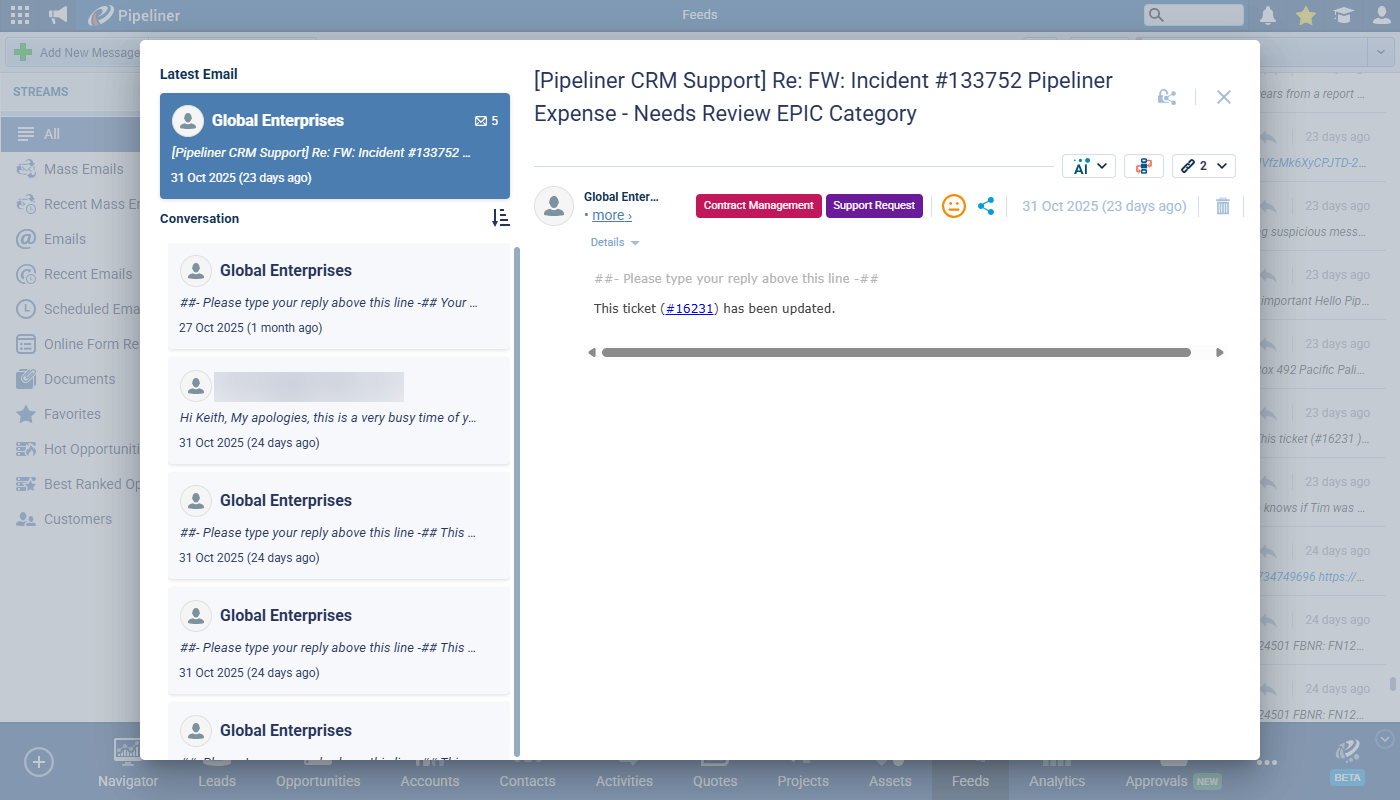
Email List (Left Pane)
The list will feature ASC/DESC sorting controls. The default sort order is ASC.
“Latest Email” Item:
- A special, static item labeled “Latest Email” is always positioned at the top of the list.
- This item acts as a reference. When clicked, it always displays the detail of the most recent email in the thread.
- It is preselected by default when the Email Detail view is opened.
- It displays: sender + pic, subject (with ellipsis), email timestamp, the total number of emails in the thread, and an attachment icon (if present).
“Conversation” Items:
- All individual emails are listed below the “Latest Email” item, under a “Conversation” header.
- Visual elements like tags and sentiment are removed from this list view for a cleaner look.
Individual Email Item:
- Each item in the conversation list displays: Sender + pic, a snippet of the email body (with ellipsis), the email’s timestamp, and an attachment icon (if present).
- Clicking any of these items loads its full body into the right-hand detail pane.
Opportunity/Quote — New Fields
This feature introduces a set of new system rollup/virtual fields to both Quotes and Opportunities. This is to satisfy the business requirement of having distinct “Total amount” (pre-discountDiscount Discount means a promotional reduction in the cost of a product or service, commonly deployed to speed up sales.) and “Total discount” values. These new fields will be available in both base and local currencies and will be accessible in personalization, filters, and document templates.
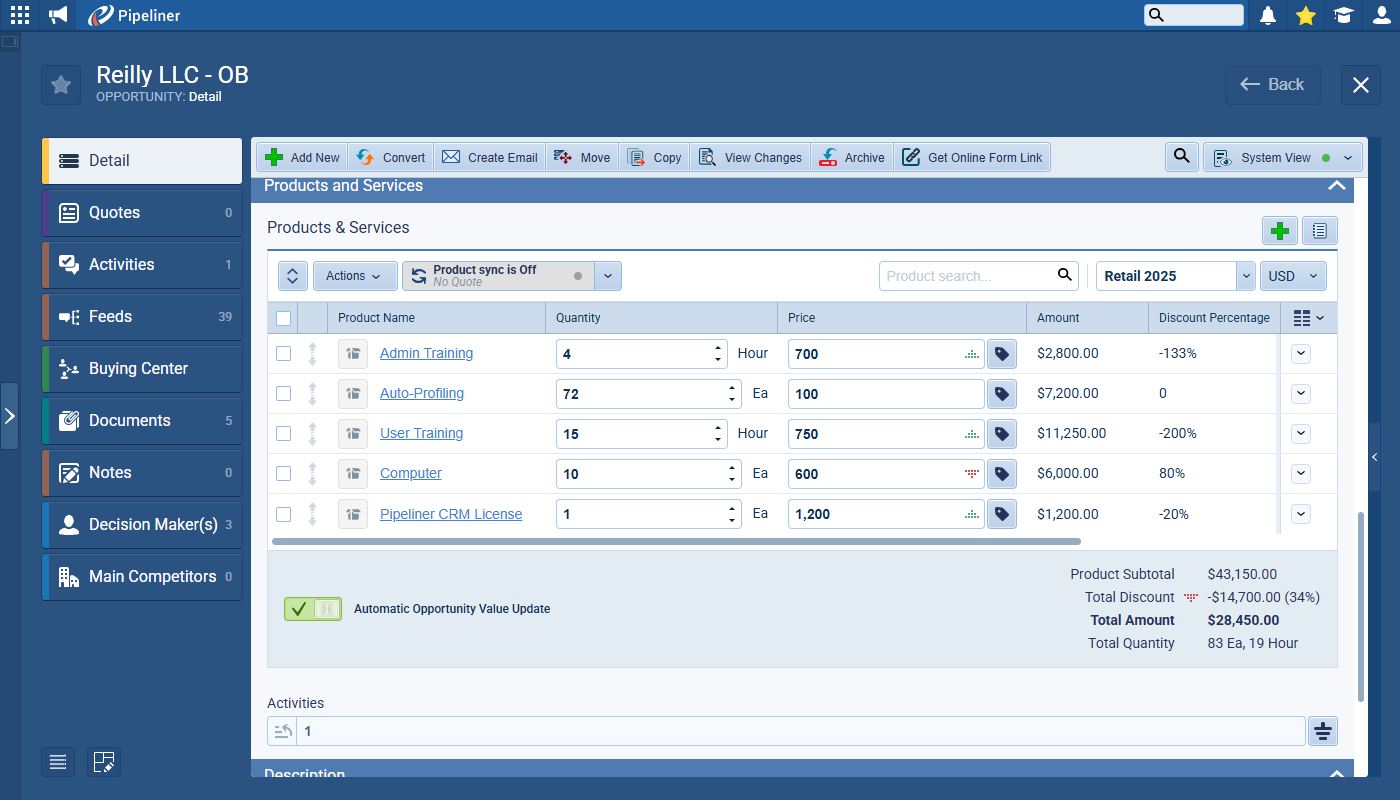
New Fields (Base Currency)
- “Product Subtotal”
- Purpose: Total amount before discounts/increases.
- Calculation: Sum of all product amounts (without discounts/increases).
- Currency: Base (default).
- “Product Total Discount”
- Purpose: Total value of all discounts/increases.
- Calculation: Sum of all discounts & increases from all products.
- Value: Can be negative or positive.
- Currency: Base (default).
- “Product Total Discount (%)”
- Purpose: Total discount/increase as a percentage.
- Value: Can be negative or positive.
In List Views: “Product Subtotal,” “Product Total Discount,” and “Product Total Amount” behave as multi-currency fields, respecting the user’s currency settings.
In the Products & Services footer, a new “Subtotal” field will be added to the footer summary above the “Total discount” field which will use the currency selected on the record.
The Total Discount calculation in the footer is fixed. It is based on “price * quantity”
These new fields are available in Google and Office Add-ins to support their use in document templates.
Editable Recurring appointments
This feature changes the behavior of recurring appointments, particularly those synced from Google/O365, to allow editing of non-synced fields (like custom attributes). Previously, these appointments were read-only. This new editability applies to master appointments, physical occurrences, and virtual occurrences.
Read-only fields are common fields between Calendar integration and Pipeliner, examples are Subject, Date, Location, and Description. Any other field that is not synced, can now be edited.
IMPORTANT: Changes made to the editable recurring appointments are stored only in Pipeliner (sync is only one–way: Google/O365 › Pipeliner).
NOTE: Recurring appointments are not editable in the Mobile app.
Count Number Of Remaining Characters — Automatizer Agent Feedback
Based on user feedback for AI features, this task implements a dynamic character counter for all AI-related input prompts. The counter will change its text and color to reflect four distinct states: Default (Max), Remaining, Warning (Last 100), and Error (Over Limit).
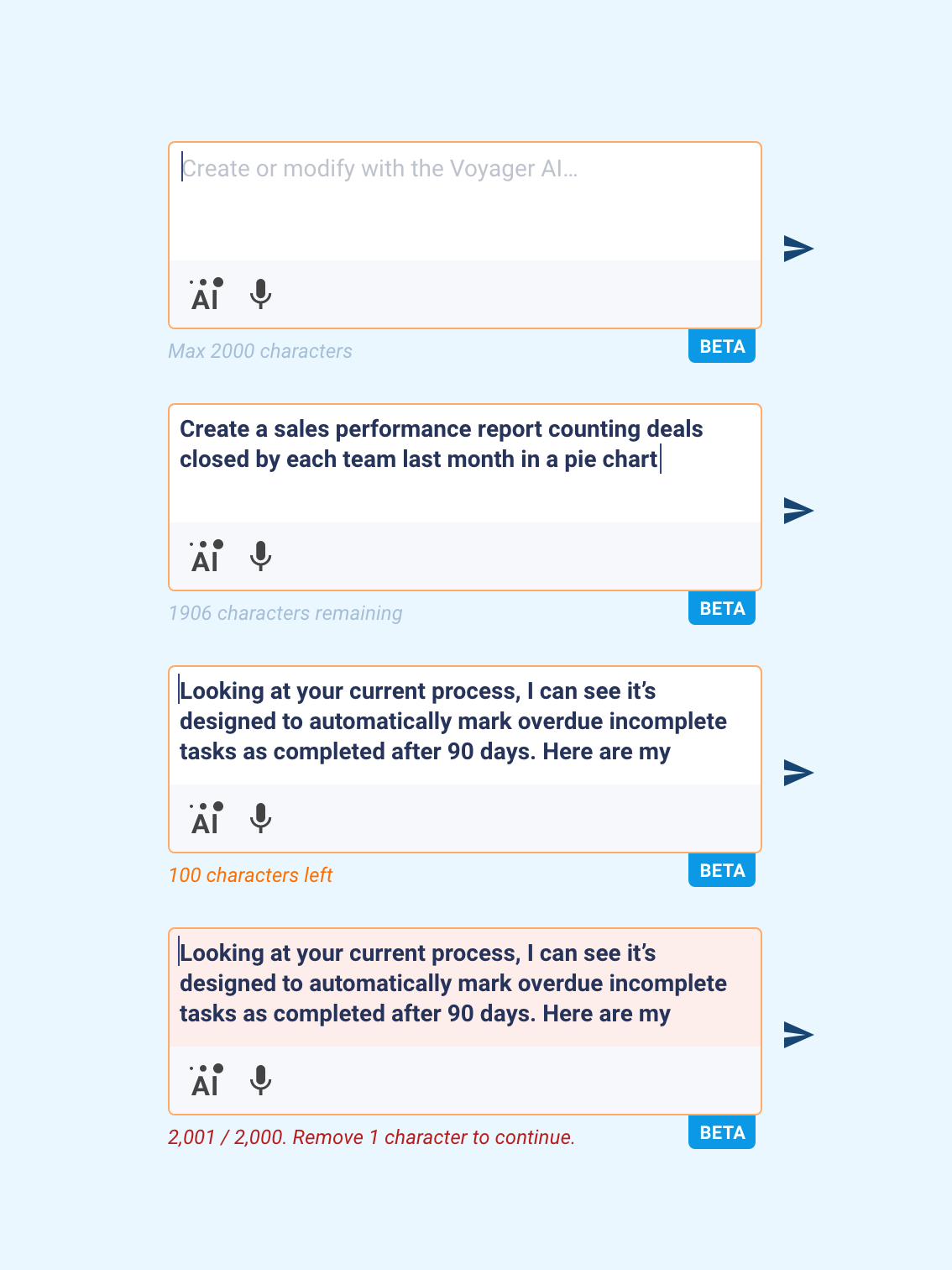
- Default State:
- When: The input is empty.
- Text: “Max [MaxNumberOfCharacters] characters” (e.g., “Max 2000 characters”).
- Remaining State:
- When: User is typing, and more than 100 characters remain.
- Text: “[CurrentNumberOfCharacters] characters remaining” (e.g., “1906 characters remaining”).
- Warning State:
- When: 100 characters or fewer remain (from 100 down to 1).
- Text Color: Orange
- Text: “[CurrentNumberOfCharacters] characters left” (e.g., “100 characters left”).
- Error State:
- When: Character limit is exceeded.
- Text Color: red.
- Text: “[CurrentNumberOfCharacters] / [MaxNumberOfCharacters]. Remove [NumberOverLimitCharacters] characters to continue” (e.g., “2,001 / 2,000. Remove 1 character to continue.”).
Fullsize Screenshots ⤵