

Outlook Add-in Improvements
This release introduces significant enhancements to the Outlook Add-in, focusing on improved integration between Outlook events and Pipeliner records. Key updates include the ability to create records directly from calendar events with context-aware field mapping, expanded support for Lookup and Address fields, and improved document management capabilities. Additionally, the update streamlines the userUser User means a person who uses or consumes a product or a service, usually a digital device or an online service. interface by allowing the exclusion of archived records from searches and automating the linking of primary accounts during LeadLead Lead refers to a prospect or potential customer (who can be an individual or organization) that exhibits interest in your service or product; or any additional information about such entity./Opportunity creation.
Event Record Creation (Organizer View)
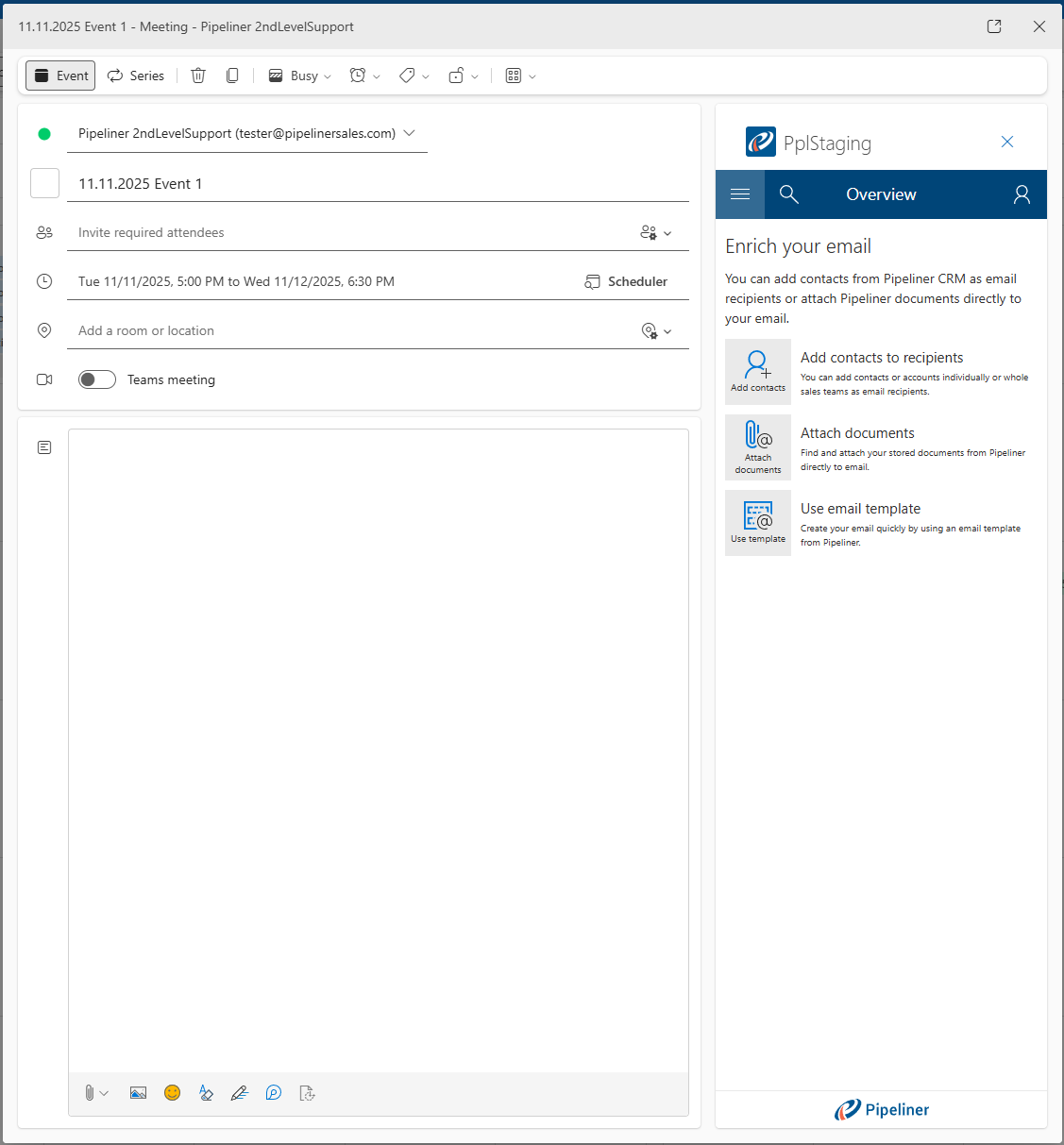
A new section titled “Create Record” has been added to the Add-in interface specifically when the user is the Organizer of an event which provides direct access to create new Pipeliner entities based on the current event context.
Users can:
- Create Lead: Predefines fields based on event dataData Data is a set of quantitative and qualitative facts that can be used as reference or inputs for computations, analyses, descriptions, predictions, reasoning and planning..
- Create Opportunity: Predefines fields based on event data.
- Create AccountAccount Account refers to a record of primary and background information about an individual or corporate customer, including contact data, preferred services, and transactions with your company.: Predefines fields based on event data.
- Create Contact: Predefines fields based on event data.
- Create activity: Creates a new activity linked to the event.
We’ve made some changes to the terminology used within the Add-in interface:
- All occurrences of “email” are replaced with “event” except for “email templateTemplate Template is a generic file with a framework showing the standard sections or features of a specific kind of document, used to create a new document of the same type faster and easier.”.
- All occurrences of “recipient” are replaced with “attendees”.
Field Configuration & Visibility Enhancements
Admin Configuration
- We’ve added support for Lookup fields in the Configuration › Visibility section with a new toggle option: Available in Outlook add-in.
- Address Fields Automation: The following fields on Account and Contact entities automatically have FormField.inAddin = true set by default:
- Street address
- City
- Country
- State/Province
- ZIP Code
Lookup Fields Implementation in the Outlook Add-in
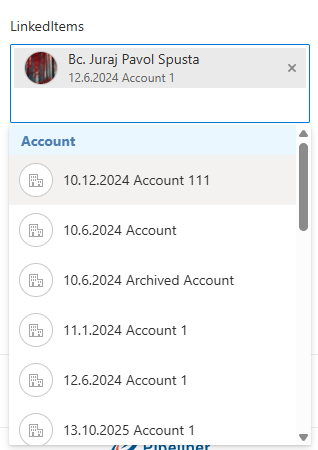
Lookup fields are now available in the Outlook Add-in with the same as for the “Linked Items” component found in Tasks and Appointments in Pipeliner. Users can search for and select related records (e.g. Accounts) directly within the form. ⤵
Owner Field Availability
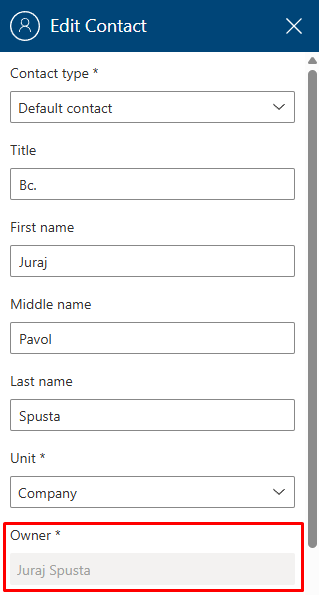
The Owner field is now enabled and editable for Lead, Account, Contact, Opportunity during record editing in the Add-in. ⤵
Sales Step Dropdown
When Creating or Editing an Opportunity, the Sales Step dropdown menu has been added to the form and will populate with all available steps corresponding to the selected PipelinePipeline Sales pipelineis a visual representation of the stage prospects are in the sales process.. It automatically defaults to the 1st step of the pipeline.
Document Management Integration
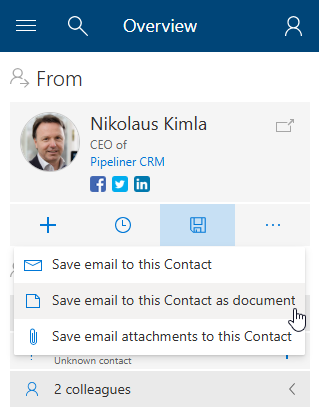
The “Save Email as document” option is visible only if Document Management is active. ⤵
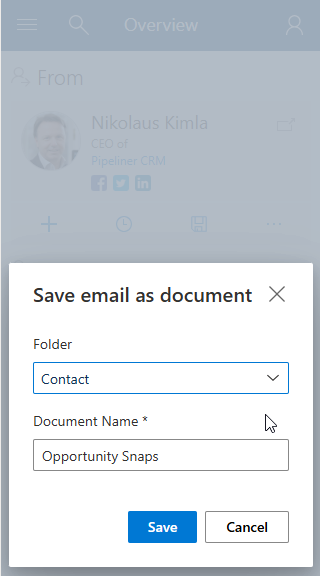
“Select a folder” selector has been added immediately above the Document Name input field. The root folder for the entity is selected by default. ⤵
Automatic Data Population
When creating a new Lead or Opportunity from an existing Contact record, if the source Contact has a Primary Account linked, that Account will be automatically populated in the Primary Account name field of the new Lead/Opportunity form.
Archived Record Management when Searching
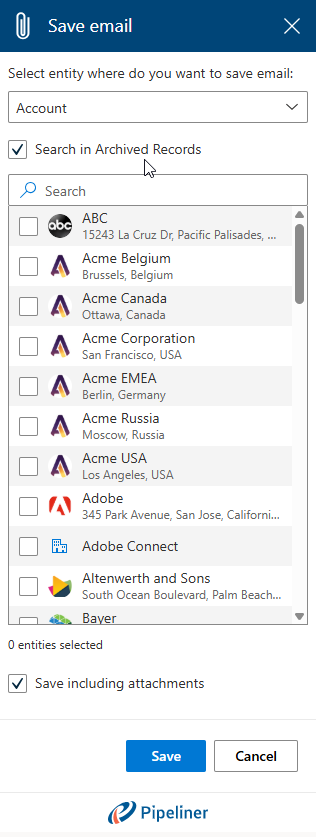
When using the “Save email” or “Save email as document” options, there is now a checkbox labeled “Search in Archived Records” added below the entity search bar. This option is unchecked by default (Search excludes archived records by default).
- When Unchecked: Search results exclude archived records for Account, Contact, Lead, and Opportunity.
- When Checked: Search results include archived records.
The setting is “sticky” per entity for the logged-in user. ⤵
Fullsize Screenshots ⤵
Advanced Sign In Security Settings
This feature implements enhanced security controls within the Pipeliner Login tab for Subscription Administrators. It introduces functionality to restrict access to Pipeliner applications based on IP addresses (Whitelisting), enforce stricter Auto Logout policies (Idle, Absolute, and Daily timeouts), and mandate 2-Step Verification for all users in a subscription. These settings apply to both the web application and mobile clients.
A new section titled Advanced Setting has been added to the Pipeliner Login tab. This section contains four primary configuration areas: Auto Logout, Require 2-step verification, IP Whitelist, and Exempt Users. ⤵
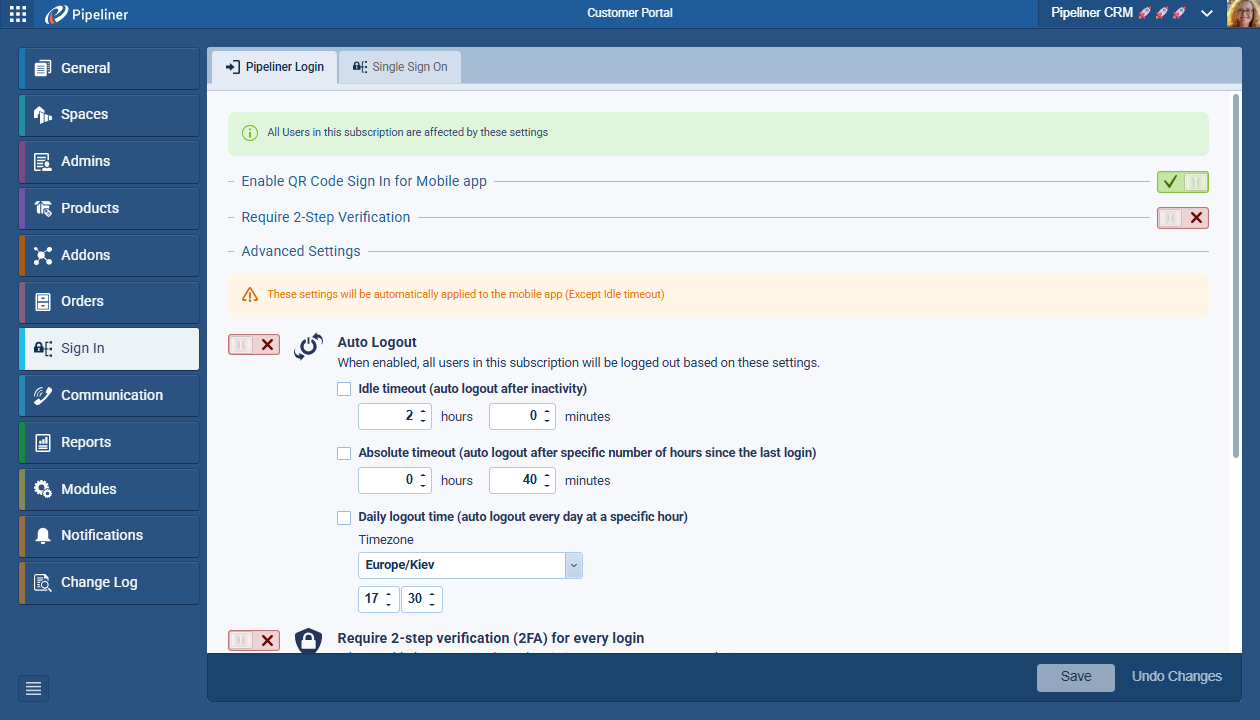
Auto Logout Configuration
- Idle timeout: Checkbox option to log out users after a specific period of inactivity (browser closed/no backend requests).
- Input: Hours and Minutes.
- Default value: 30 minutes.
- Default state: Unchecked.
- Absolute timeout: Checkbox option to log out users automatically after a set duration since their last login.
- Input: Hours and Minutes.
- Default value: 8 hours.
- Default state: Unchecked.
- Daily logout time: Checkbox option to log out users at a specific time of day.
- Input: Time picker (HH:MM).
- Default value: 18:00.
- Default state: Unchecked.
Require 2-step verification (2FA)
- A global toggle setting: “Require 2-step verification (2FA) for every login.“
- When enabled, all users in all spaces within the subscription are forced to use 2FA on every login.
- Default state: Disabled.
IP Whitelist Configuration
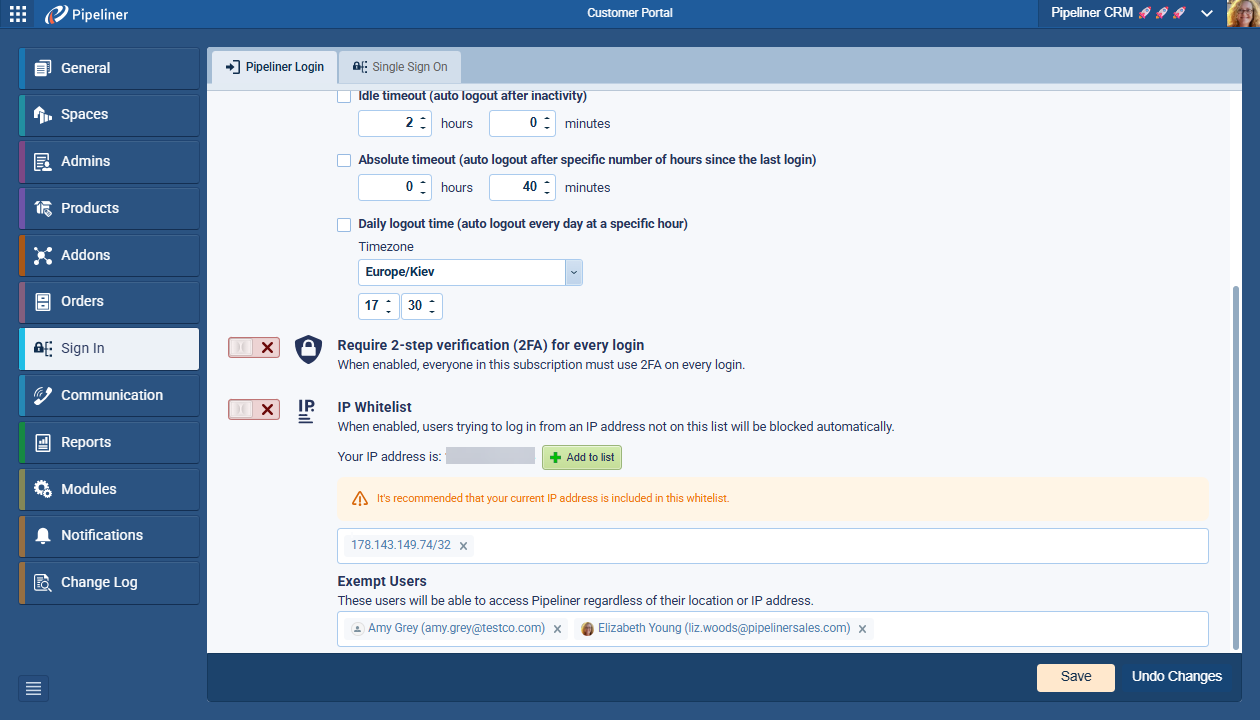
- When enabled, all users of all spaces within the subscription can only log in from IP addresses or ranges defined in the list.
- IPs must be provided in CIDR format (e.g., 192.168.1.1/32 or 192.168.1.1/24).
- Supports both IPv4 and IPv6.
- Single IP addresses entered without a suffix are automatically converted to CIDR /32 format.
- UI Components:
- Search component with chips (similar to the “To” field in Email Editor).
- Display of current user’s IP: “Your IP address: [IP_ADDRESS]”.
- “Add to list” button to quickly whitelist the current IP.
- Validation Logic:
- Self-Lockout Prevention: To save the settings, the administrator’s current IP address must be included in the whitelist. A validation error “To save this setting, your current IP address must be included in this whitelist” is displayed if missing.
- Format validation: “One or more IP addresses are in the wrong format“.
Access Rules & Logic
- Implicit Whitelists (Not Restricted):
- “Our users” (internal Pipeliner users, except registered ones).
- All Integrations.
- All AI tools, agents, and lambdas.
- Restricted Entities:
- API Applications (custom API accesses).
- Standard Users.
- File URLs must also respect these rules.
Exempt Users
- Functionality: Allows specific users to bypass location or IP address restrictions.
- Component: Uses the standard user search component (same as Email Editor).
- Deleted Users: Must be highlighted with a suffix in the list.
Mobile Support
The mobile application fully supports the new advanced settings to maintain feature parity and security compliance. ⤵
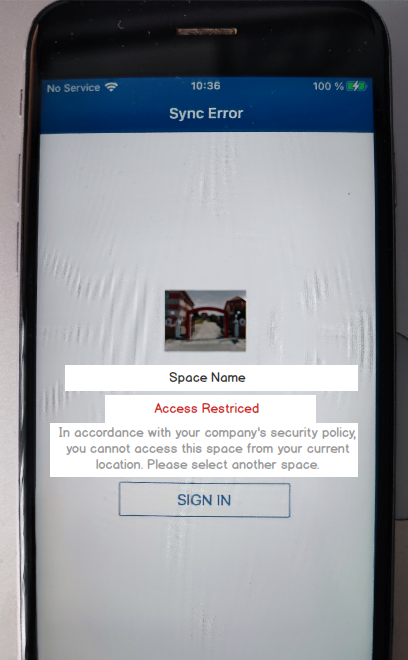
Mobile Error Codes:
- Access Restricted: Error Code 421.
- Signed out (System default): Error Code 401.
- Signed out (Forced/Policy): Error Code 425.
Fullsize Screenshots ⤵
Various Improvements
As part of our ongoing usability enhancement program, we’ve updated the following features.
Audit: View Changes on ProductProduct Product refers to anything (an idea, item, service, process or information) that meets a need or a desire and is offered to a market, usually but not always at a price. Line Items
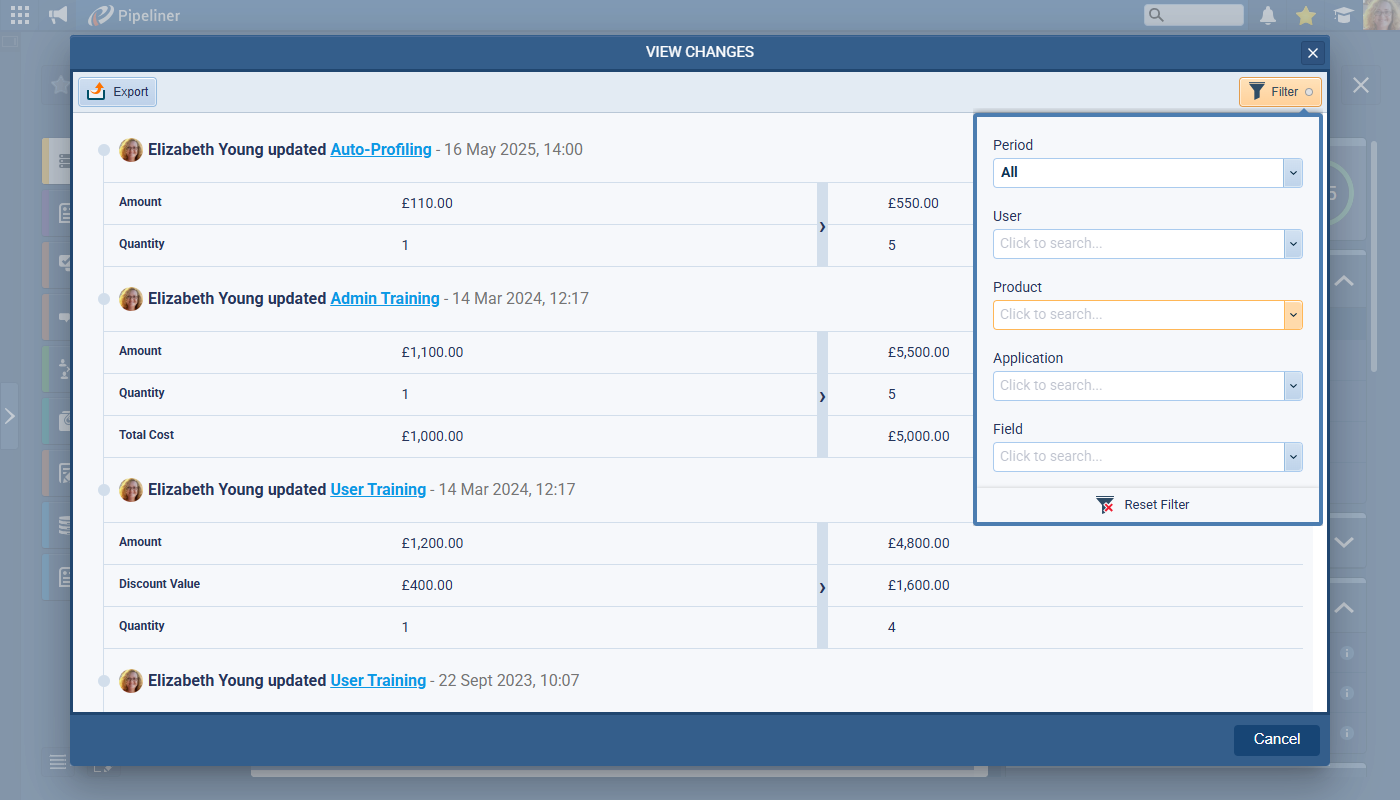
A new auditing capability has been added to the Products section, allowing users to track the history of changes (additions, updates, removals) made to Product Line Items (PLI). A new action button View Changes is available in the Products section toolbar. If specific products are selected, the view shows changes only for those PLI records. If no products are selected, it may show a broader context or require selection (as implied by “show changes only for these PLI records”). ⤵
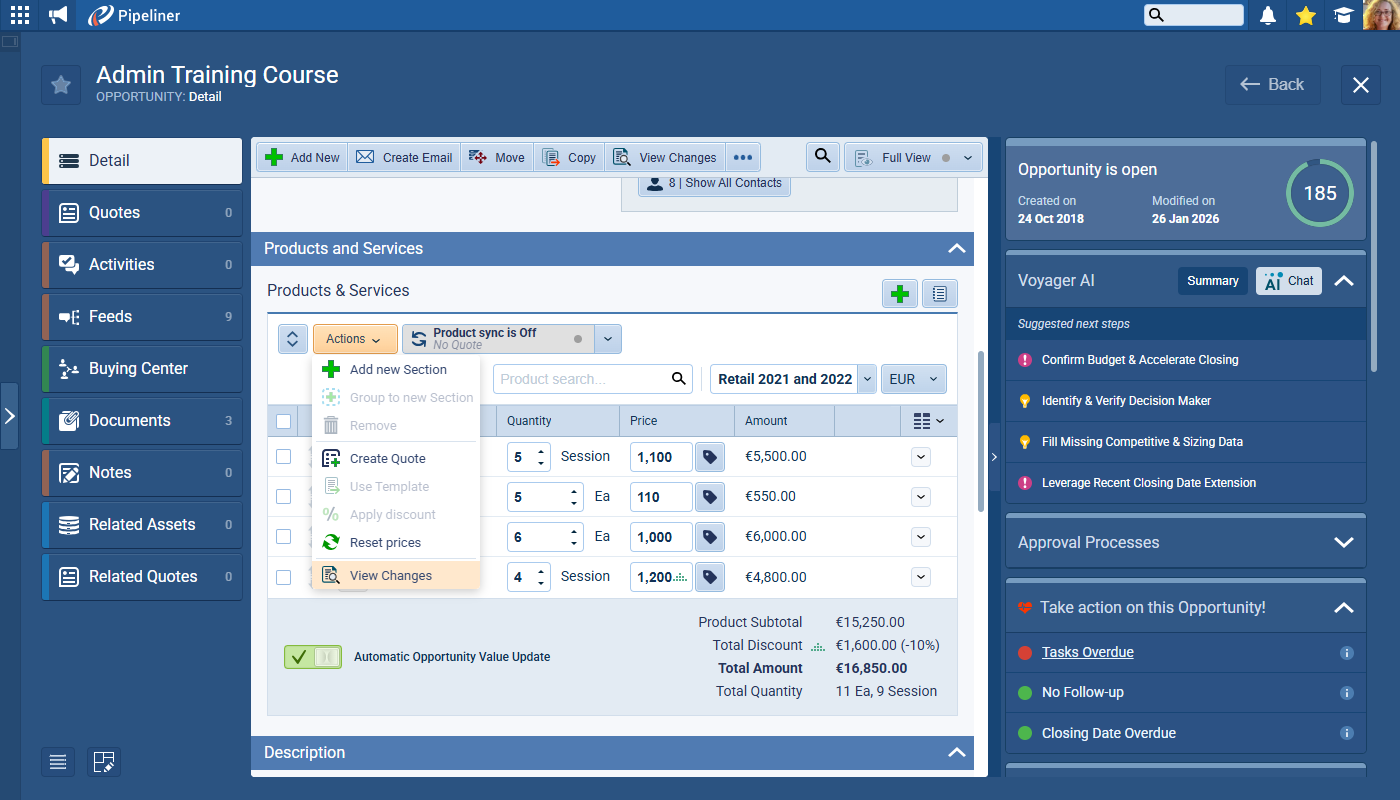
Change History View
- The interface mimics the “View Changes” window used for Main Entities.
- Change Types Supported:
- Add: Records when a product is added. Includes “Who performed the action”, “Name of the product record”, and “When was the action performed”.
- Update: Records when a product is modified. Displays “Fields changed” (Old Value vs. New Value). Handles replacement of linked Product records by adding the “Product Name” field to the changed fields list.
- Remove: Records when a product is deleted.
- Multiple Changes: If multiple actions (add, update, remove) occur in a single Save event, these are split into multiple discrete events. Every event corresponds to one action type performed on one PLI record.
- A “Product” filter has been added. This is a multi-select dropdown containing all changed Product Line Item records (Product Name) sorted alphabetically.
Export Functionality
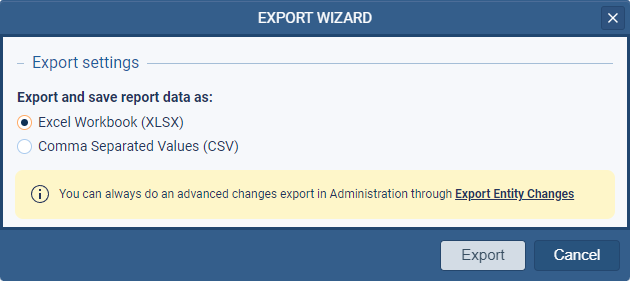
- The feature includes an Export button leading to the Export Wizard.
- Formats: Excel Workbook (XLSX) and Comma Separated Values (CSV).
- Exported Fields:
- Link to record (Empty)
- Record Name (Product Name)
- Record Type (“Product Line Item”)
- Action (Add, Update, Remove)
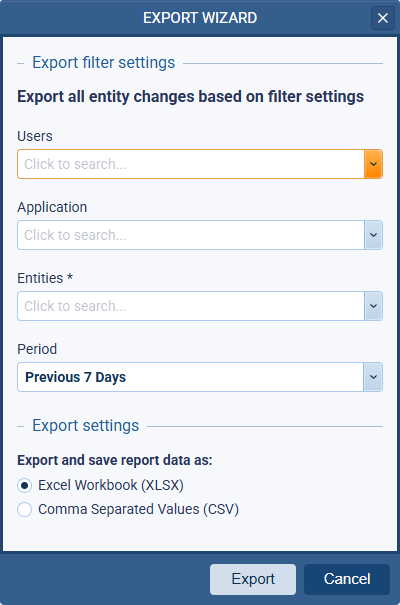
- Administration: This data is also accessible via Admin › Security › Export Entity Changes.
Import Deduplication: Fields from All Record Types
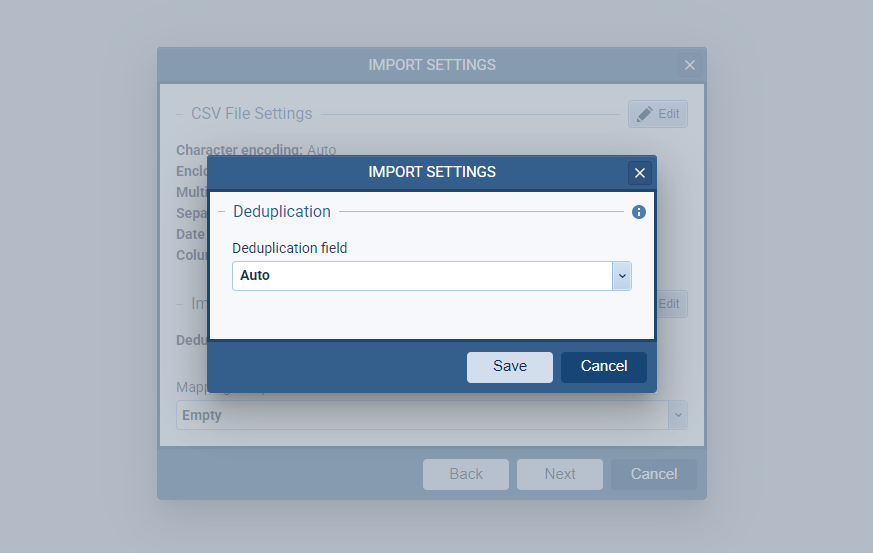
We’ve enhanced the deduplication logic during the data import process to support custom record types.
Previously the deduplication field list only displayed fields associated with the last selected form type/default record type whereas the system now displays fields from all compatible form types in the deduplication field list. This ensures that users can select unique fields defined in custom record types (e.g., a specific field in a “custom” account type) for deduplication, even if that record type isn’t the default. ⤵
Task List: Inner Scrolling
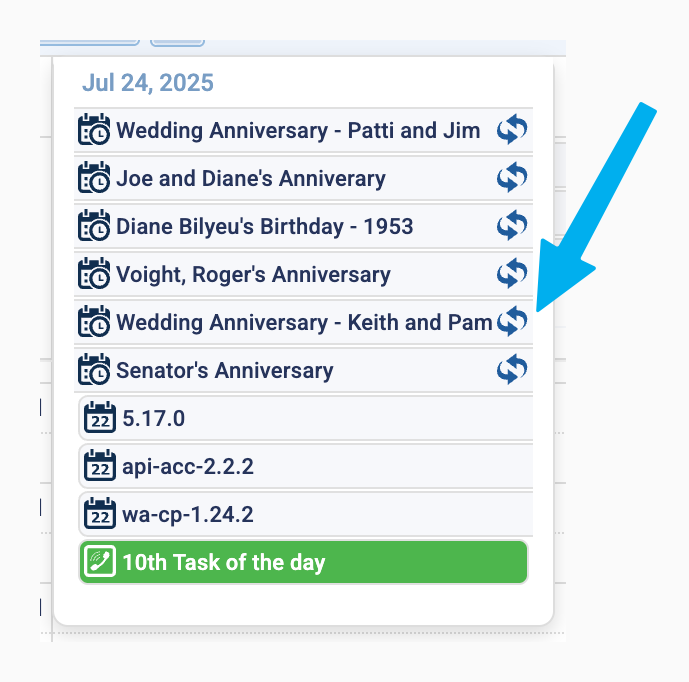
Previously, long task lists would extend until they hit the bottom of the screen/calendar, cutting off access to tasks further down the list. We’ve changed this so the task list container now supports inner scrolling. The scrollbar appears when the number of records exceeds 11. ⤵
Add Existing Window: Select All Functionality
A new button labeled “Add all” has been added to the dialog footer or header area in “Add Existing” modal windows when adding records, for example, when adding products to a price list or adding contacts to an Org Chart or adding lookup records. ⤵
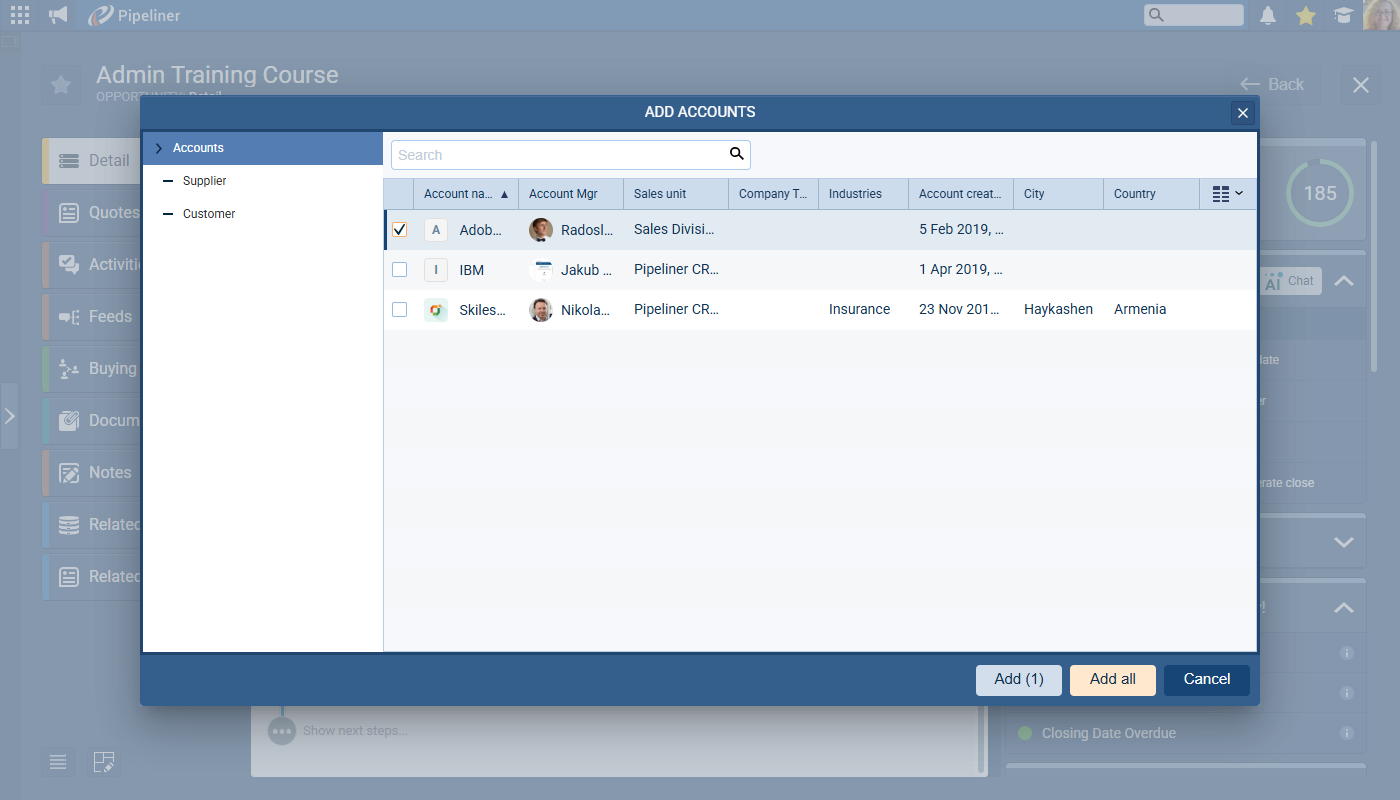
Clicking the “Add all” button selects all visible records in the current view/search result. If the user attempts to add more than 100 records, a confirmation dialog appears: “You are about to add [X] records. Do you want to continue?“
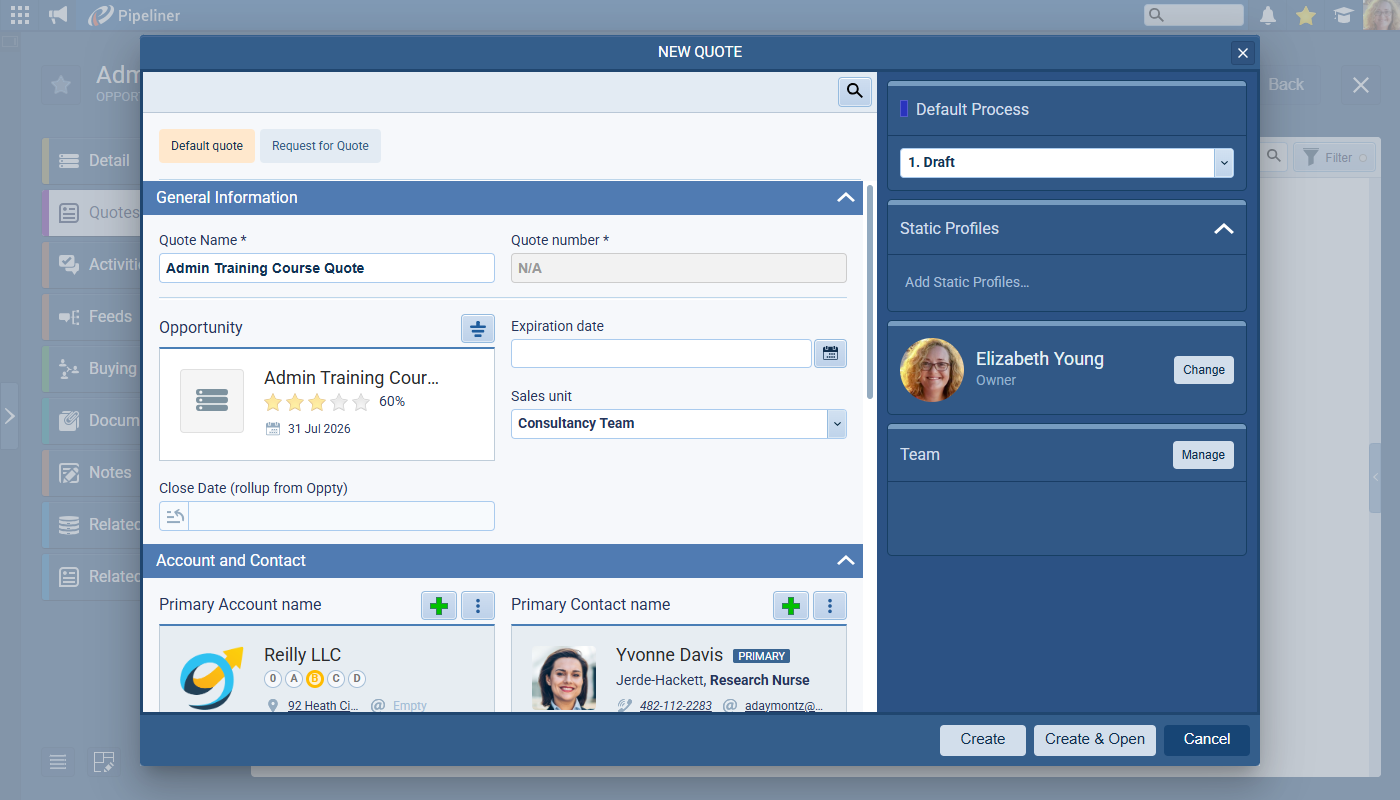
Quotes: Product & Services Sections per Form
When switching between Quote forms that have different default sections/names, existing products in the Products & Services section are preserved and moved to the top of the new form type structure and all default sections defined for the new form type are appended at the bottom. This refresh logic applies when creating a new quote from scratch or when a new related quote is created from an Opportunity (where Products & Services is initially empty). ⤵
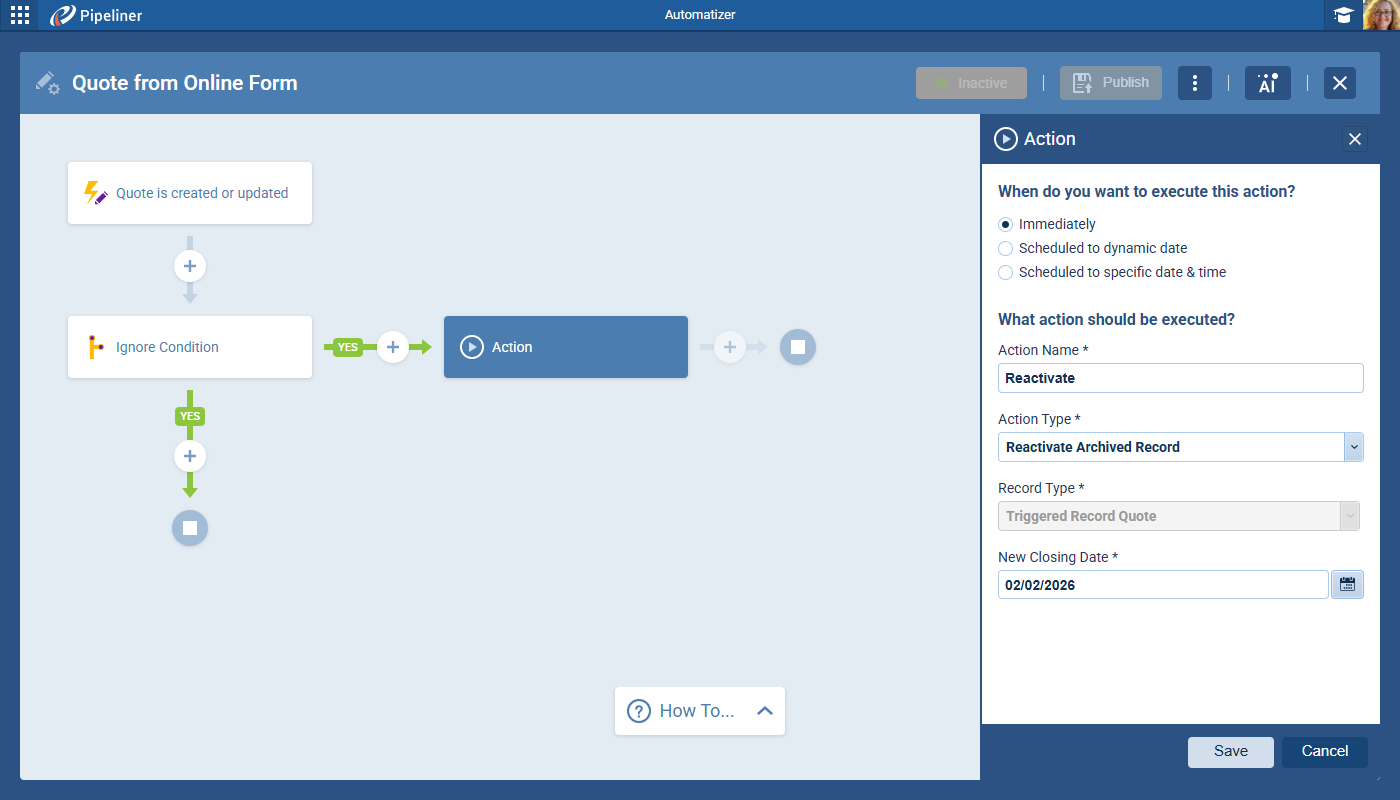
Automatizer: Reactivate Archived Record
We’ve added a new Automatizer action to un-archive (or Reactivate) Archived records. This works for Leads, Opportunities, Accounts, Contacts and Quotes. When reactivating Opportunities and Quotes, there’s an additional required date field which sets a new closing date upon reactivation. ⤵
Automatizer: Update Related Opportunity from Quote Trigger
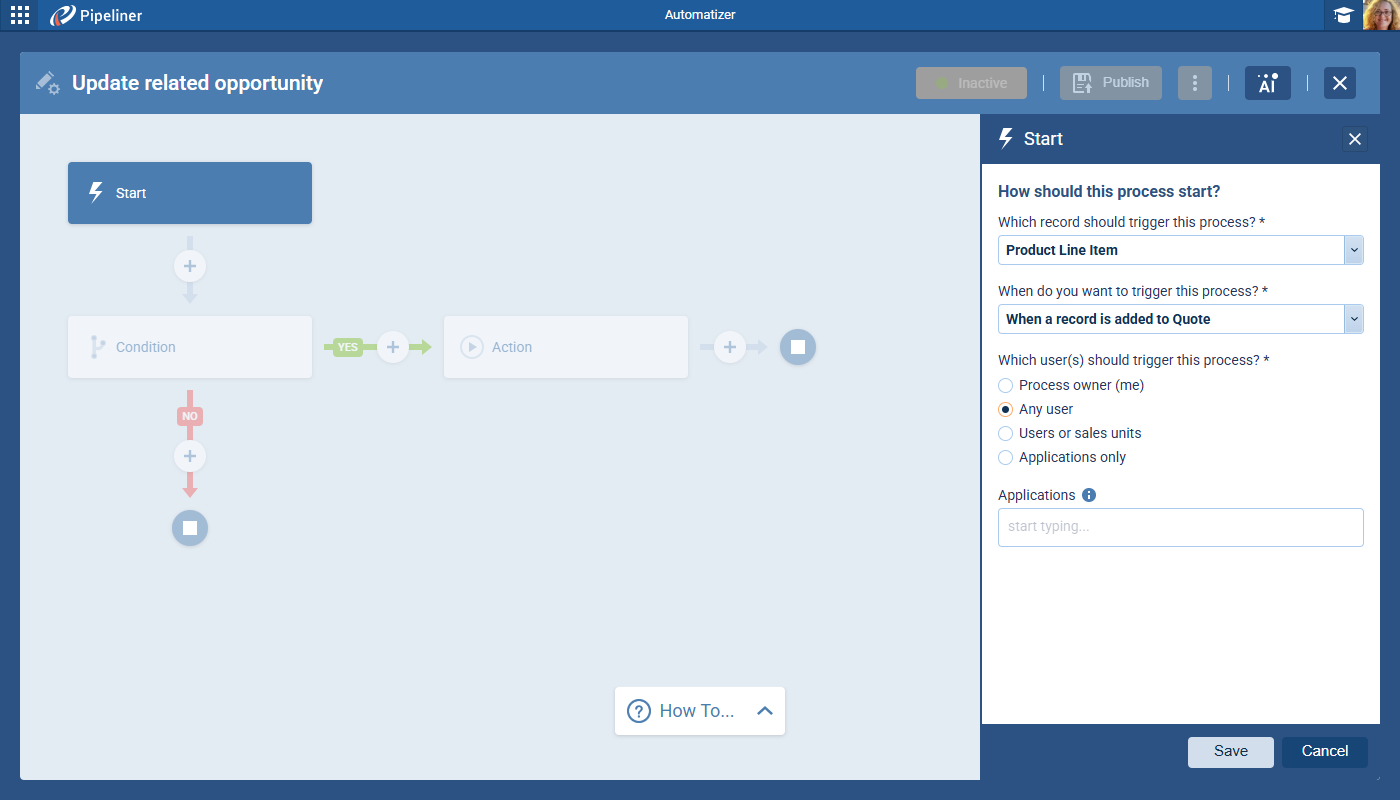
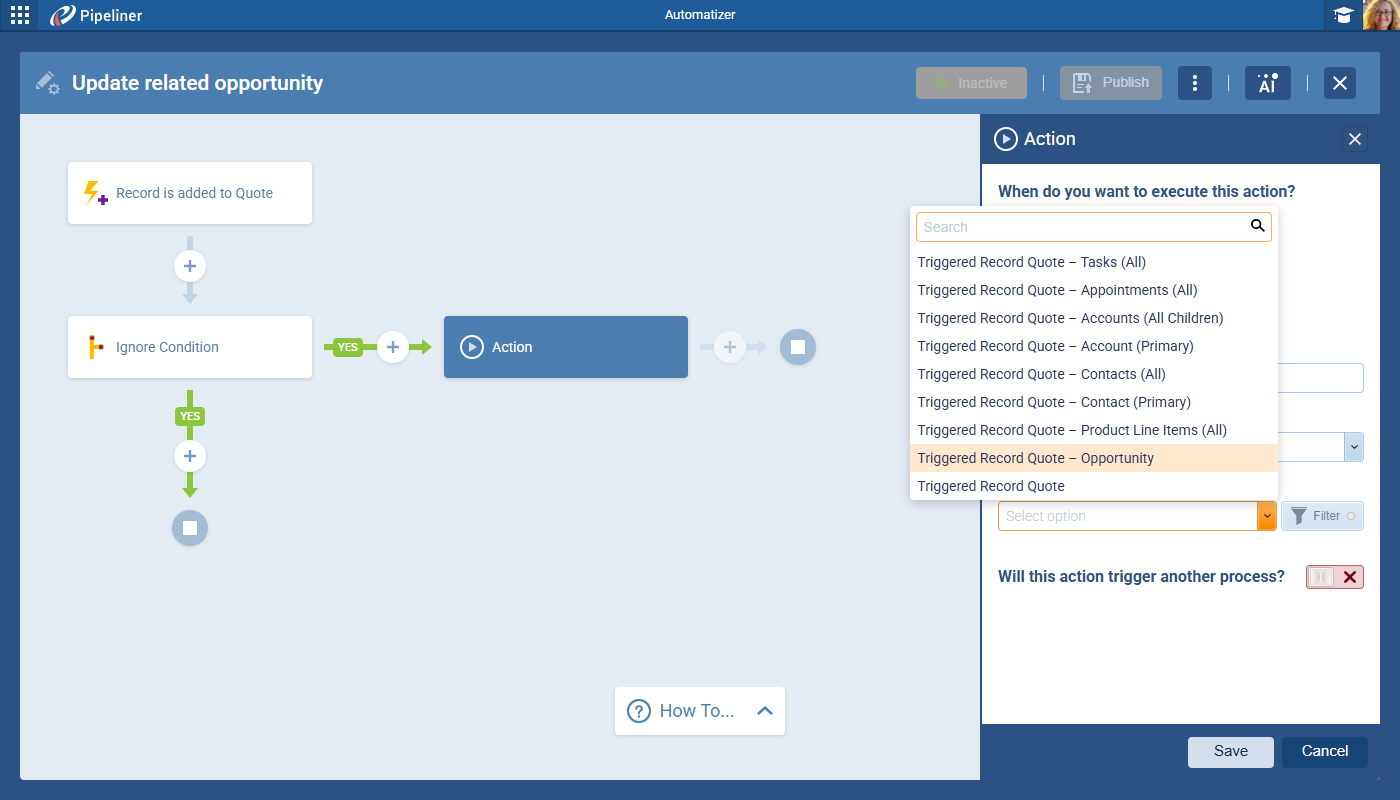
When the process Start trigger is Product Line Item (specifically “When a record is added to Quote”), in the “Update Related Record” action, a new target record type is available: Triggered Record Quote › Opportunity which allows the process to update the Opportunity related to the Quote that contains the triggered PLI. ⤵
Automatizer: Populate Owner from User Lookup
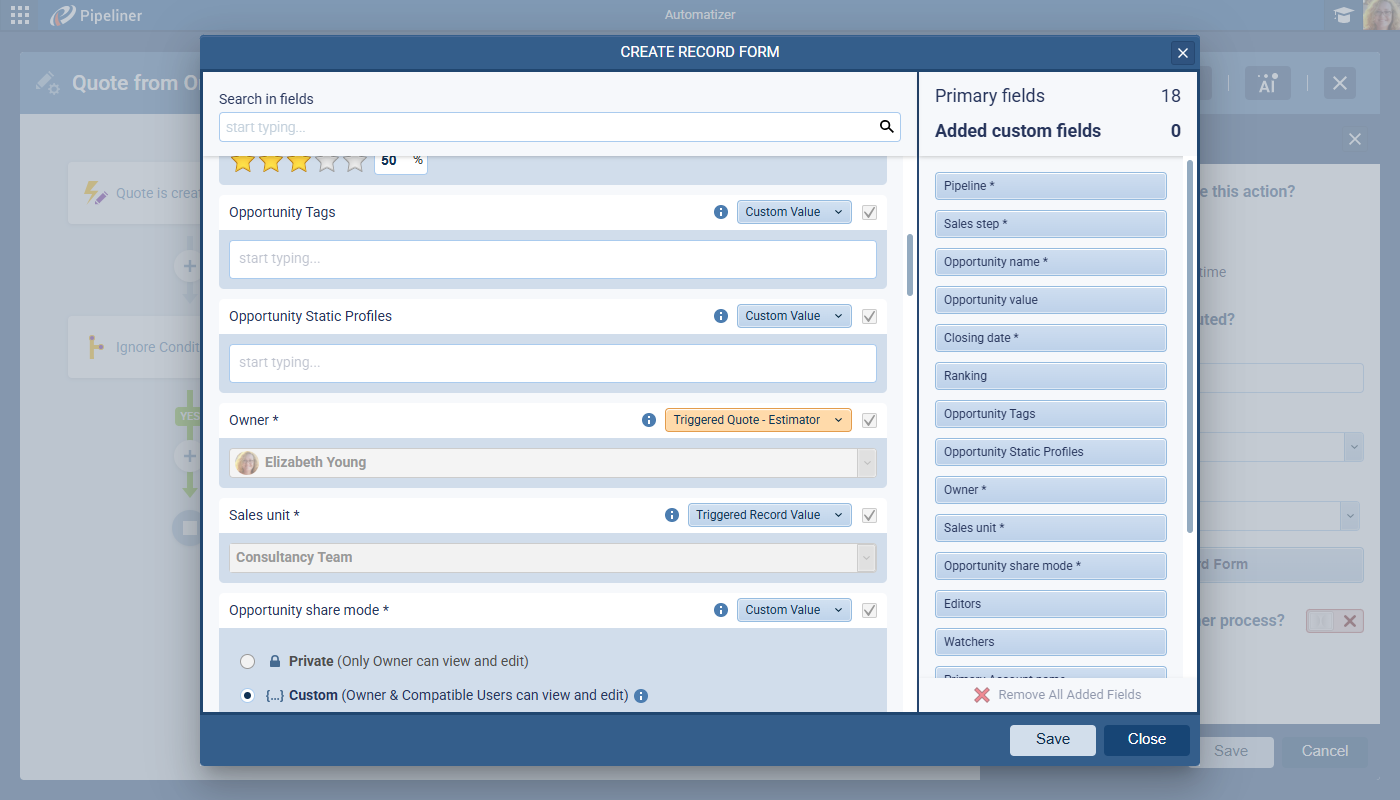
When using “Create Record” or “Update Record” actions, the personalization list (accessible via the variable/mapping button) for the Owner field now includes User Lookup fields that have “Primary Record Enabled“. These fields are sourced from:
- The triggered entity.
- All related entities of the triggered entity.
This enables scenarios such as assigning a Task to a user defined in a custom “Executive” lookup field on a Contact. ⤵
Feeds Tab: Remember Active Filter Preset per Entity
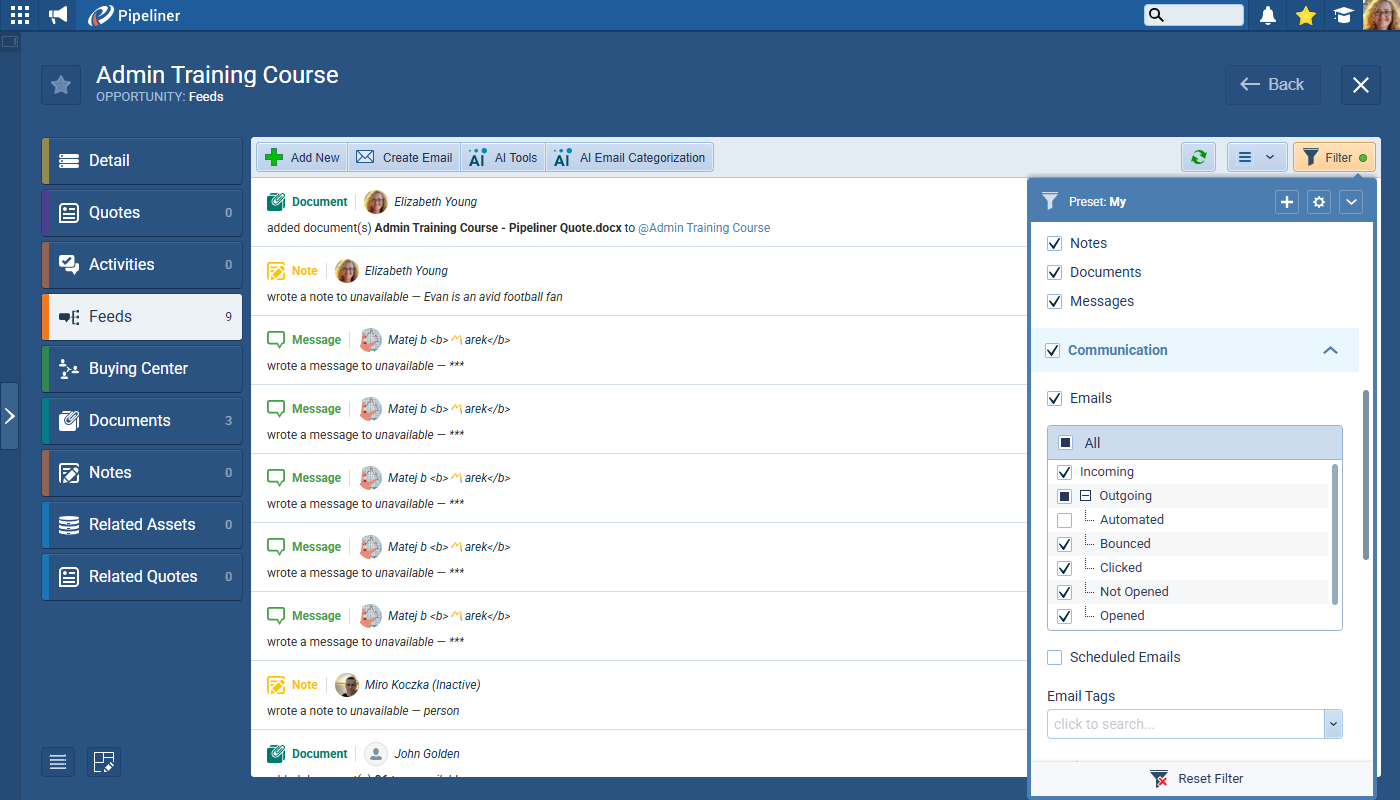
Previously, when using Feeds, the active filter preset in Feeds tab on Record Detail (e.g., “Emails”, “Documents”) was global. Selecting it for one entity applied it to all others. Now, the selected active filter preset is remembered per entity, per user.
Example: A user can have “Emails” active for Opportunities and “Online Forms Responses” active for Contacts simultaneously without them overwriting each other. ⤵
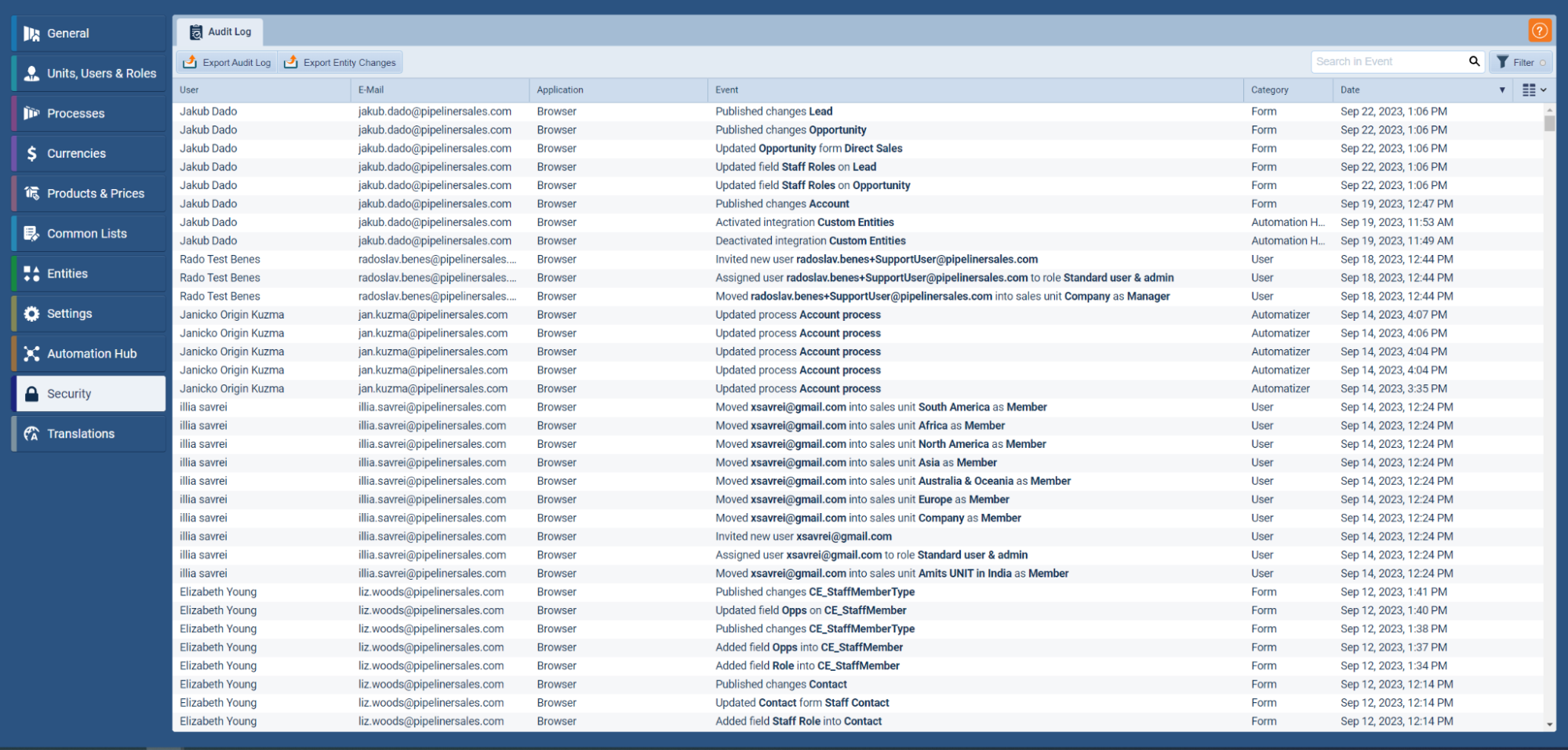
Audit Log: Export Entity Changes — New Fields
We’ve added Record Sales Unit (added after the “Record Type” column) and User Email (added after the “User” column) to the fields included in the “Export Entity Changes” output in Admin › Security › Audit Log. ⤵

Audit Log: Custom entities added to Audit Log
This feature implements comprehensive event tracking for Custom Entities (CE) within the Audit log to ensure transparency of administrative changes.
Technical Changes:
- Updated Audit log filter and category naming: Changed category "Form" to "Entity".
- Implemented tracking for Entity Lifecycle:
- Entity has been created
- Entity has been deleted
- Custom entity name has been changed: Tracks changes from EntityName_s/EntityName_p to new values.
- Implemented tracking for Entity Configuration:
- Updated EntityName_s settings: Triggered when the settings tab is saved for a Custom Entity.
- Published changes CE_NewEntityType: Replaced generic type names with specific EntityName_s.
- Implemented tracking for Form Management:
- Created EntityName_s form [FormName]: Logged when a new form type is created.
- Updated EntityName_s form [FormName]: Logged when an existing form is updated.

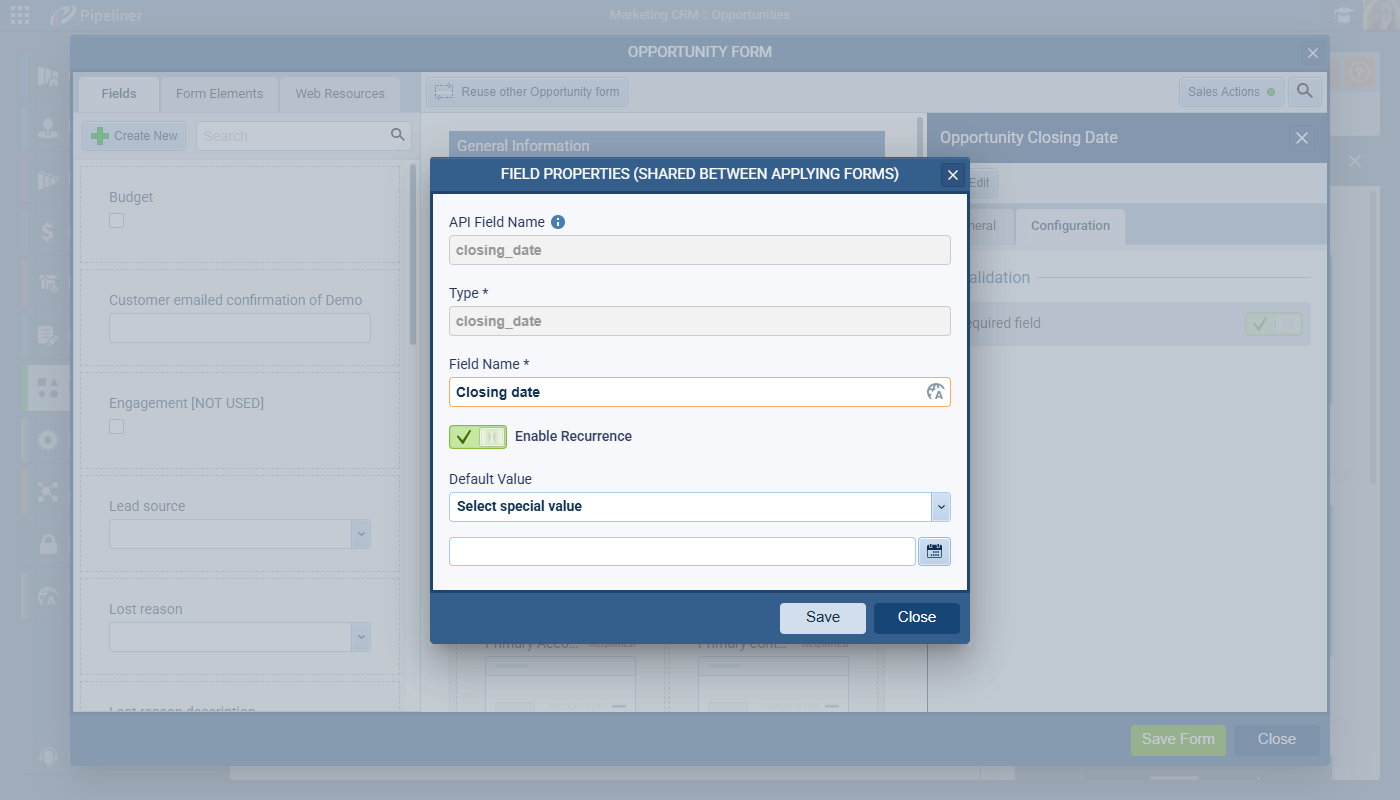
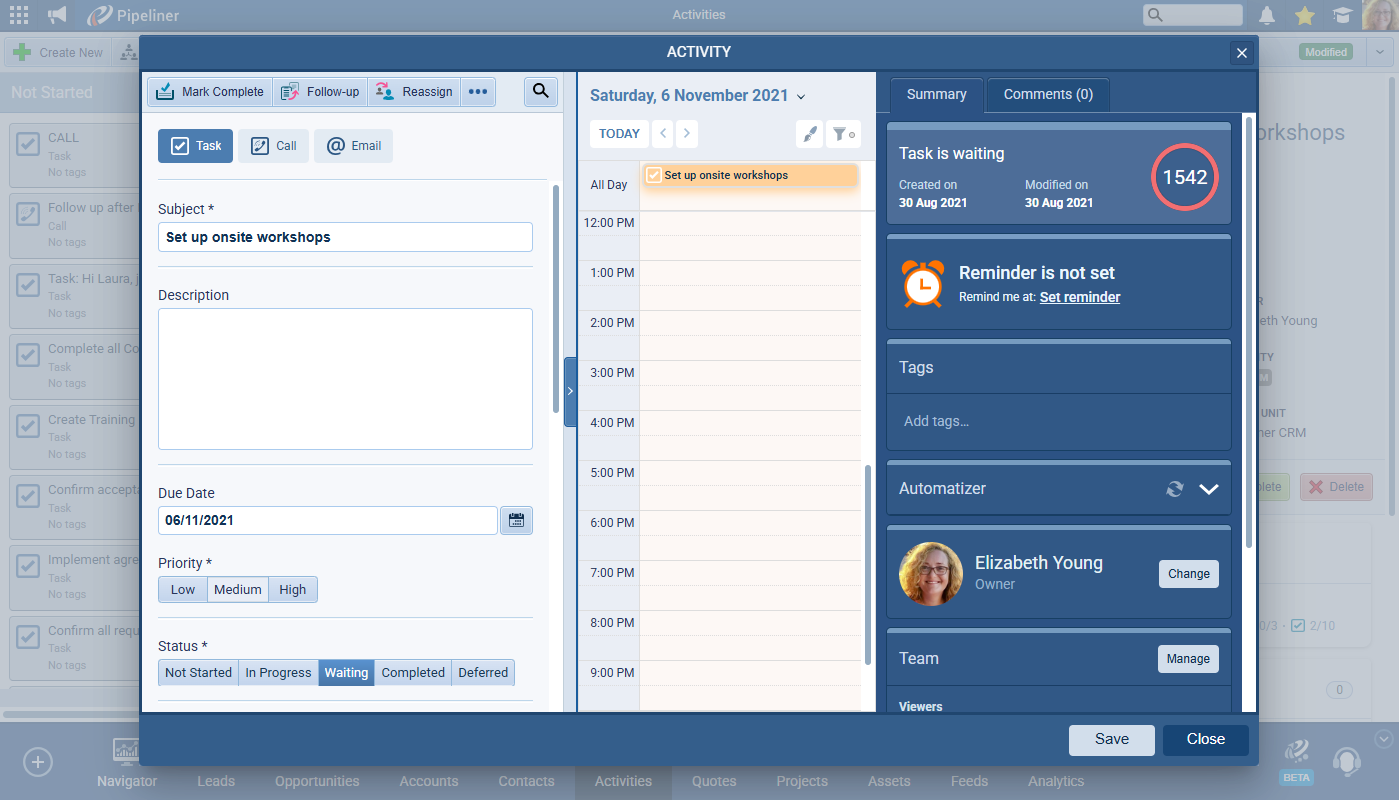
Admin: Ability to completely remove the recurrence button
Admins can now use a toggle to enable/disable the recurrence feature for Opportunity Closing Date and Task Due Date. This option is enabled by default to maintain backward compatibility. When switched OFF, the "Set Recurrence" button is removed from the UI. If recurrence was previously set, the data is preserved but the button and setting label under the input are hidden and the system will no longer apply the recurrence logic to the record.
The button is dynamically hidden on the Mobile app based on this setting. ⤵
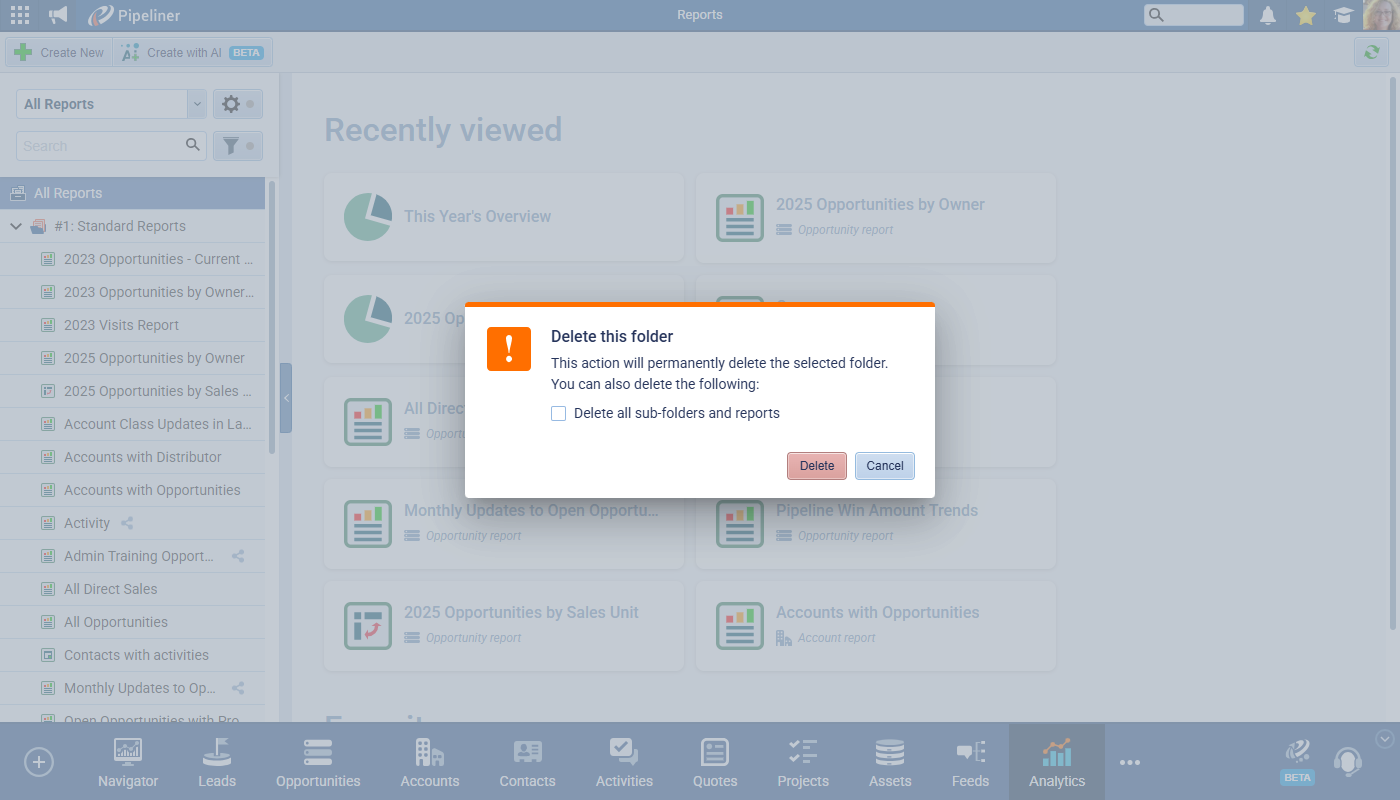
Reports Deletion when Folder is Deleted
Enhancement of the folder deletion logic in Reports, Documents, and Email Templates to allow for bulk deletion of contents. We've added a cog wheel to every folder with Rename and Delete actions. When Delete is selected, the user will receive a warning message and can select whether to also delete all sub-folders and reports.
The option only applies to items where the user has Owner (Delete) rights. If the user lacks rights for any item, a warning message is displayed: "Unable to delete this folder. One or more items could not be deleted due to insufficient permissions. These items may be private and not visible to you." The system will prevent folder deletion if it contains at least one item that the user cannot delete. ⤵
Option to Toggle On/Off Gender Assignment Field in Contacts
This enhancement provides administrators with the ability to configure or to completely hide the system Gender field on Contact forms to meet specific organizational requirements.
To enable this, the Gender field is now listed in the Contact Form field list in the Admin Module › Entities › Contacts › Fields tab. ⤵
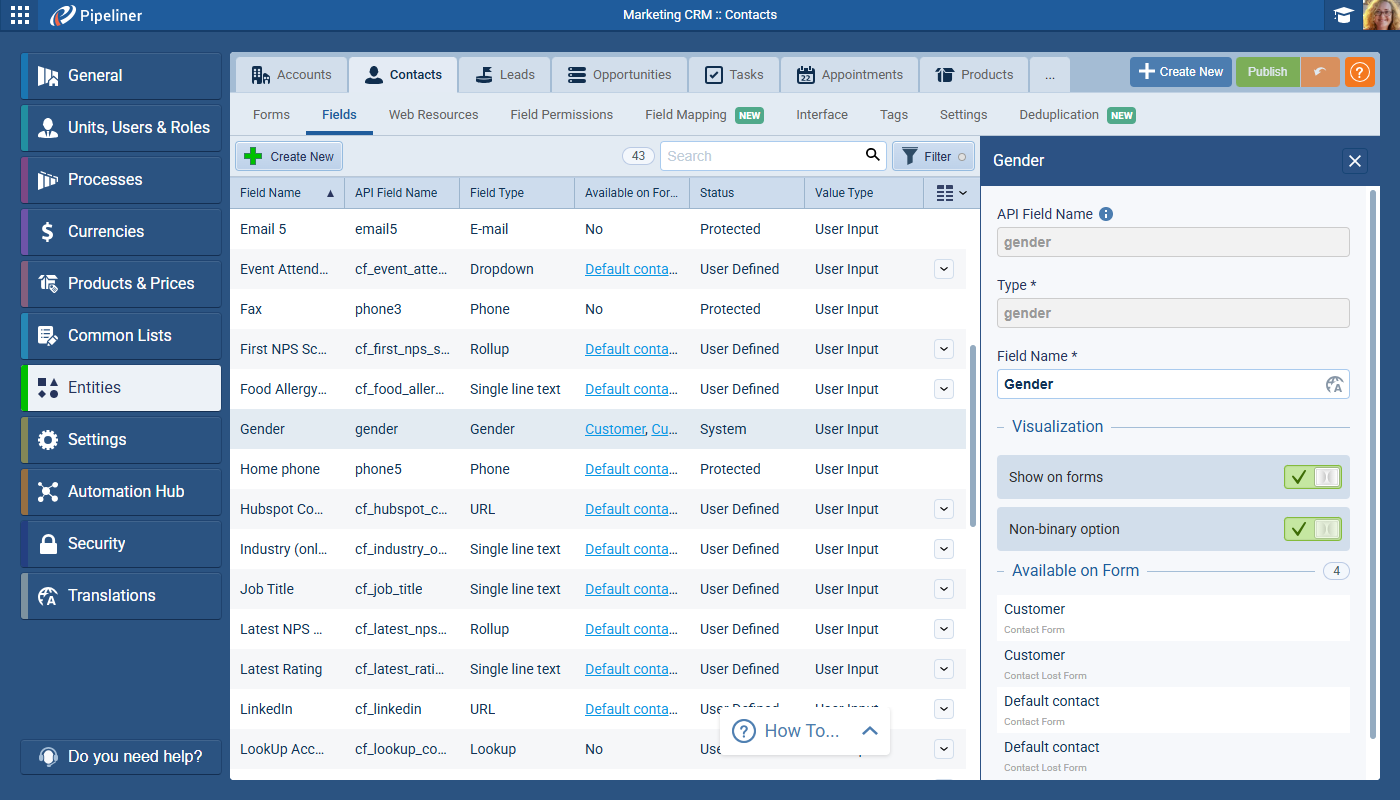
There is a new Visualization section to the Field settings for Gender with 2 toggles:
- "Show on Forms" — Completely hides/shows the field in the Record Detail and Edit forms.
- "Non-Binary option" — Specifically hides/shows the 'Non-Binary' radio selection but "Male" and "Female" remain. If the "Non-Binary option" is OFF, the option is removed from the application filters.
These settings are respected across the Mobile application.
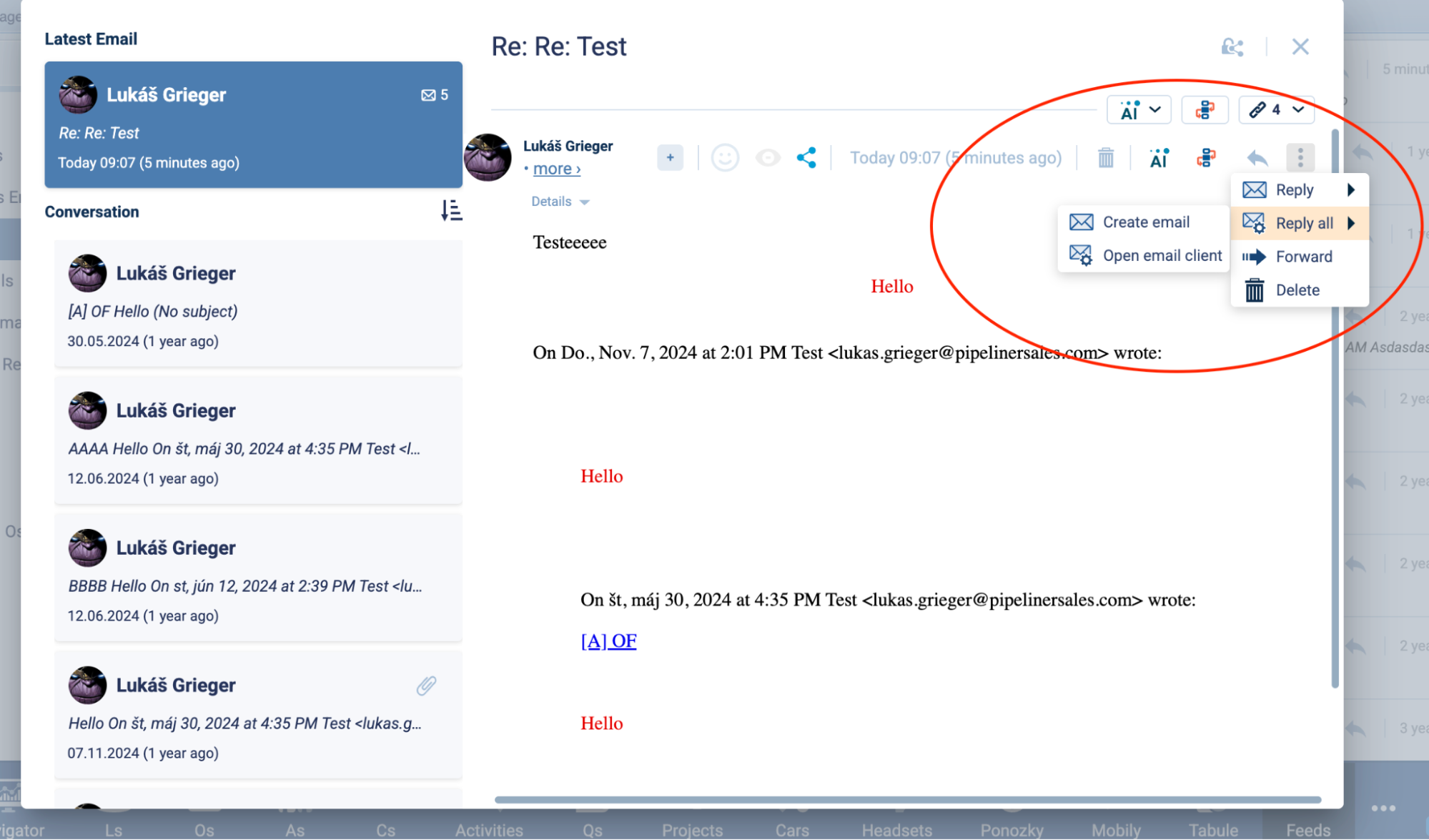
"Reply All" should not include the sender
We have modified the "Reply All" functionality to automatically exclude the current user's (sender's) email address from the recipient list. This ensures that a copy of the sent email does not appear in the user's own inbox as a direct recipient. ⤵
Automatizer: Editors/Watchers Fields — New Triggered Record Owner Option
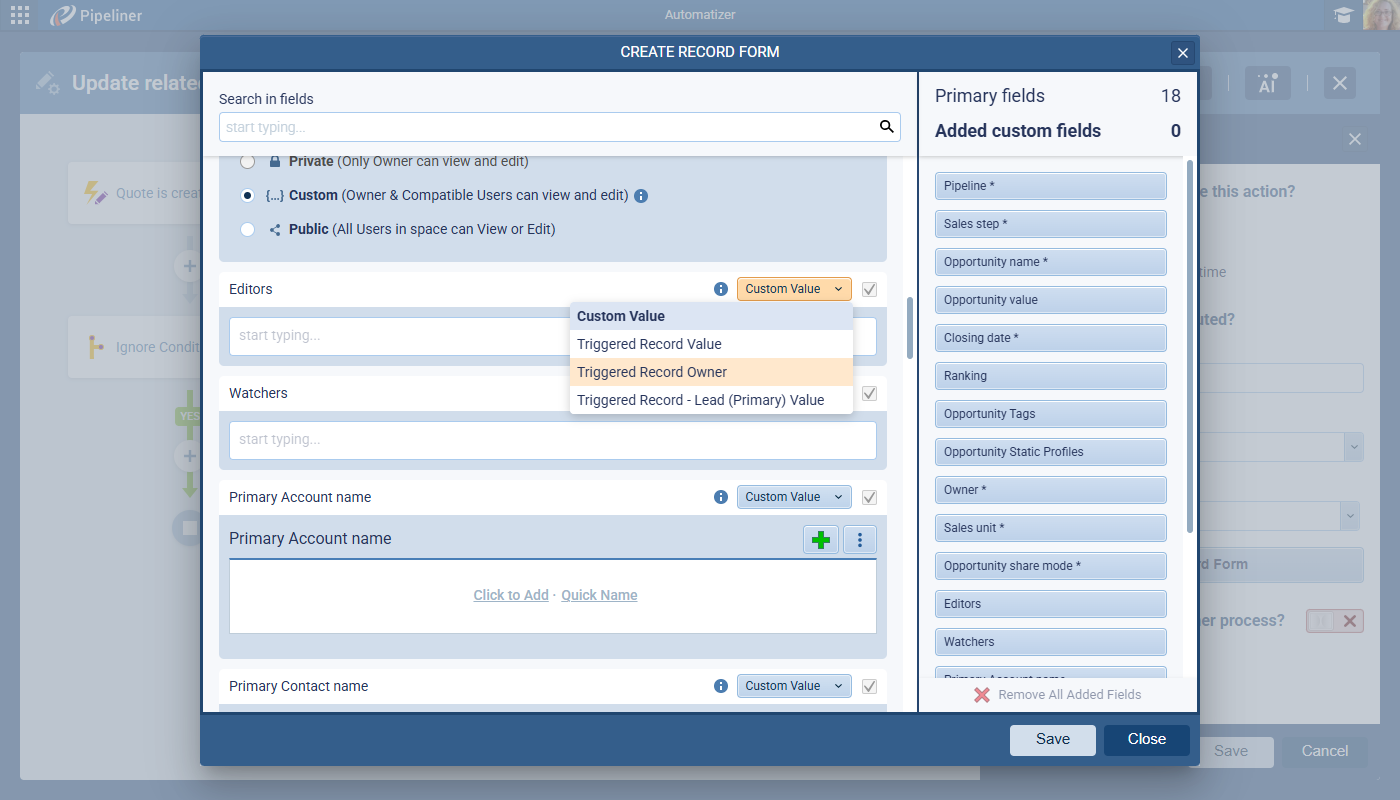
Expansion of the Automatizer capabilities to dynamically assign record access based on the owner of the record that triggered the process.
When using the Update Form action, you can choose "Triggered Record Owner" options for Editor/Watcher fields.
- Replace Existing: Overwrites all current values with the owner of the triggered record.
- Add to Existing: Appends the owner of the triggered record to the current list.
When using the Create Form action, you can choose "Triggered Record Owner" as a valid value source.
If the triggered record lacks an owner (e.g., a Lead), the action is skipped, and a log entry is created: " record owner is null, value cannot be used in form field ".
If the owner is the same as the watcher or editor — action is skipped. The owner has a higher priority. ⤵
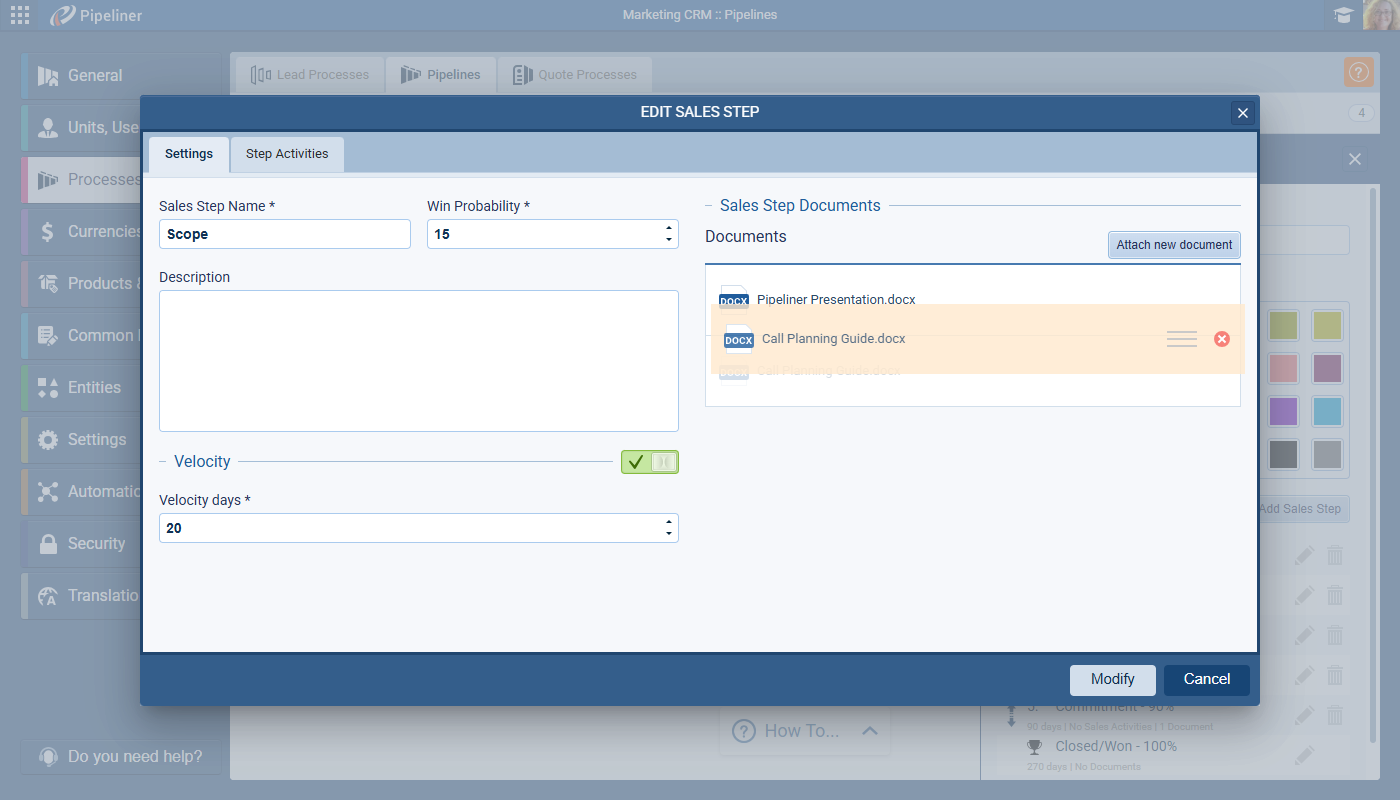
Sales Step Documents — Reordering
When adding documents to a Sale Step in the Admin Module › Processes, admins can now use drag & drop to sort the order in which the documents appear when accessed by users in the CRM app. ⤵
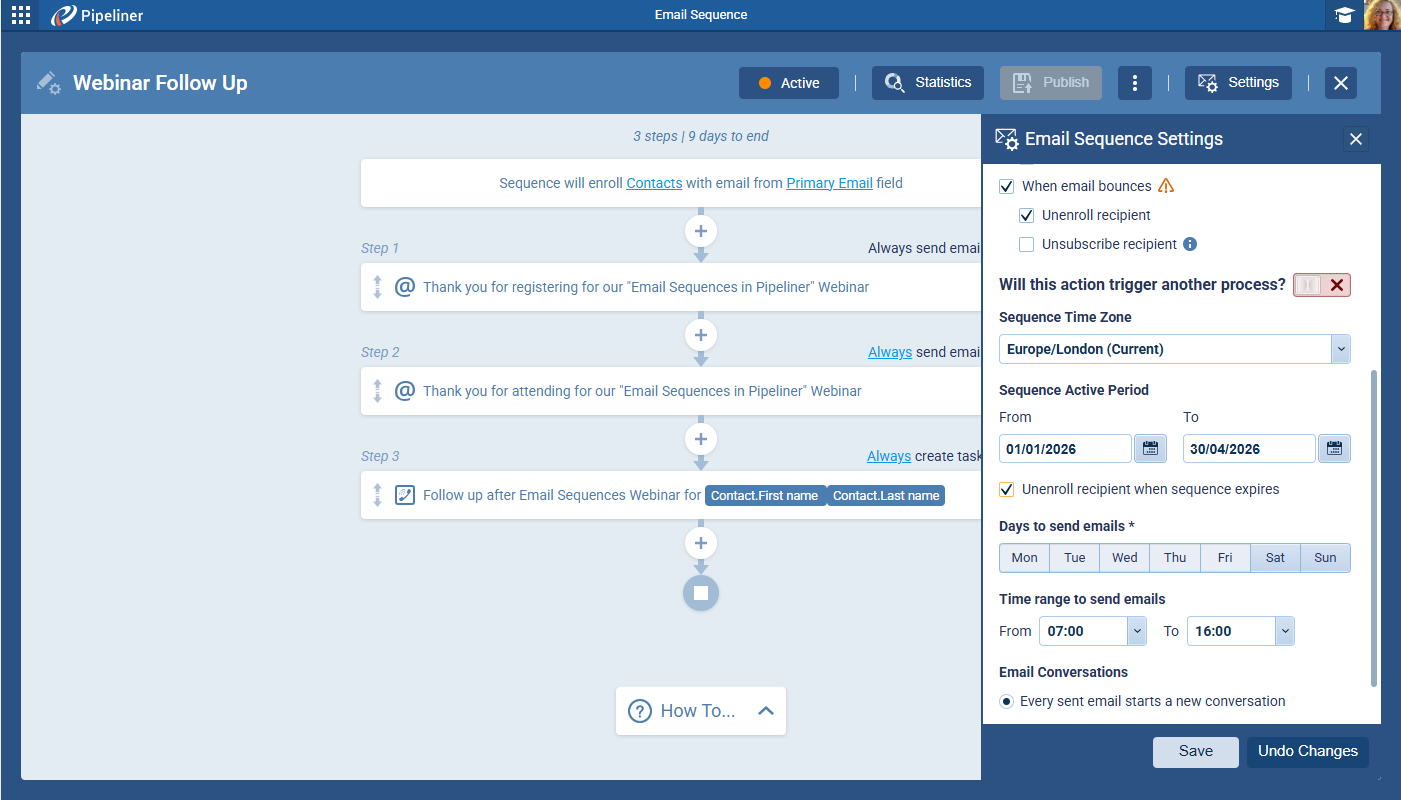
Email Sequences: Added Start Date and End Date
We've added the ability to control the start and end dates of a campaign. In the Email Sequence, it is now possible to add a From and To date in the "Sequence Active Period".
Once set,
- Actions are only scheduled within the defined interval.
- If "From" is set, scheduling begins on or after that date.
- If "To" is set, no actions are scheduled beyond that date.
If the "Unenroll recipient when sequence expires" option is enabled, if the next action falls outside the To date, the record is unenrolled.
New Sequence Statuses:
- Scheduled: Active sequence with a From date in the future.
- Expired: Active sequence with a To date in the past.
Note that Enrollment fails if the sequence is already expired, returning error: "failed to enroll, reason(s): Email Sequence is expired". ⤵
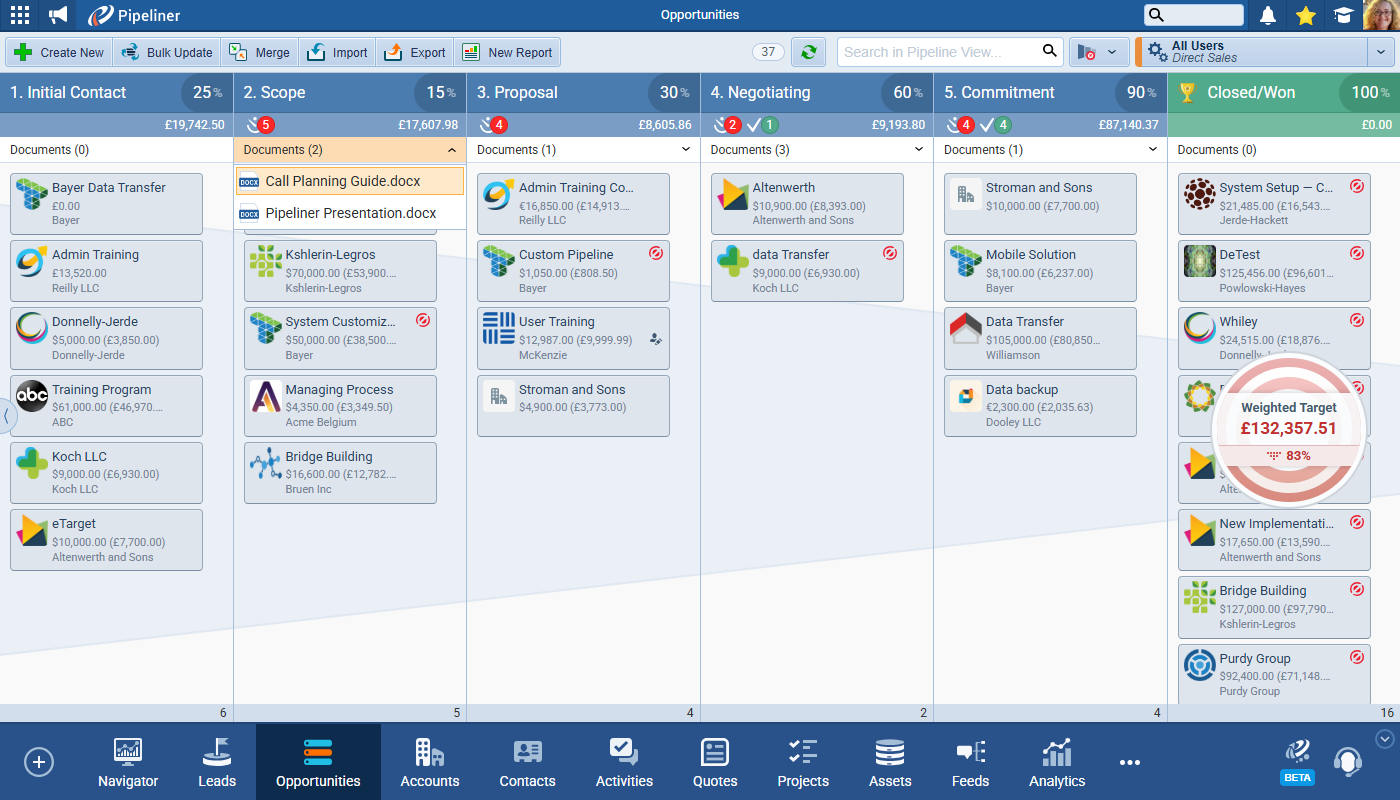
Add searching functionality to Pipeline View
We've added full-text search capabilities within visual board views:
- In the Pipeline View: Added a search field next to Opportunities.
- In the Board View: Added the search field to Leads, Quotes, and Activities board views.
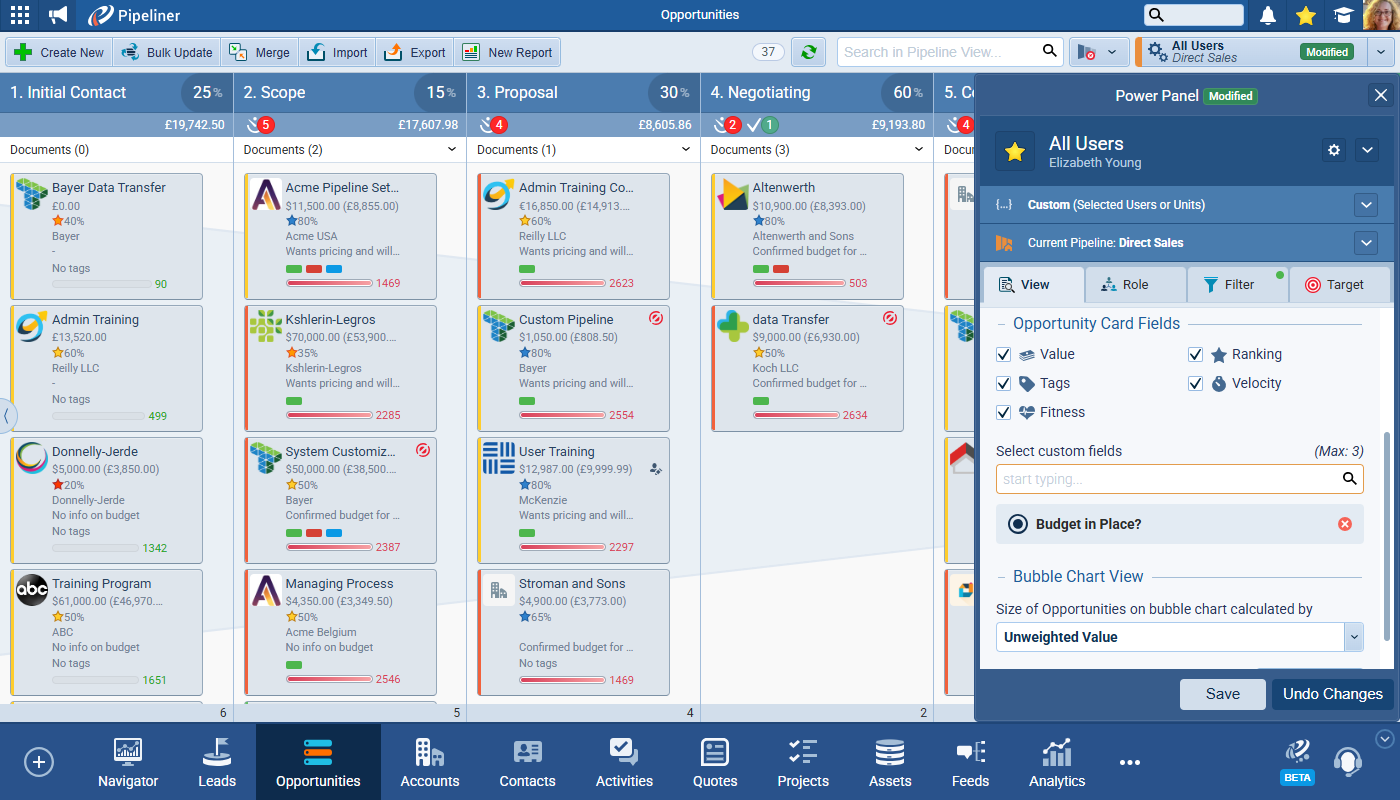
The search field functions similarly to the existing List view search. Full-text search is done within all fields visible on the opportunity card. ⤵
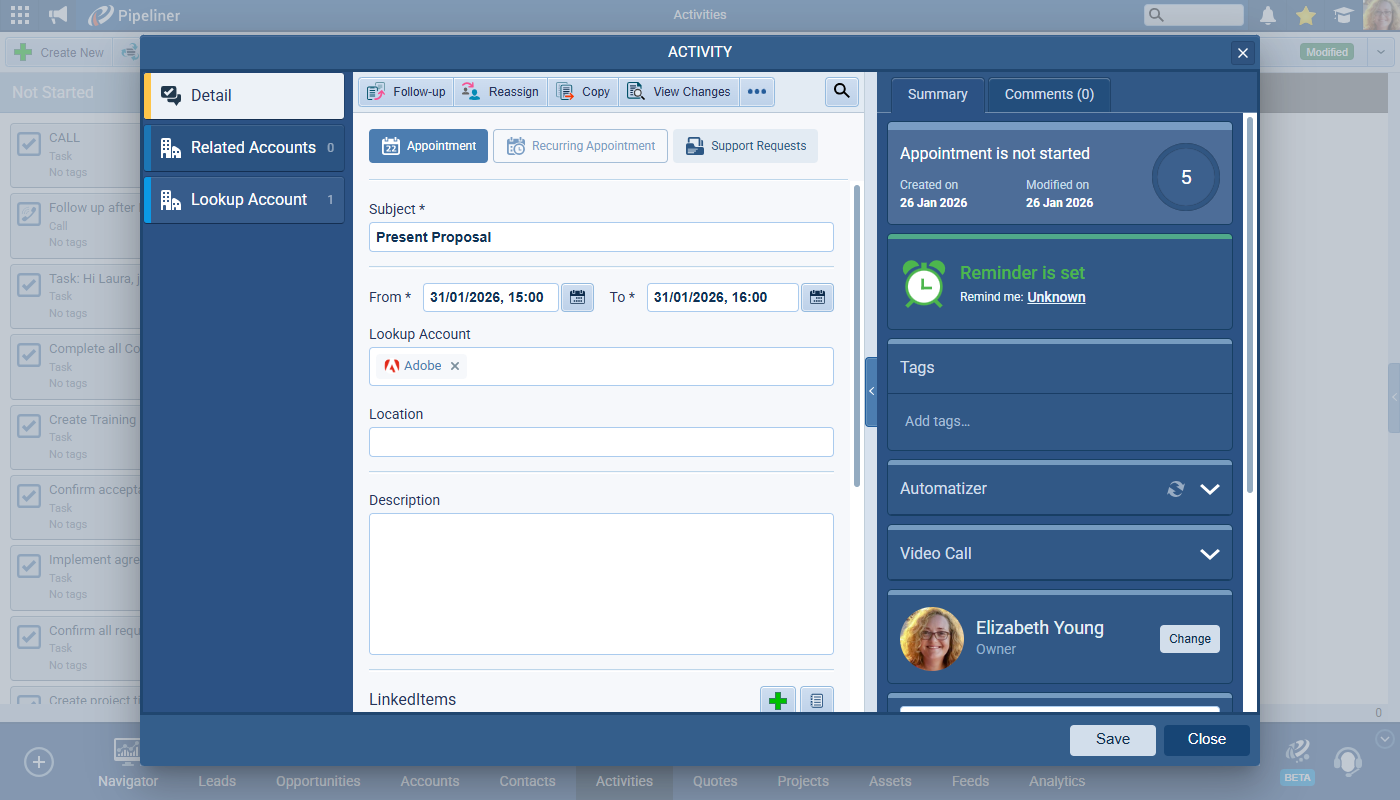
Display lookup relations on Activities detail
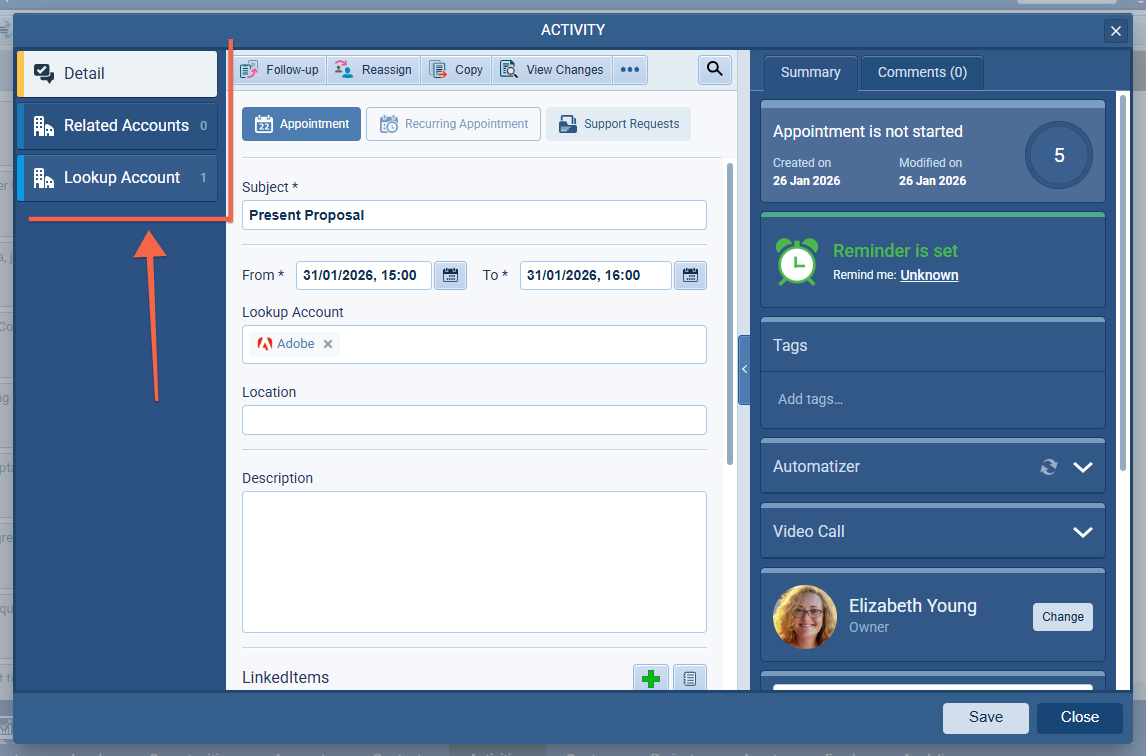
We have introduced a Sidebar on the left side of the Activity window (Tasks & Appointments) which displays related Lookup tabs and a Detail tab to return to the main form in order to simplify access to related data directly from the Activity window using a sidebar interface.
Administrative Settings:
- Added "Task/Appointment Detail" item in Administration › Entities › Interface.
- Configuration is per Form Type.
- Toggle "Display Lookup Relation Tabs": Default ON for new forms, OFF for existing forms.
Note that the sidebar is not rendered if no lookup relations are detected. ⤵
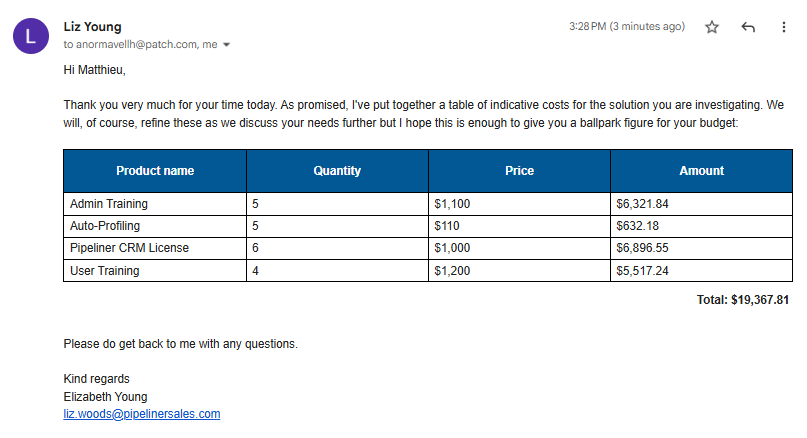
Product Table is now supported in Rich Text (Emails, Email Templates)
We've enabled the dynamic insertion of the Products & Services grid into emails and templates using a mapping field "Product Table", accessed from the Opportunity personalization options in Email and Email Template editors. ⤵
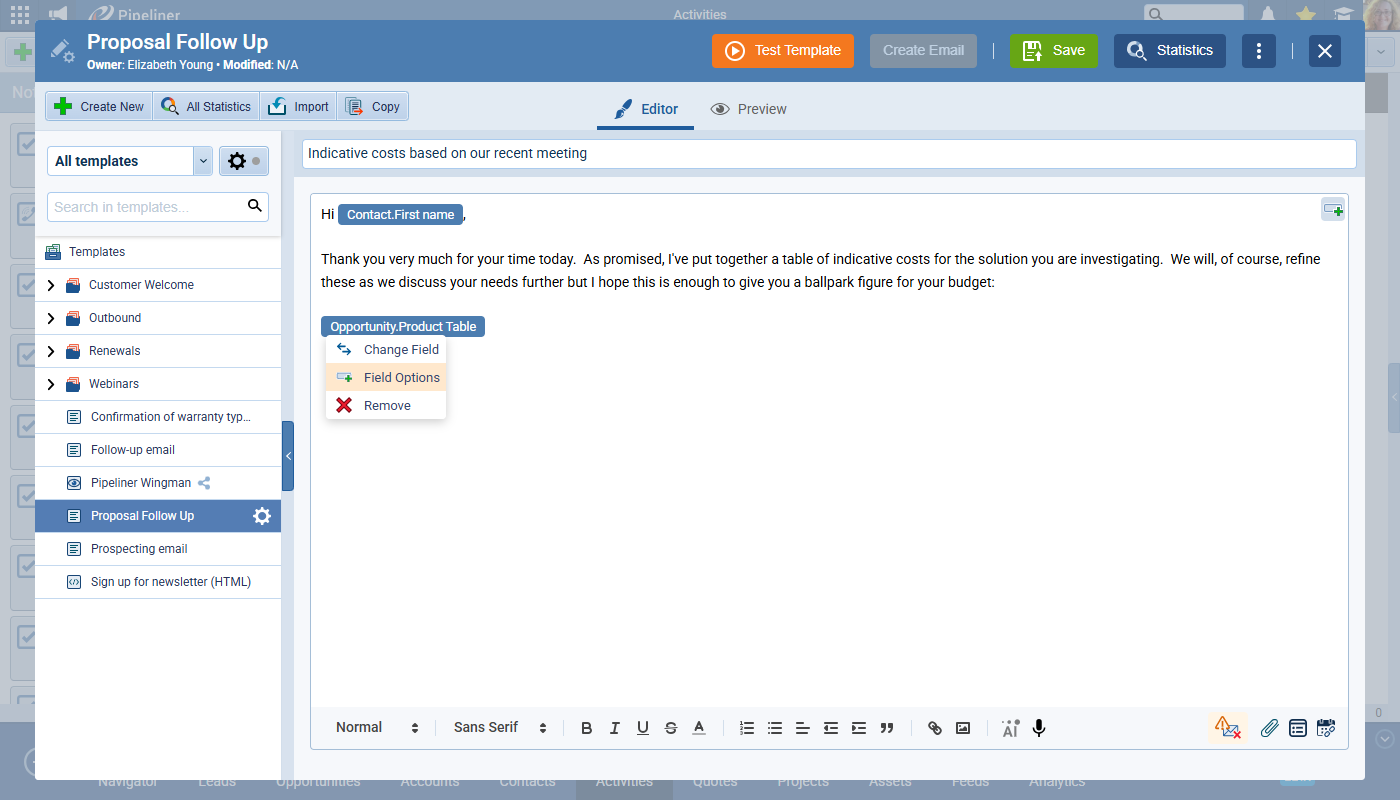
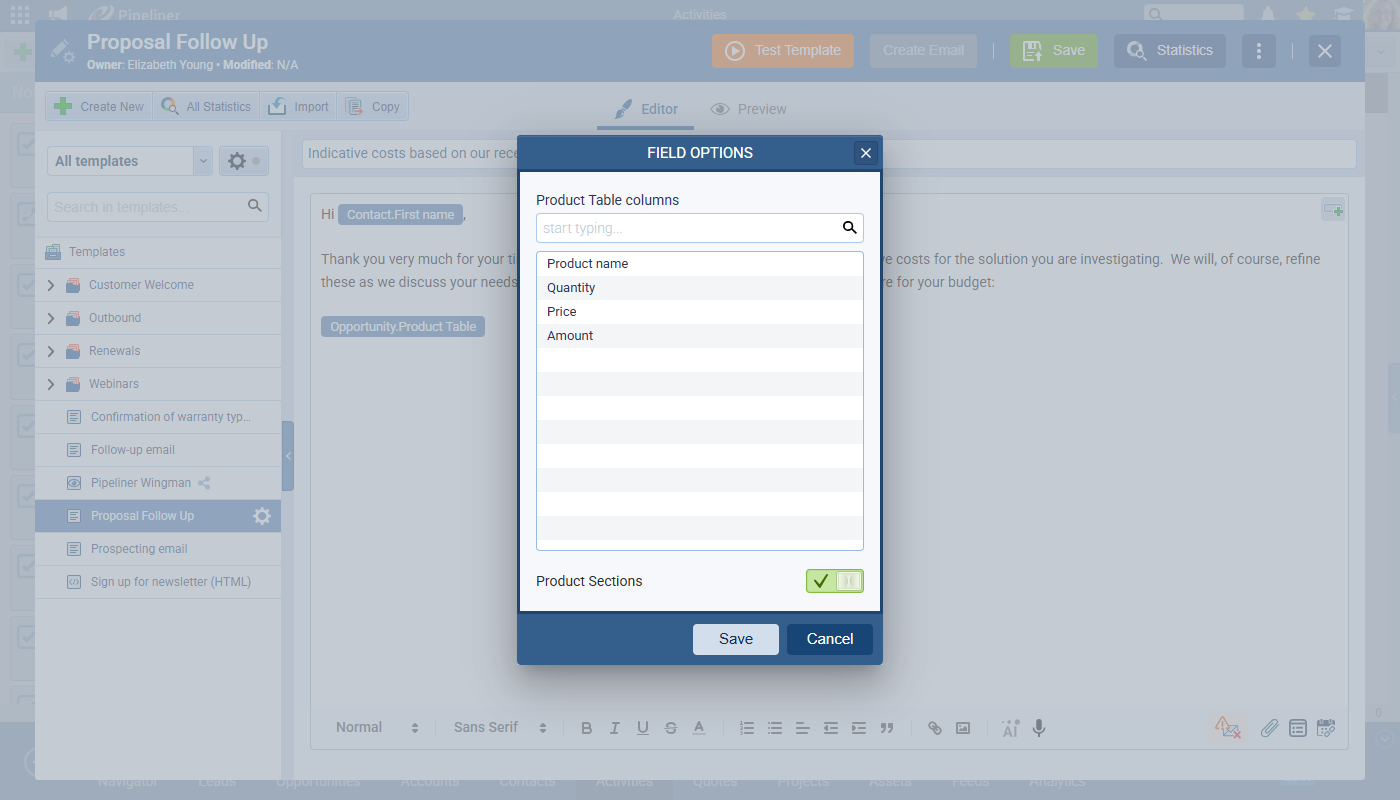
Field Options:
- Included a Column Picker component to select fields from the Product entity.
- Default columns: Product Name, Quantity, Price, Amount.
- Supports Drag & Drop for column reordering and Remove functionality.
- Optional "Product Sections" toggle to include section rows in the table.
Global Search: Special Characters
We've improved search precision by allowing users to find records regardless of accented characters (diacritics). ⤵
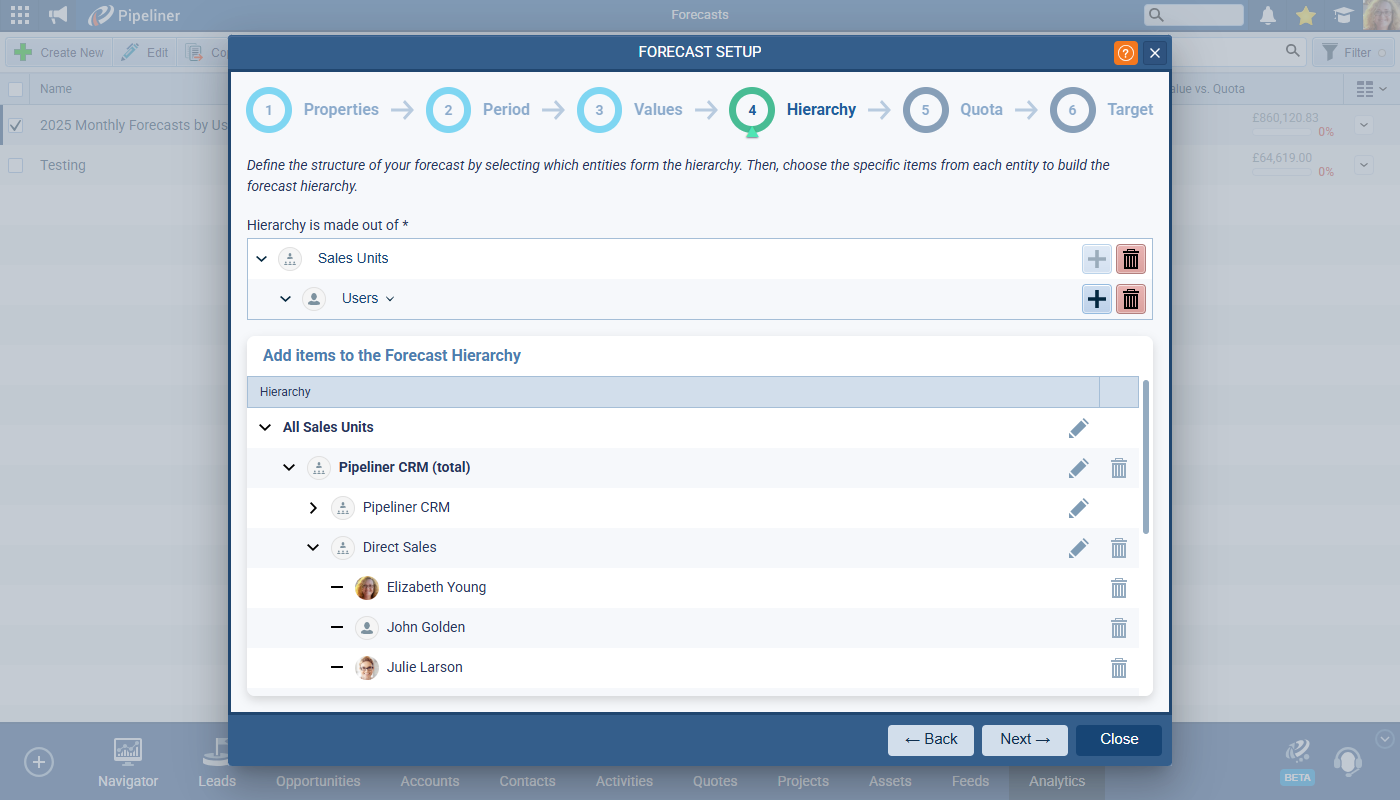
Folder/Accordion Arrows Convention Change
We've standardized the visual language for interactive elements based on contentContent Content refers to a material or document released in various forms (such as text, image, audio, and video) and created to inform, engage or influence specific audiences. type.
- Pattern 1 (Tree Structures): Used for navigation trees (Folders, Documents, Email Templates, Reports, Administration Units, Forecasts).
- Closed: Arrow points Right (indicating current state: collapsed).
- Open: Arrow points Down (indicating current state: expanded).
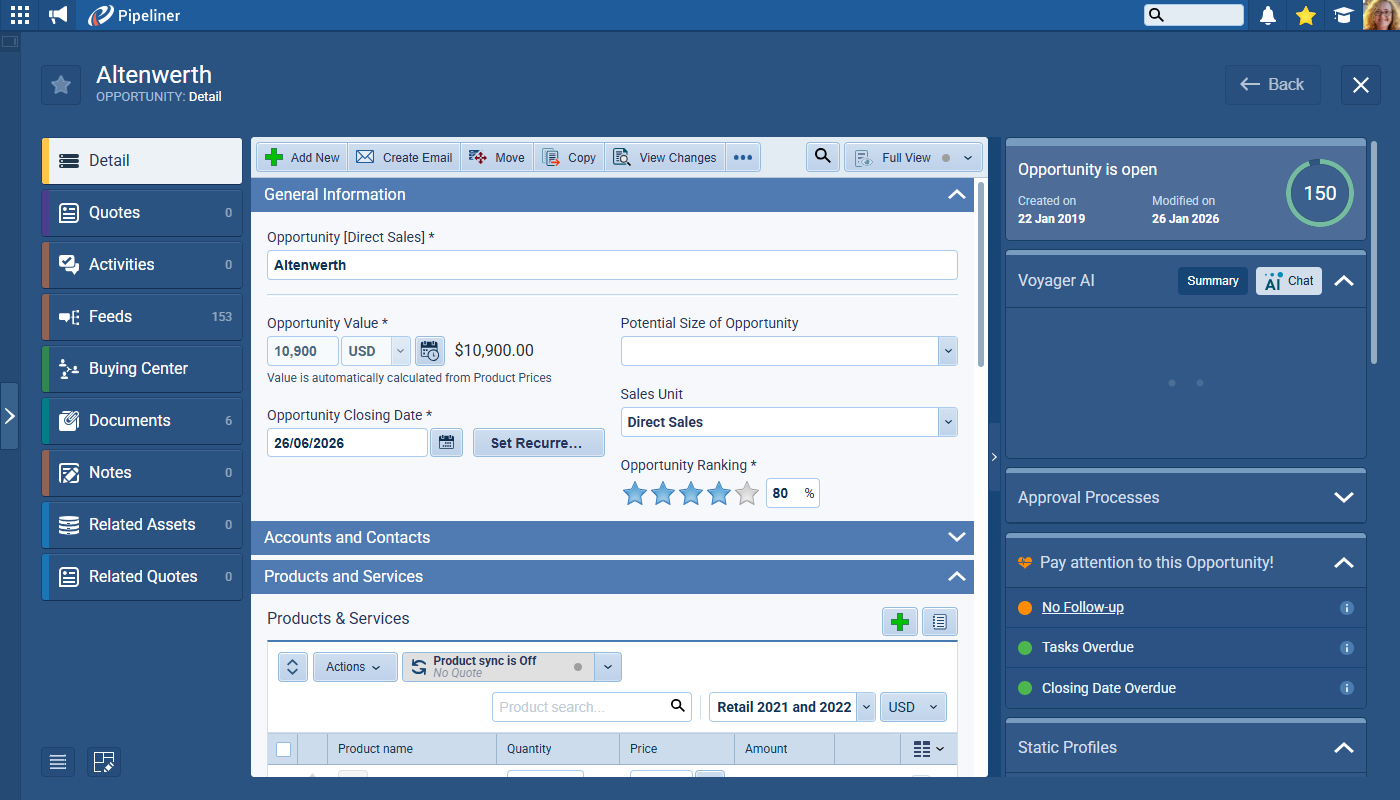
- Pattern 2 (Other Places): Used for Sections, Cards, and Widgets.
- Closed: Arrow points Down (indicating future state: click to see content below).
- Open: Arrow points Up (indicating future state: click to hide content).
Add "Sales roles" Option to List View Fields in Leads
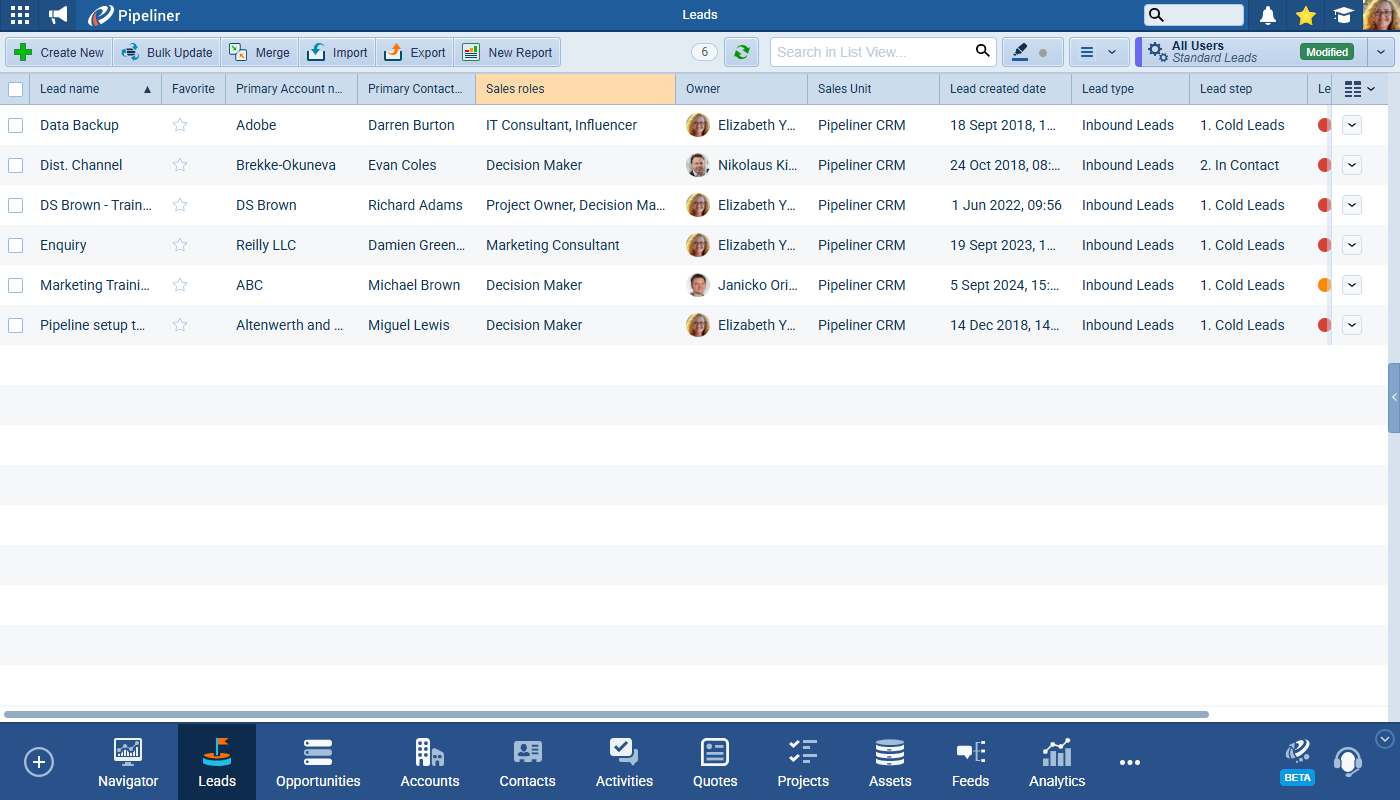
We've established functional parity between Leads and Opportunities by exposing Contact "Sales Roles" as an available field for selection in List Views and custom filters. ⤵
Option to not display archived records in search when linking records
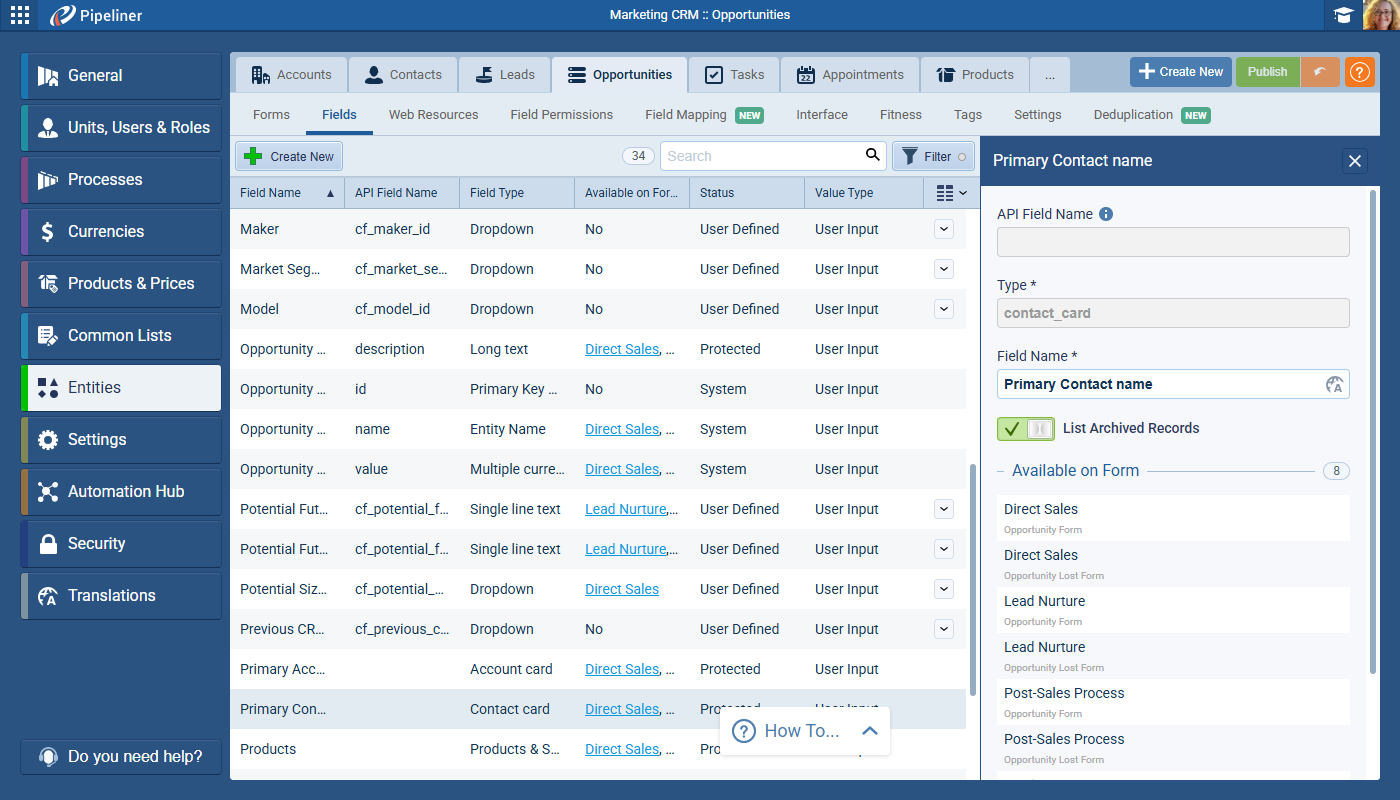
Admins can now select a new option "List Archived Records" option in Administration › Card Fields + Linked Items. This option is enabled by default. If turned OFF, archived records are excluded from:
- Quick search in the CRM Web App.
- Linked item fields in the MS Outlook Add-in.
This change affects Linked Item fields but not Lookups as they already support similar logic. ⤵
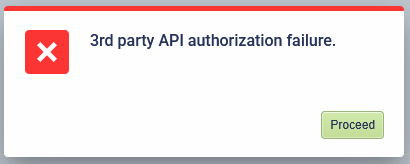
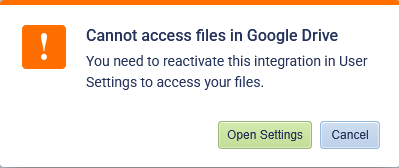
Google Drive & One Drive — Error text update
This update clarifies the error users can receive when accessing cloud storage integrations.
OLD ERROR ⤵
NEW WARNING ⤵
Large Record Form Rendering OptimizationOptimization Optimization is the process or act of altering a system, design, or procedure such that it 1) attains full functionality or efficiency, or 2) generates maximum output, benefit, or impact.
We've worked on performance optimization for complex forms containing many fields or calculations which has resulted in nearly a second's improvement in rendering and improved overall responsiveness while typing and interacting with form fields.
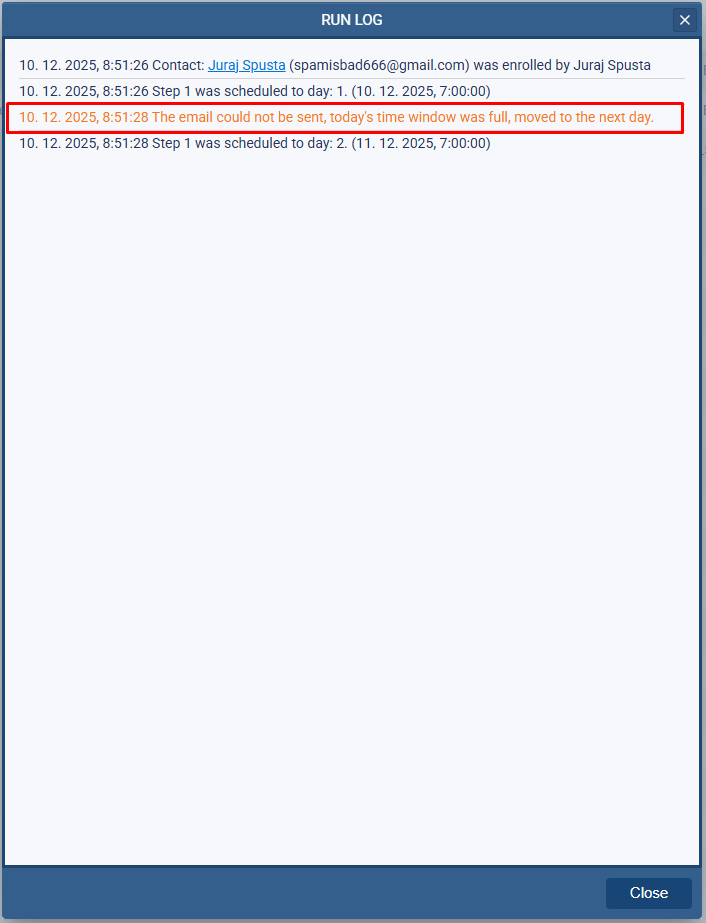
Email Sequences — Plan events to available date and time
We have refined the enrollment logic to ensure that records are scheduled to the closest available date/time slot to help ensure that sequence time settings are strictly respected during the creation of new scheduled records. ⤵
Improve email detail visualization
Aesthetic and usability improvements to the email management interface by updating the default sort order to "Newest -> Oldest". The user's sort selection is now saved to their User Settings.
We've also adjusted the color of the date/description text to improve readability and distinguish it from warning text.
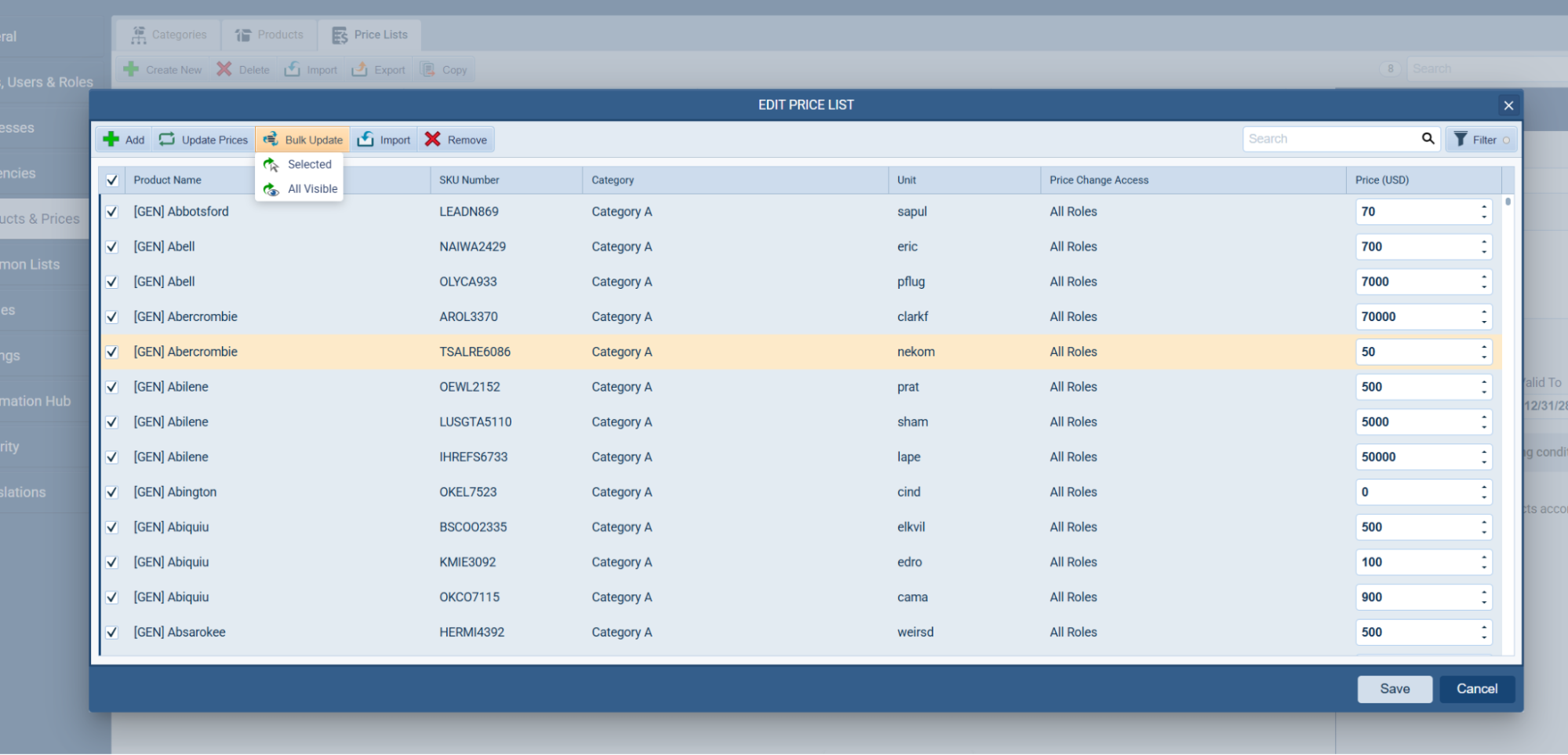
Improved price list create and update dialog
This release unifies the behavior of Update Prices and Bulk update buttons. The "Update prices" button is now consistently visible across all price list dialogs and there is an added selection capability to the Create / Copy Pricelist dialog. ⤵
Deactivated User Data Management Updates
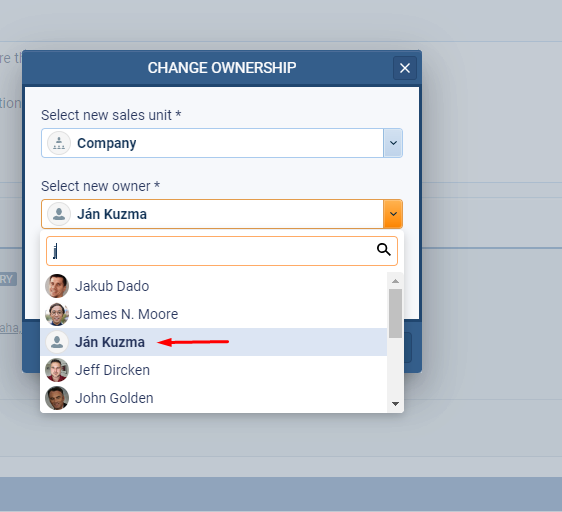
The logic for reassignment and deletion in the "Manage User Data" modal has been consolidated to handle all record types, specifically addressing the previous exclusion of private data. ⤵
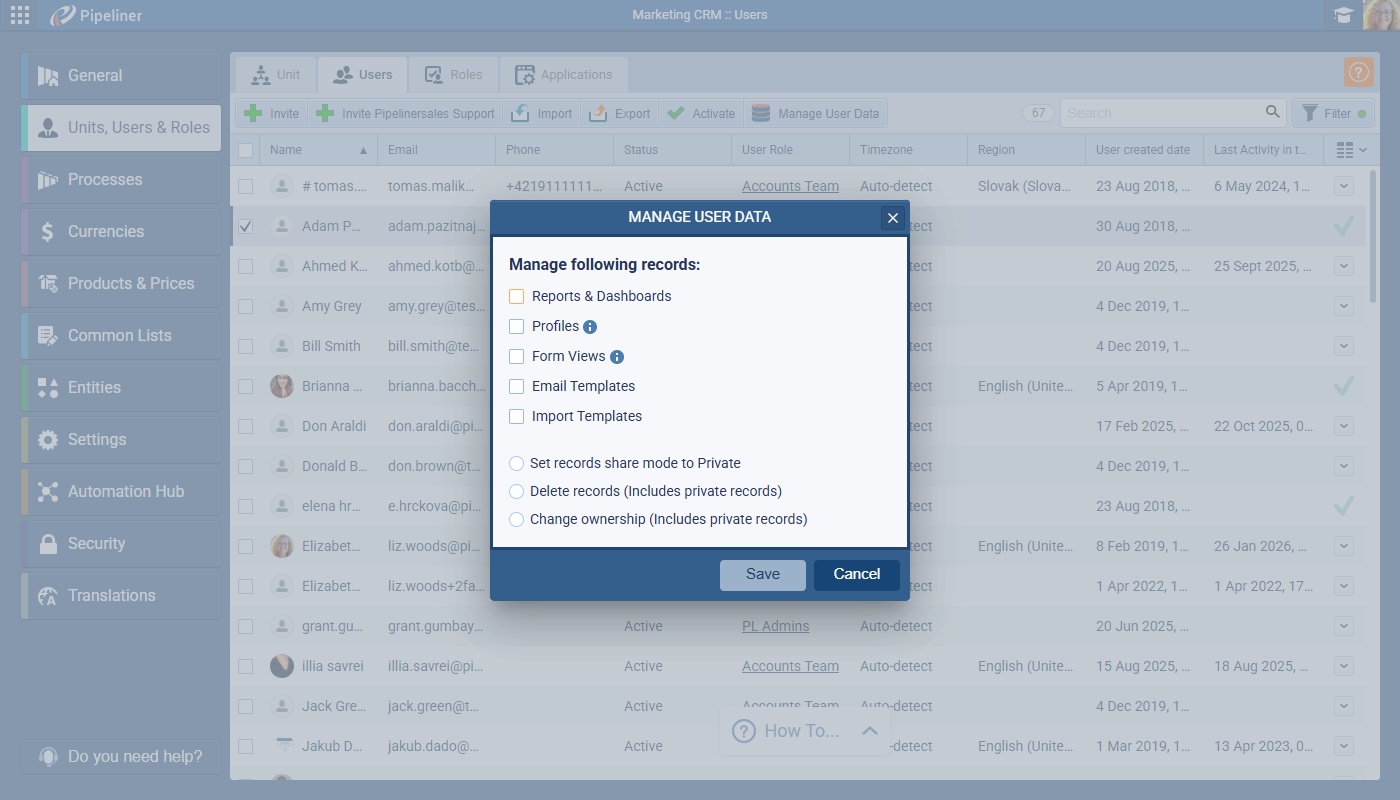
The "Delete records" and "Change ownership" actions now explicitly query and affect records where share_mode = Private (or equivalent internal flag). This ensures no data is left orphaned when a user is deactivated. The checkboxes in the "Manage User Data" dialog have been renamed to transparently inform the administrator of this wider scope:
- "Delete records" → "Delete records (Includes private records)"
- "Change ownership" → "Change ownership (Includes private records)"
To support the transfer of ownership for "Default" profiles (e.g., standard system profiles or profiles simply named "All", "My"), a conflict resolution strategy has been implemented. During the "Change ownership" operation, if a default profile is encountered, it is automatically renamed to include the former user's identity in the format: [Original Profile Name] ([Former User Name])
Example: A profile named "All" belonging to user John Doe becomes "All (John Doe)" when transferred to the new owner.
Custom dates for snoozing activities
Users can now select a specific date and time when snoozing activities via a new Custom option added to the end of the snooze list in both Floating Reminders and the Notification Hub. ⤵
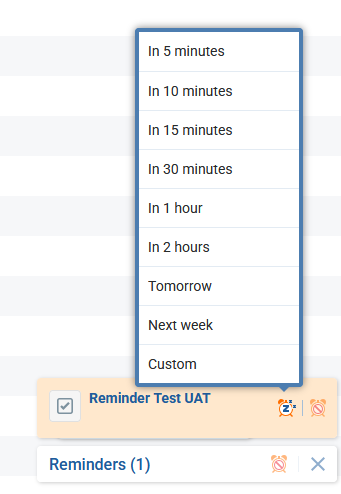
Selecting Custom opens a Date & Time Picker that allows users to specify a precise return time. Clicking the Set Reminder button applies the snooze time, closes the notification, and removes the activity from the hub.
Fullsize Screenshots ⤵