

Quick Filter
This release introduces the new Quick Filter feature. This makes filtering and segmenting your Pipeliner dataData Data is a set of quantitative and qualitative facts that can be used as reference or inputs for computations, analyses, descriptions, predictions, reasoning and planning. even easier by giving users a customisable toolbar allowing them to set any field for quick filtering right there on screen. The Custom Filter tab still exists in the Power Panel for complex filter criteria and Quick Filters and Custom Filters operate in conjunction with each other. ⤵
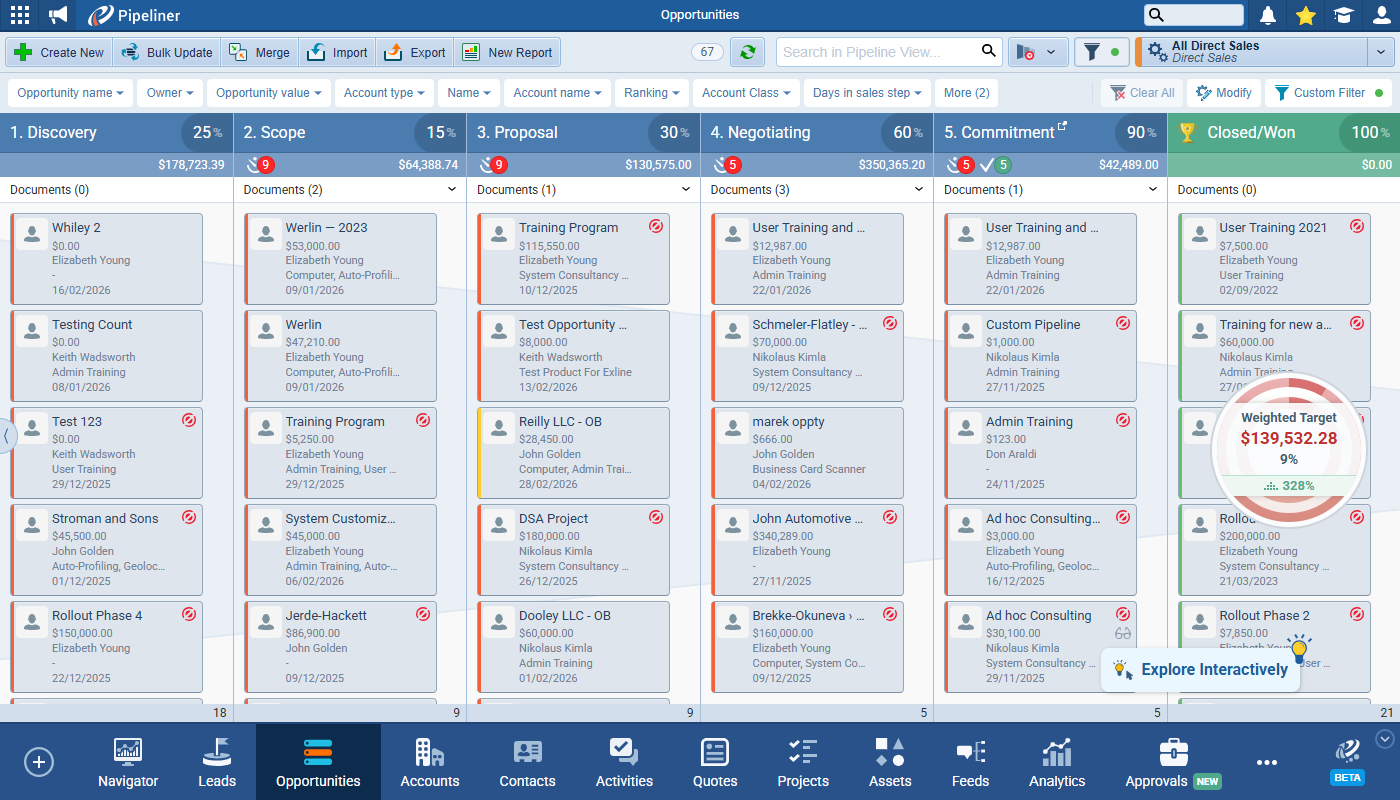
The Quick Filter is switched on by clicking on the toggle between the view selector and the power panel button. This button includes an indicator (a green dot if active) that reflects whether filtering is active in either Quick Filter or Custom Filter. ⤵
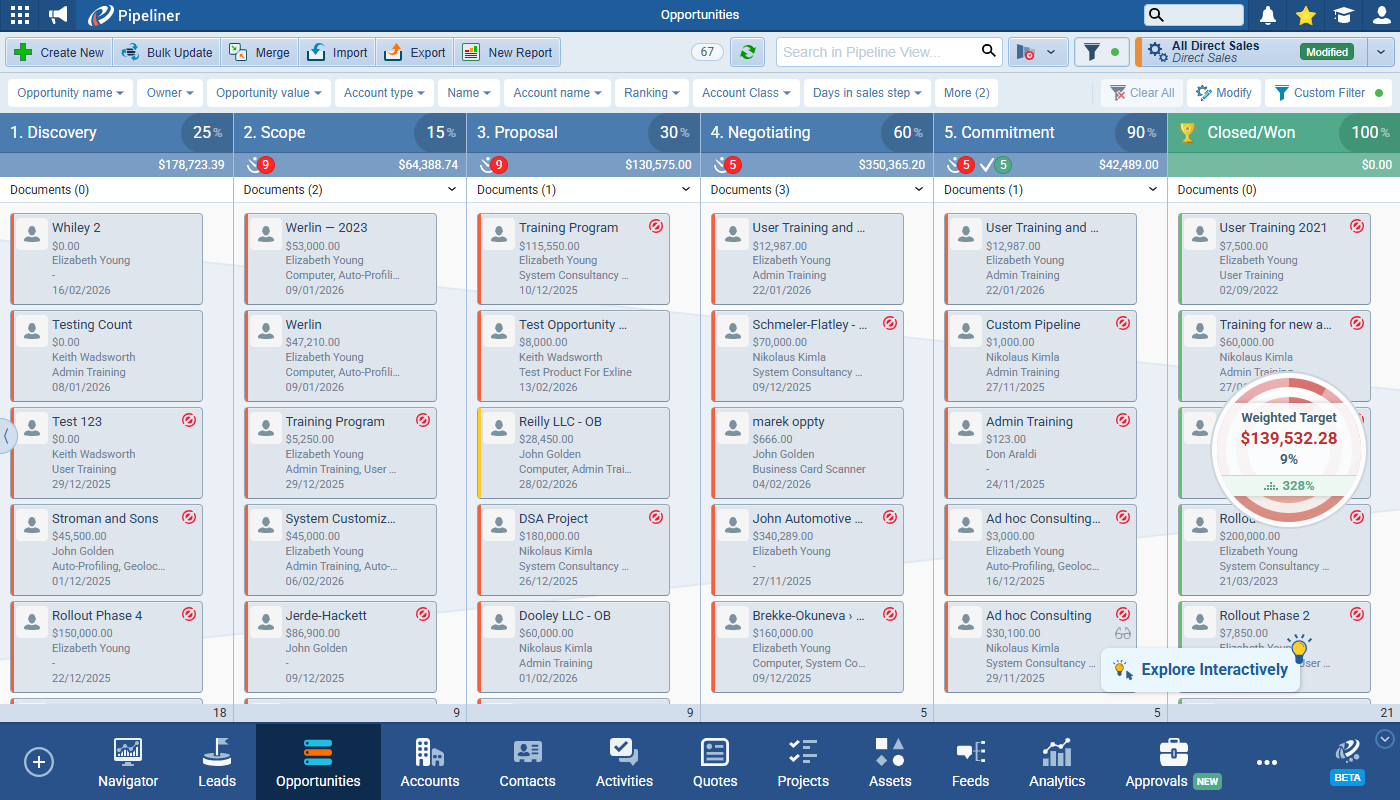
Quick Filter fields show as clickable buttons on the toolbar and change colour when selected. Newly added fields appear at the end of the toolbar but the order can be changed by dragging and dropping fields. When fields that support multiple selections are being used, a count is shown in brackets to indicate how many criteria are active. If the number of fields selected exceeds the width of the toolbar, a “More” button appears which will display the additional fields when selected. ⤵
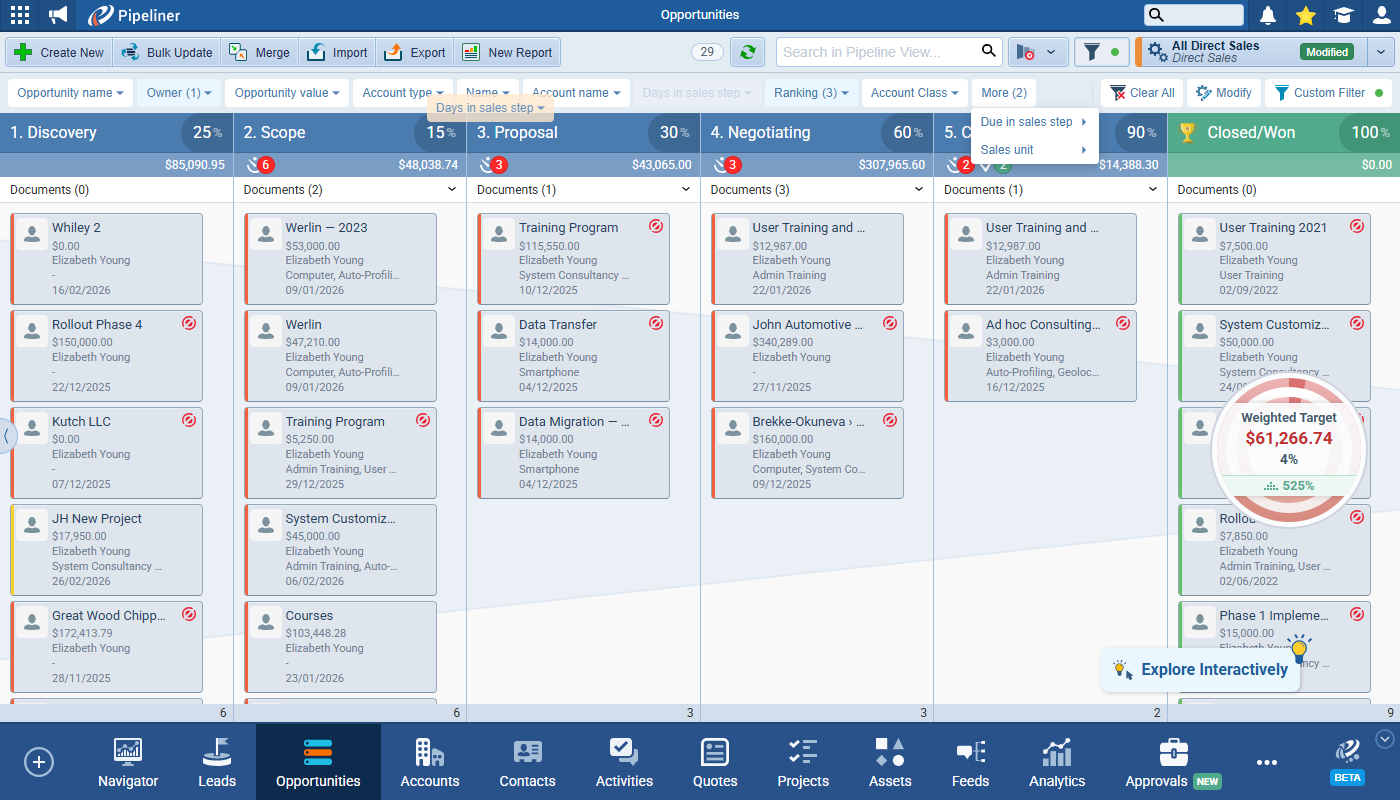
Users need to be aware that if an added field becomes unavailable (for example, due to changed access rights) or deleted, the chip turns red and shows as unavailable or deleted respectively and that the underlying criteria cannot be changed for unavailable and deleted fields. When unavailable fields are present, no records will be displayed.
Clicking on a field in the Quick Filter toolbar opens a field-specific menu. The menu type depends on the selected field type (for example, multi-select vs. text input). ⤵
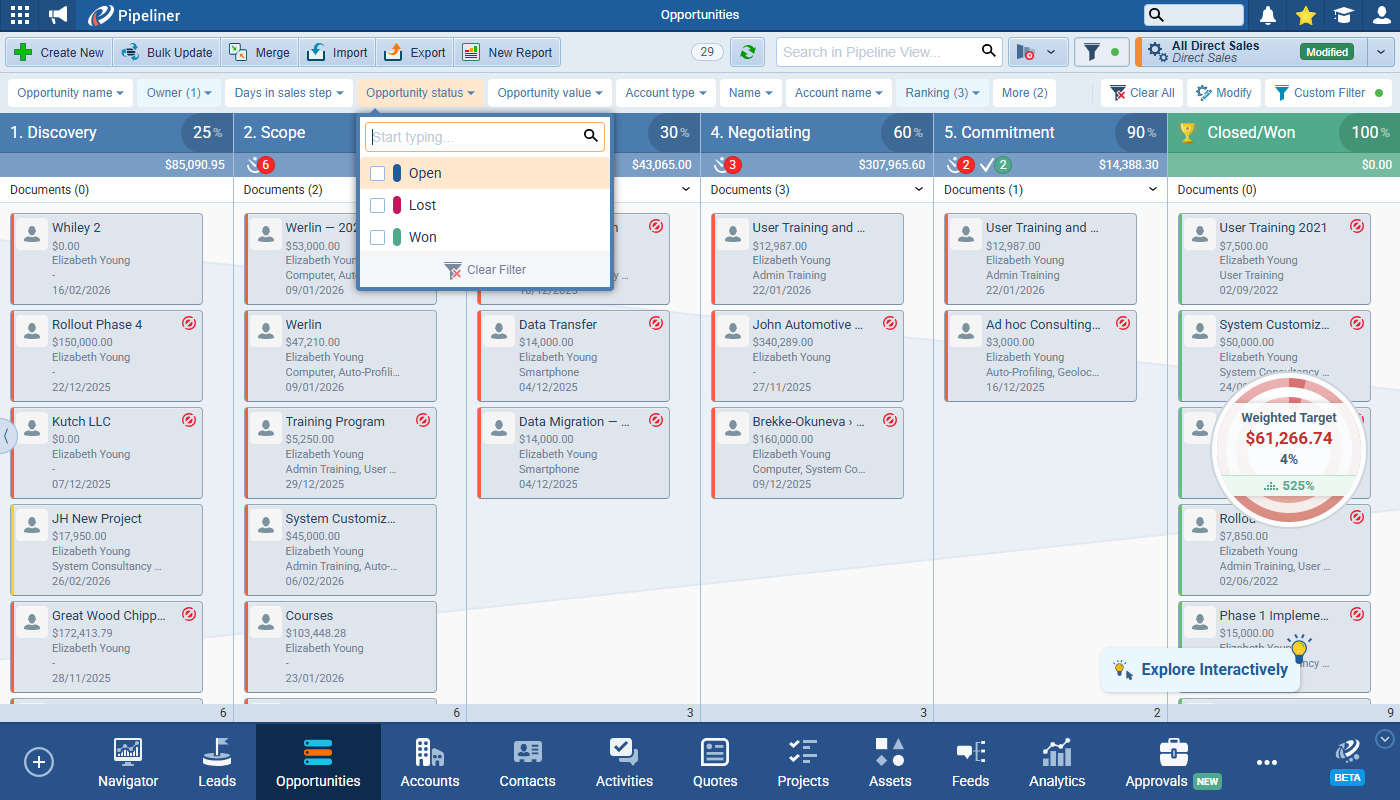
Quick Filter appears across Preview screens for all main entities and custom entities that have preview screens, including archived entities. Quick Filter settings are remembered when switching between views and Preview screens. Added fields, their positions, and criteria are saved into the currently-used profile when the userUser User means a person who uses or consumes a product or a service, usually a digital device or an online service. saves the profile. ⤵
Quick Filter Management
Users can manage their Quick Filters from the management section on the right hand side of the Quick Filter toolbar. ⤵
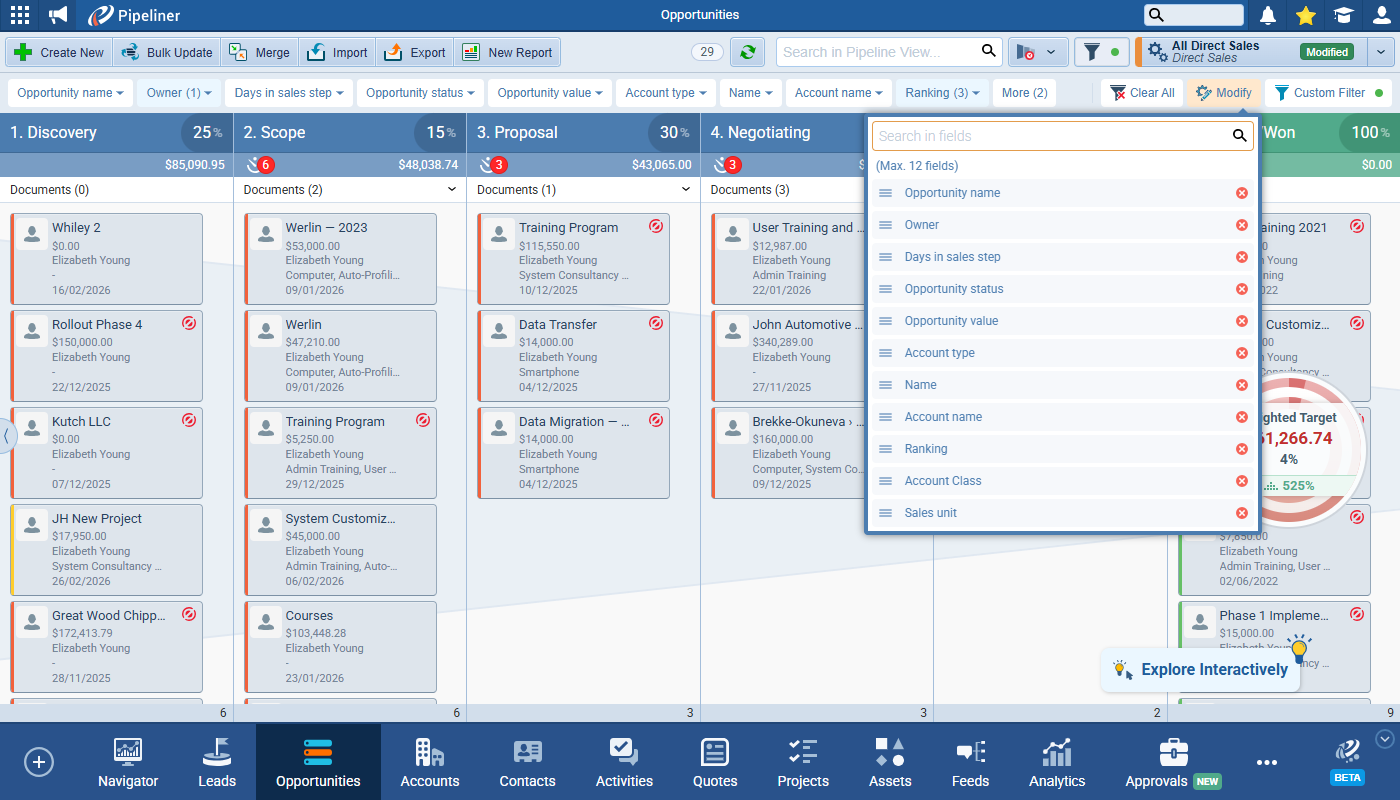
Clear All — clears (resets) criteria in all Quick Filter fields without removing the fields themselves.
Modify — opens a menu used to add, remove, and reorder Quick Filter fields. This menu shows a list of currently added fields and a search option to look for additional fields to add. A maximum of 12 fields can be added. The list order reflects the current order in the toolbar — fields can be removed by clicking on the x and reordered by dragging and dropping from the list icon on the left.
Custom Filter — clicking Custom Filter opens the Custom Filter tab in the Power Panel. The Custom Filter indicator shows a green dot when there are active Custom Filter criteria.
Custom Filter
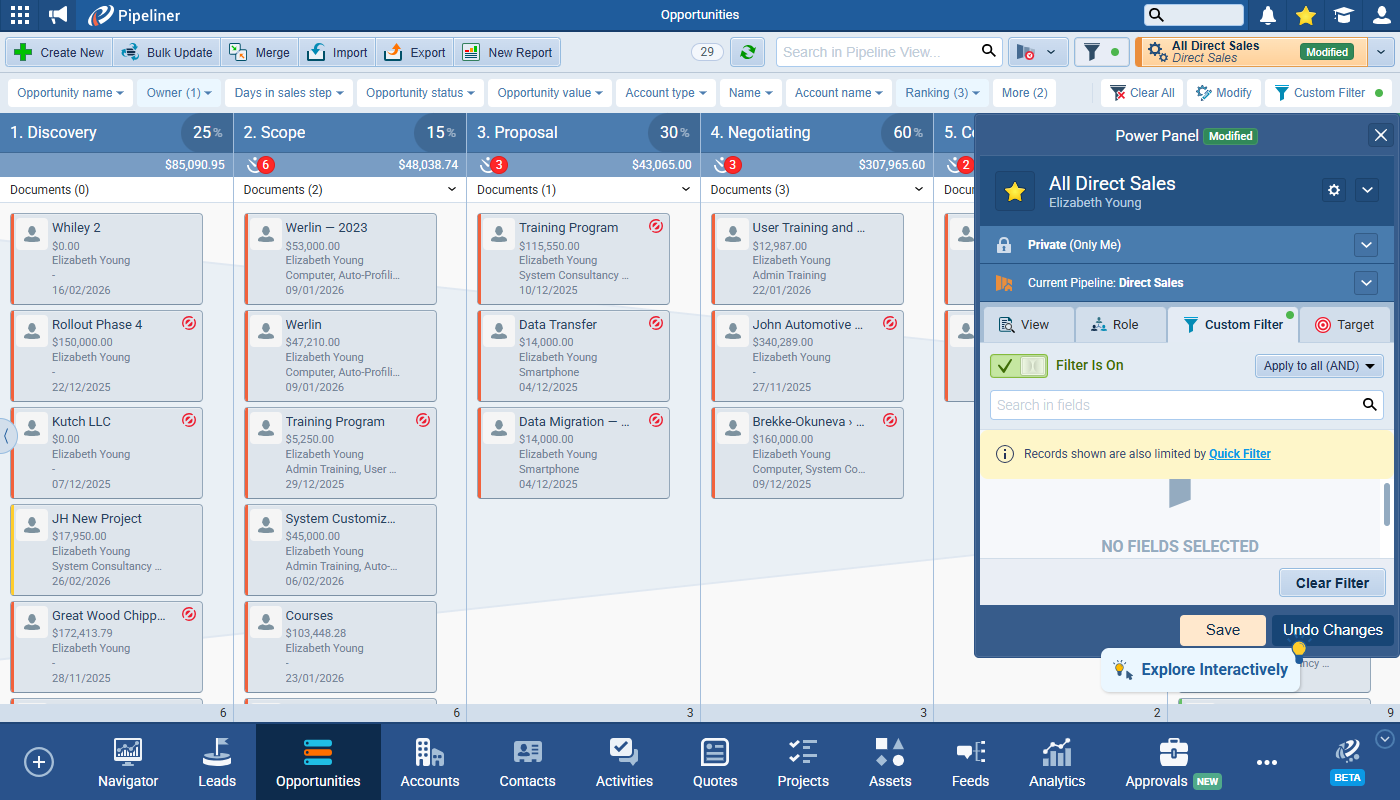
The Power Panel tab is renamed to Custom Filter. Custom filter can be accessed by opening the Power Panel or by clicking on the Custom Filter button in the Quick Filter toolbar. When at least one Quick Filter field has active criteria, an infobox appears in the Custom Filter indicating that records are also limited by a Quick Filter. The Quick Filter notification is clickable; if the Quick Filter toolbar is hidden, clicking it reveals the toolbar. ⤵
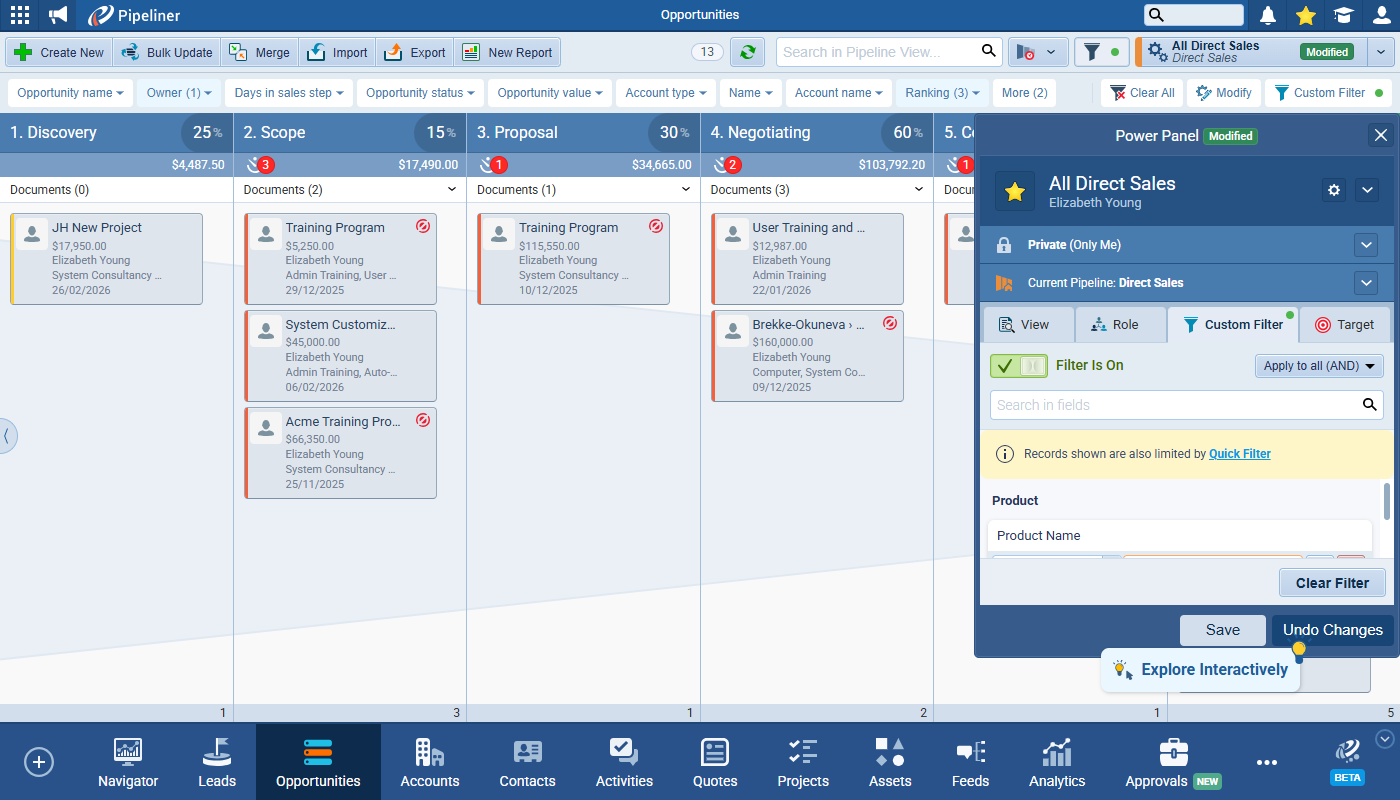
Quick Filter vs Custom Filter
- Quick Filter and Custom Filter are separate tools; fields and criteria added in one do not appear in the other.
- If both tools are used at the same time, records are evaluated using the criteria from both tools.
- AND is applied as the logical operator between Quick Filter and Custom Filter.
- Users can add the same field to both tools with different criteria; if the criteria contradict, no records are shown.
Supporting an Empty (Unselected) State
Some system fields are never empty in Pipeliner — Ranking, for example or AccountAccount Account refers to a record of primary and background information about an individual or corporate customer, including contact data, preferred services, and transactions with your company. Class — but in order to support Quick Filters, these fields now have an “unselected state”. ⤵
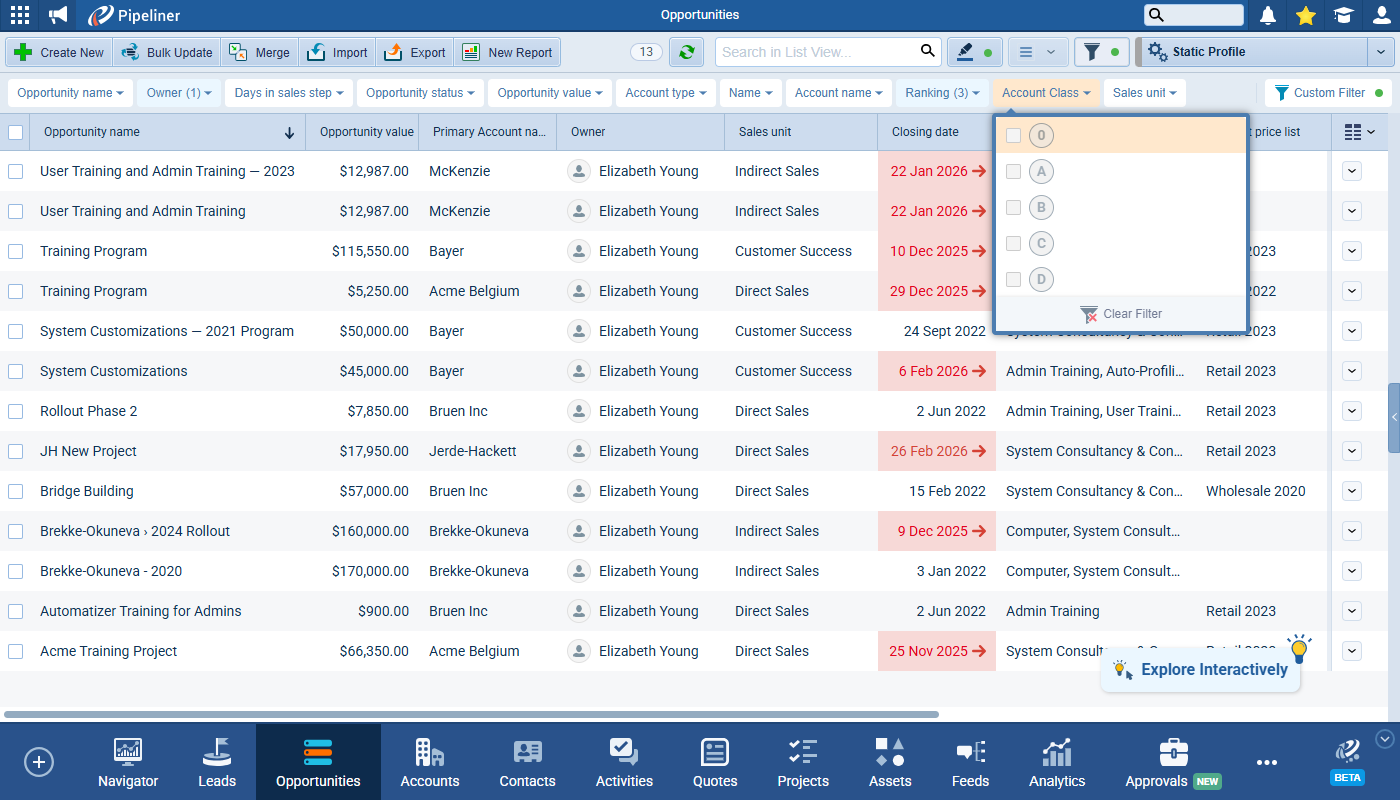
A field in the unselected state does not contribute to filtering until the user selects a value but, after a value is selected, clearing back to an empty state is not possible so users need to remove the field/option to clear it.
Fields / field types covered include:
- Checkbox
- Ranking
- Account Class
- Date
- Date and Type
Impacts across the Pipeliner App
Static Profiles
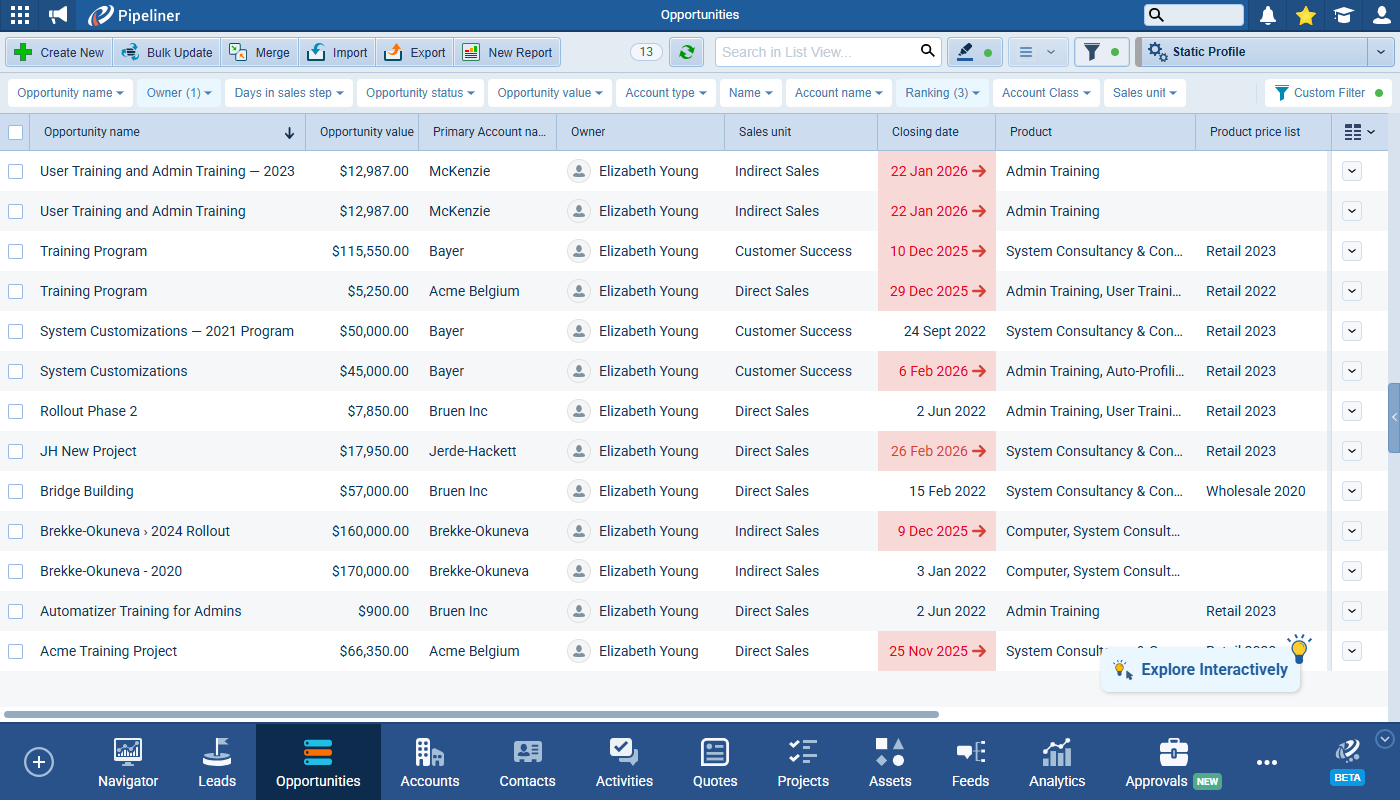
The Quick Filter toggle button is available on static profiles and Quick Filter fields appear and remain interactive, but the field menus are read-only (criteria cannot be changed). Within the field menus, search and clear actions are disabled and, on the Quick Filter toolbar, Modify and Clear All are not available; Custom Filter remains available and behaves as on standard profiles. ⤵
Navigator (Dashboards)
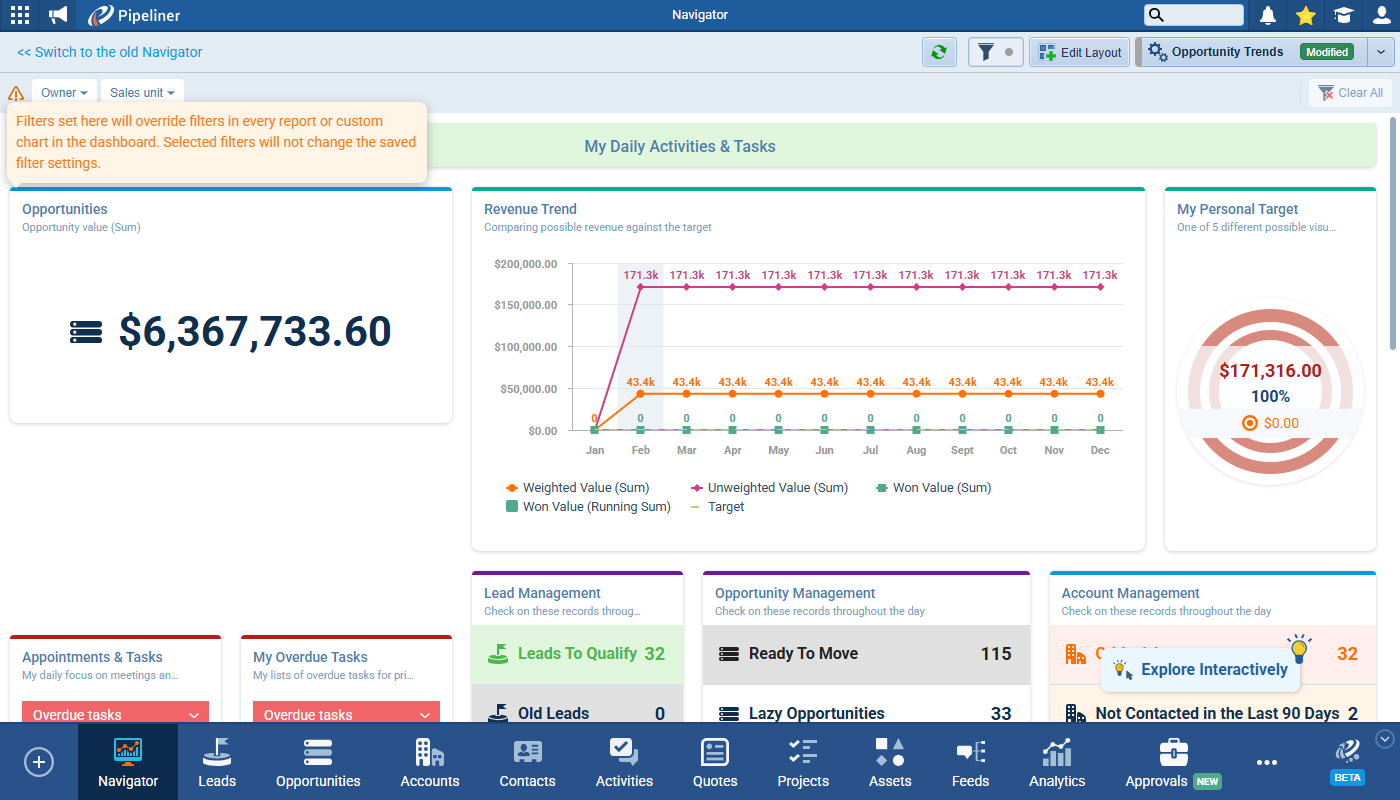
Quick Filter is supported in both the new and old navigator experiences but, in the navigator context, the default fields are limited (for example Owner and Sales Unit), and management capabilities are reduced (no Modify, no Custom Filter). Only Clear All is available when any criteria is set. The previous Filter tab has been removed as options are moved over to the new Quick Filter toolbar. ⤵
Insights
The Quick Filter is added to Insights and the Quick Filter toolbar is placed under existing tabs, with a separate Quick Filter configuration per tab.
Each tab has its own default fields (for example, Insights/Indicators default to User + Sales Unit; Conversions/Performance default to Owner + Sales Unit). The previous Filter tab has been renamed to Custom Filter. ⤵
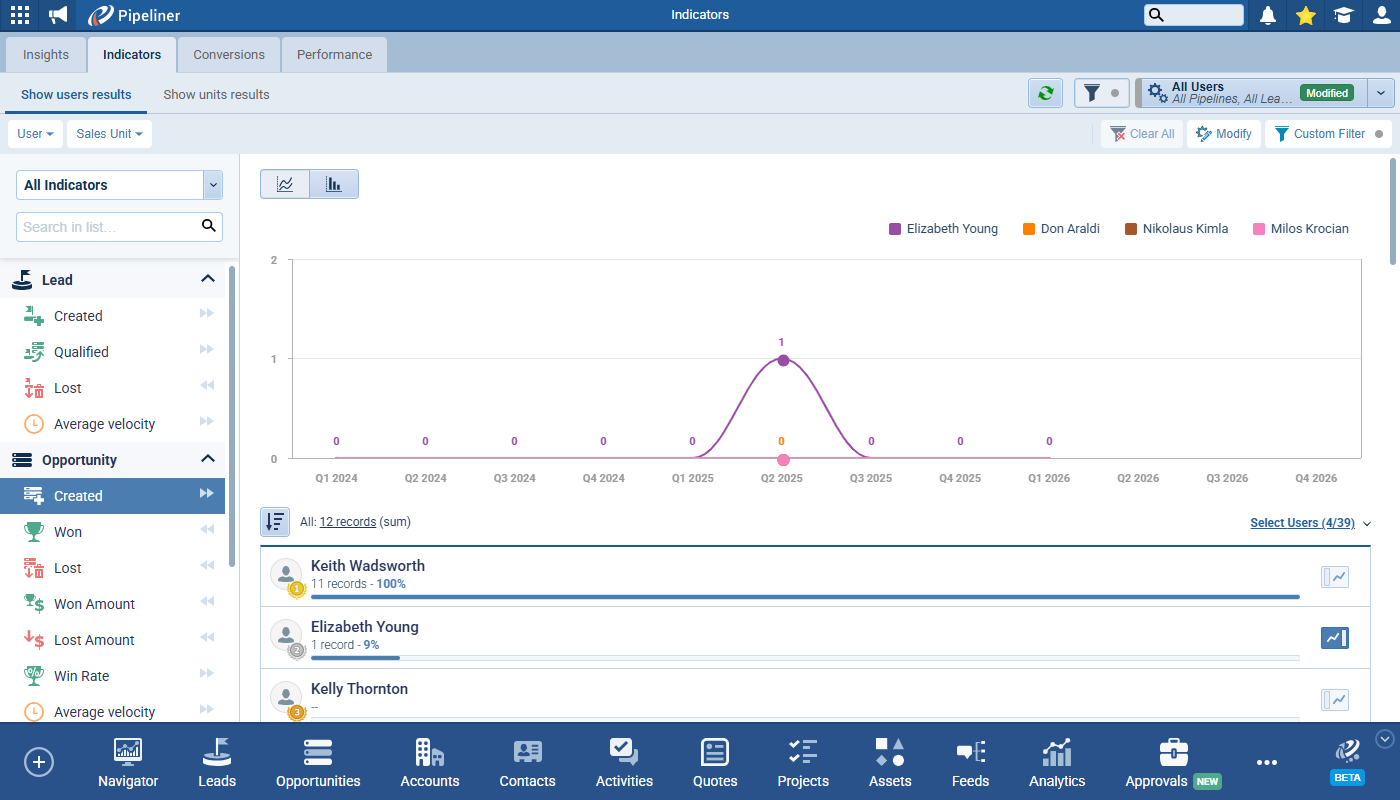
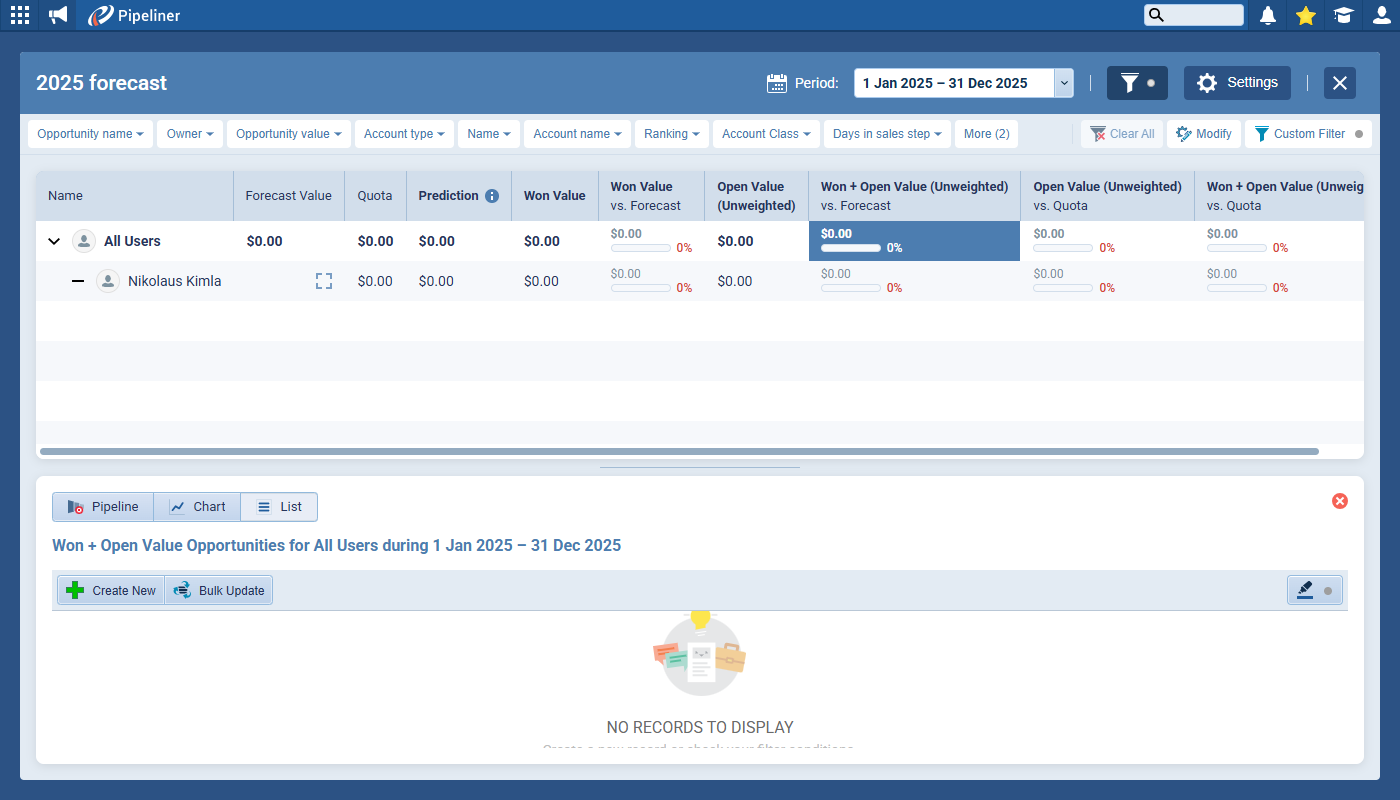
Forecasts
Quick Filter is added to Forecasts and uses the same behavior as on Preview screens. Default fields align with Opportunity Preview screen defaults. ⤵
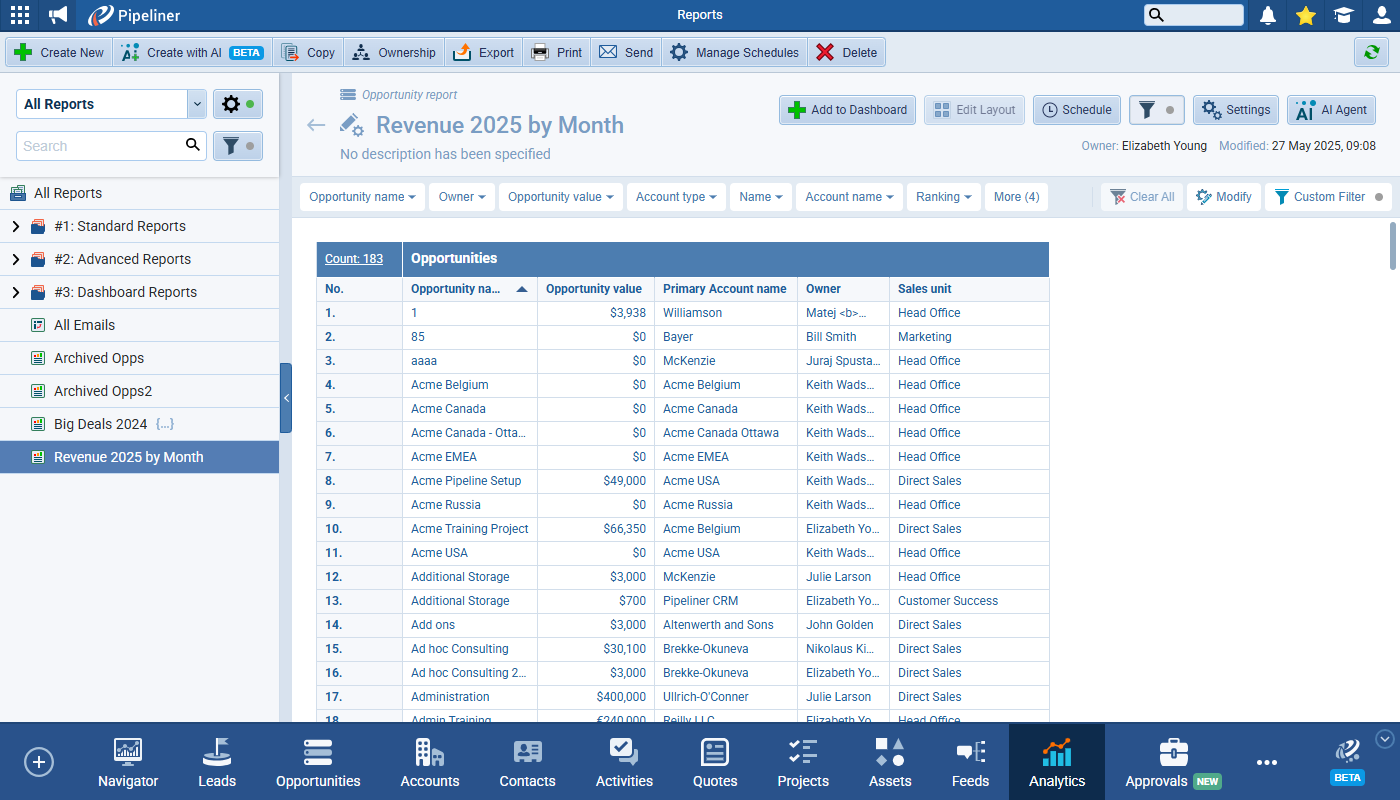
Reports
Report Detail
The Quick Filter toolbar has been added to Reports and uses the same behavior as on Preview screens. The default selected fields are based on the report’s selected entities. The previous Filter tab has been renamed to Custom Filter. ⤵
Create Report from Preview/Profile
Creating a report from a Preview screen or from a profile copies the current Quick Filter and Custom Filter configurations. The selected Quick Filter fields and conditions migrate into the report’s Quick Filter, replacing the defaults. Currently selected Custom Filter fields and conditions migrate into the report’s Custom Filter.
Report Dashboard
Quick Filter is added to Report Dashboards and uses the same behavior as on Preview screens. The previous warning text from the Filter tab is moved into a warning icon with tooltip on the Quick Filter toolbar. Management capabilities are reduced in dashboard contexts (no Modify; no Custom Filter), only Clear All is available. The filter tab has been removed as options are redistributed. ⤵
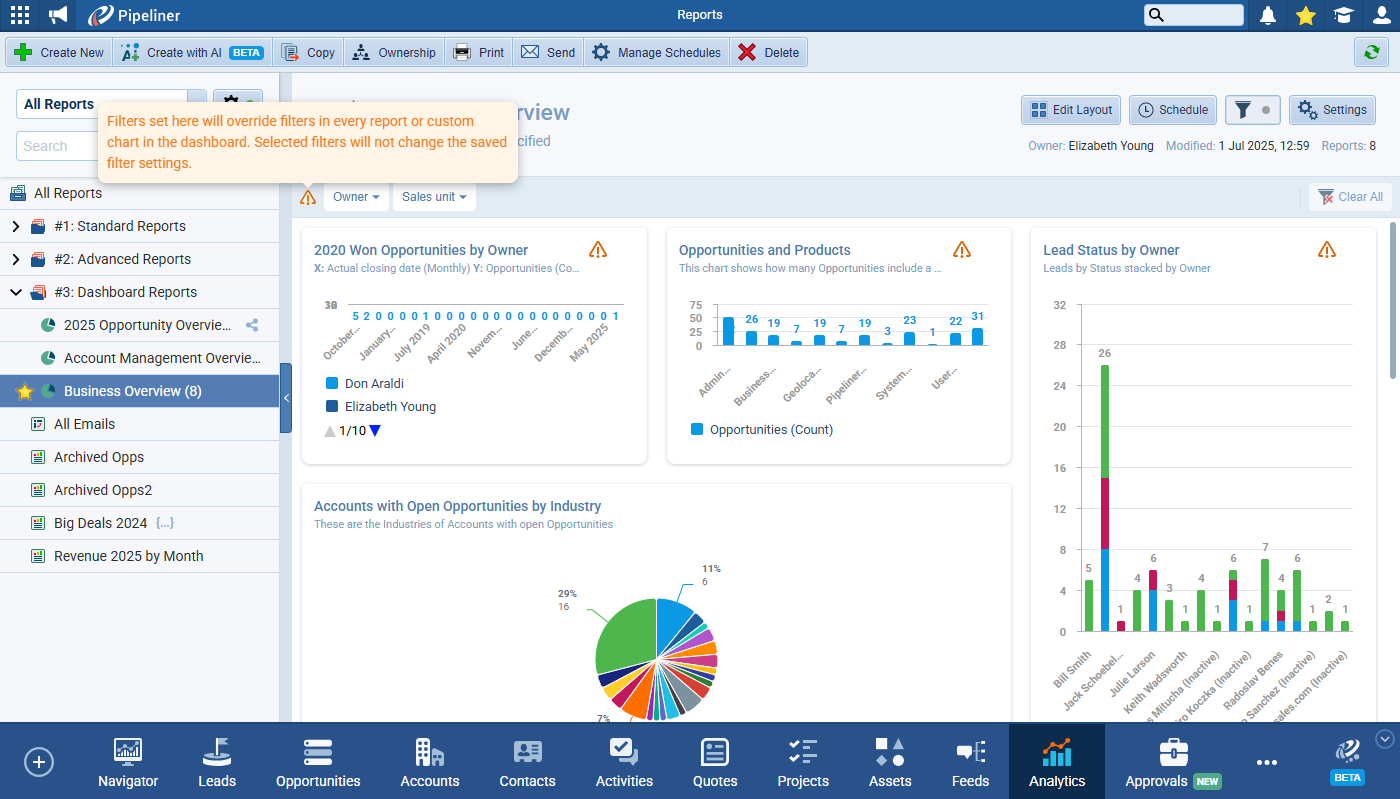
Selecting a report swaps the dashboard Quick Filter to the selected report’s Quick Filter; unselecting restores the dashboard’s own Quick Filter.
When a selected dashboard card has no Quick Filter, it will not be available.
Converting to Advanced Report
Quick Filter has not been implemented in Advanced Reports due to their advanced nature and the use of the Report Builder tool. When converting a report to an advanced report, Quick Filter and Custom Filter criteria are carried over and translated into Custom Filter criteria and Advanced Report filter and Report Builder filter remain compatible after conversionConversion Conversion is the process of turning a target consumer into a paying customer; or more generally, the point at which a user performs a specific action favorable to a marketer or a seller..
Fullsize Screenshots ⤵
Various Improvements
As part of our ongoing usability enhancement program, we’ve updated the following features.
Opportunity Form Sales Actions section is now movable
The Sales Action section within an Opportunity Form can now be moved and placed anywhere within the Form Layout. ⤵
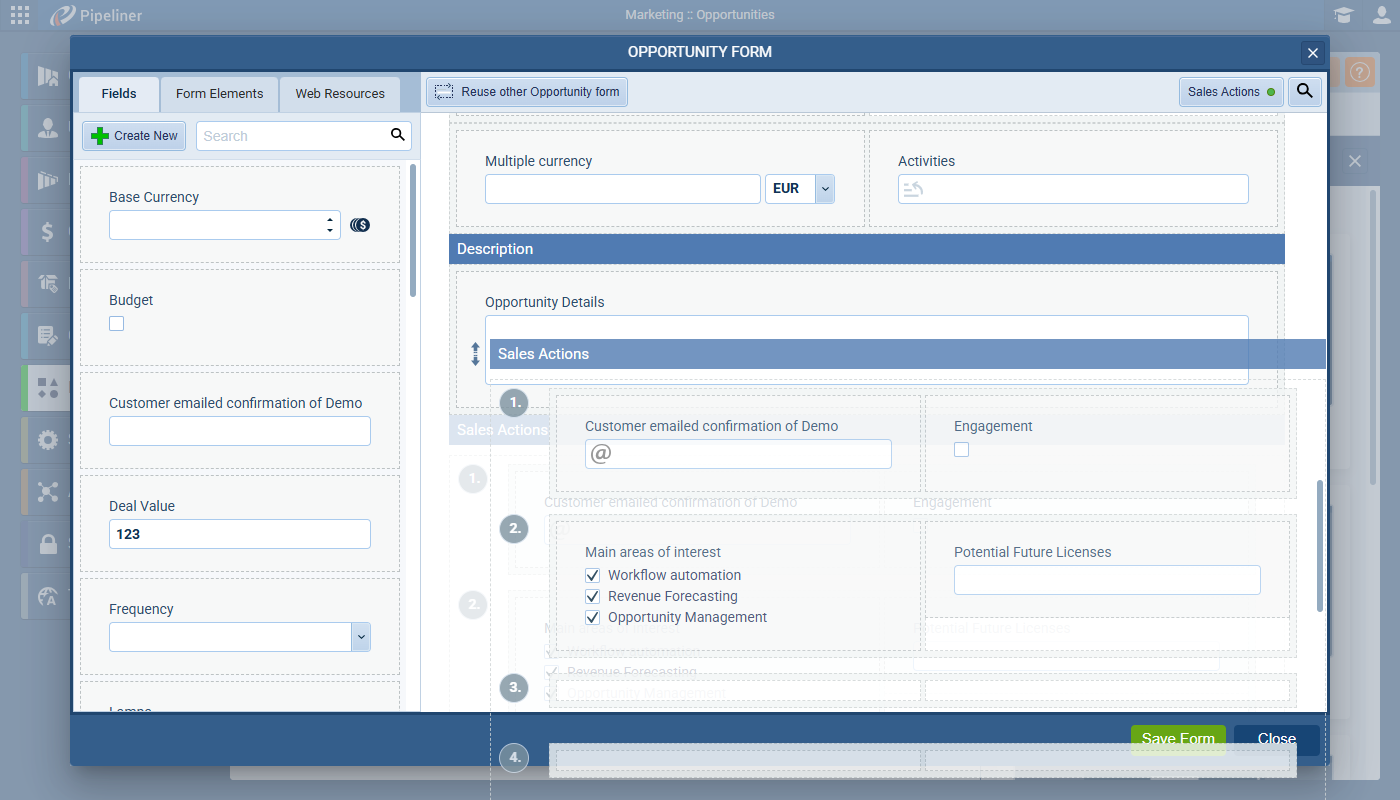
When the Sales Actions toggle is ON, the Sales Actions section can be moved like any other section. If the toggle is switched OFF, the Sales Actions section is removed from the form. If the toggle is then switched ON again, the section reappears and its position is reset to the default which is at the end of the form.
The Sales Actions section cannot be deleted, only toggled OFF.
Changes made to the placement of the Sales Actions section only apply in the web app, not in the Mobile app — Sales Actions remain at the bottom of the form on the Mobile app.
Record Detail Layout Amendments Prevention
A new toggle button has been added to Entity Type › Interface › Detail settings which enables Admins to prevent users from customizing their record detail layout, ensuring a consistent interface. The option is ON by default (individual users can customise their own Detail layout); when switched OFF, the “Customize” button in the record detail sidebar becomes invisible to all users. ⤵
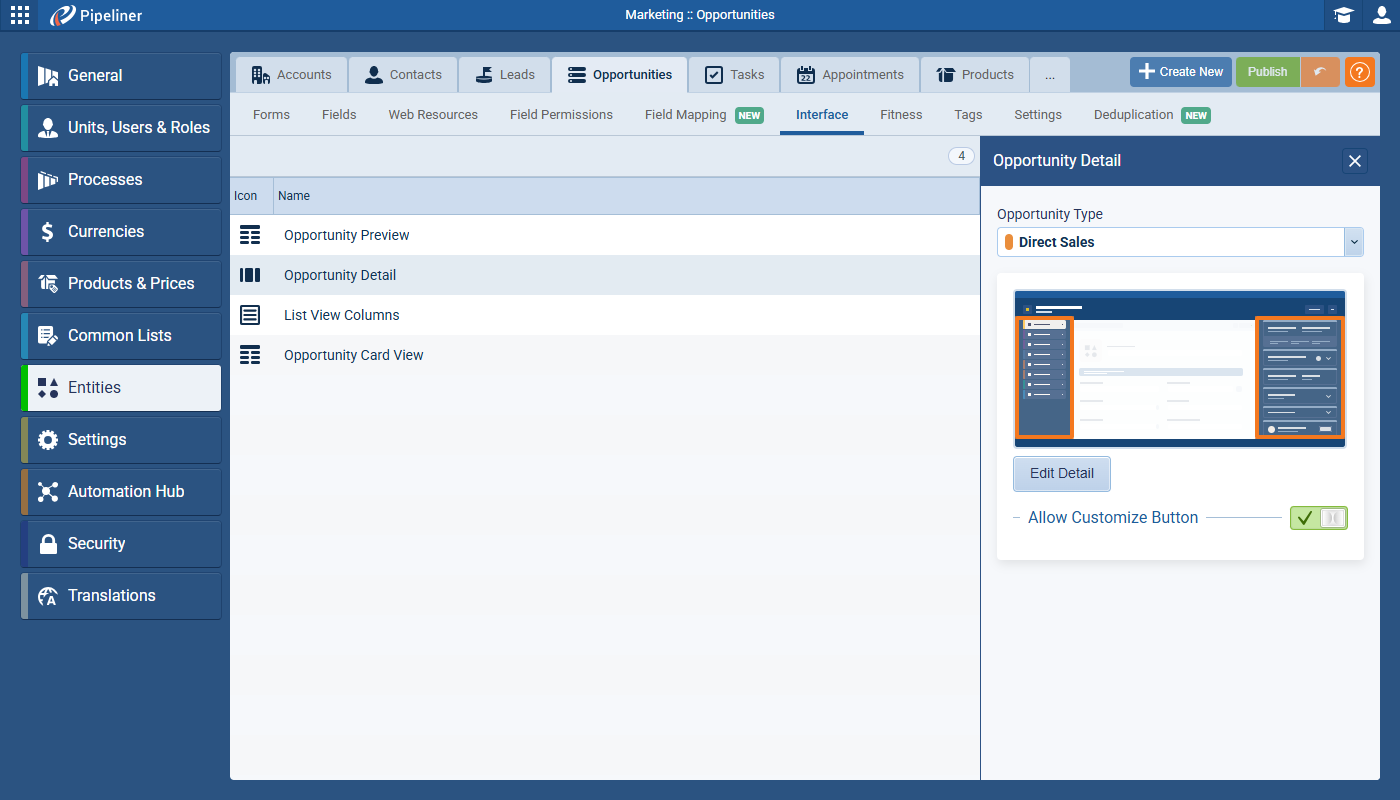
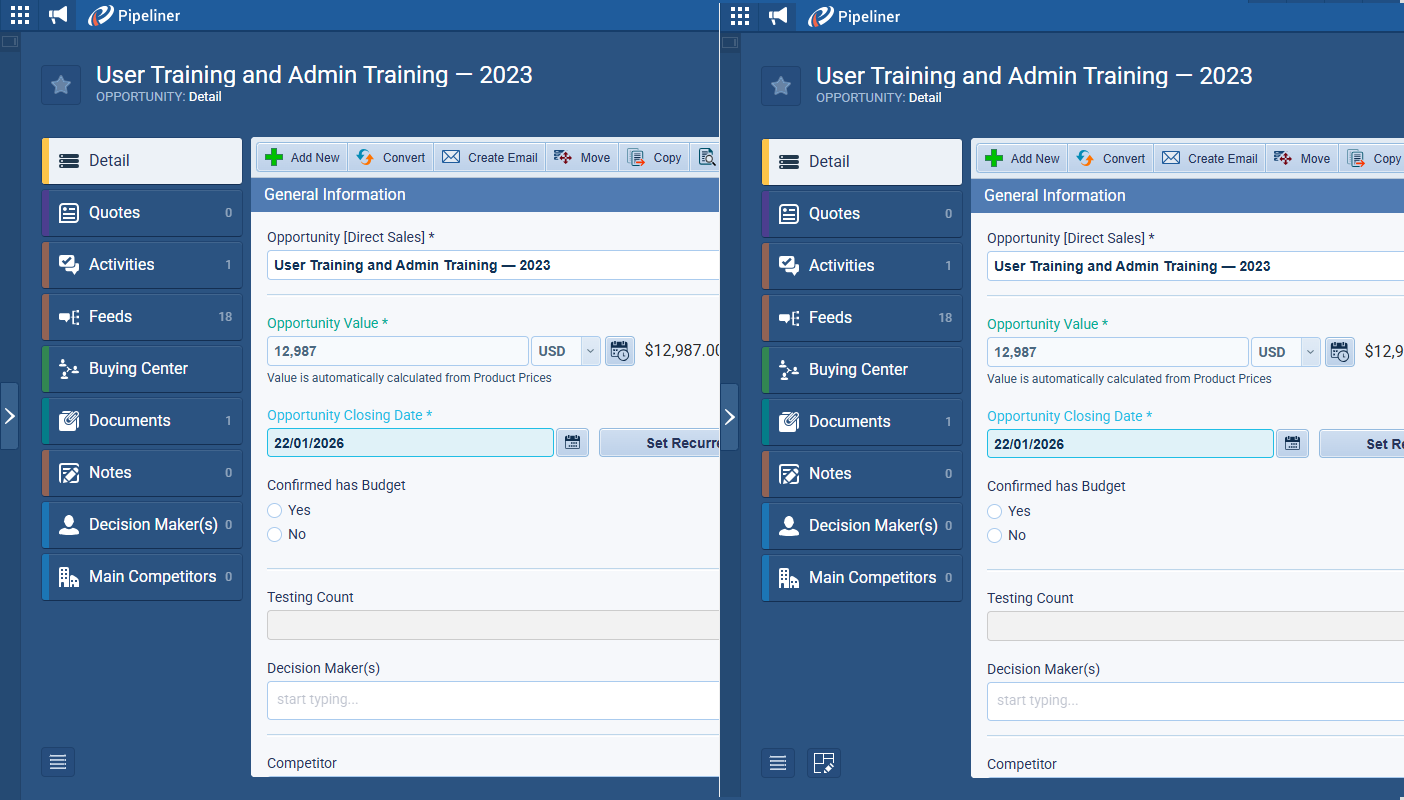
The information box text has been updated to clarify that changes apply to the current record type and that user customization depends on this permission.
Fullsize Screenshots ⤵
Pipeliner CRM Mobile
As part of our continuous mobile experience improvements, we’ve updated the following features.
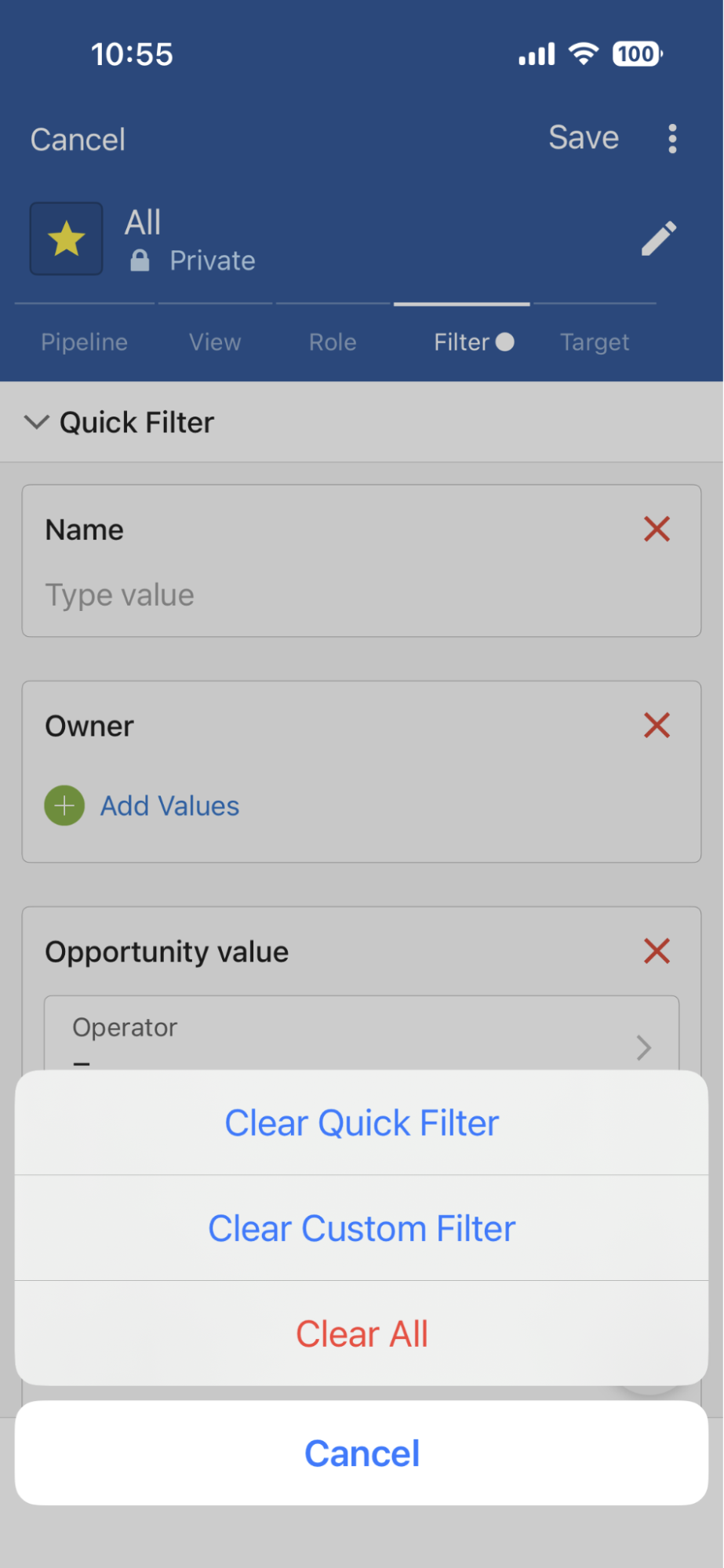
In the Mobile App, the Quick Filter feature enhances existing filtering capabilities by replacing the previous Presets with a unified filtering experience. Users can now configure a Quick Filter (of up to 12 fields) directly on a single screen, alongside using the existing Custom Filter. Both filtering options operate in conjunction, providing greater flexibility and control when refining data views.
Key changes to the user interface include:
- Quick Filter has replaced the existing “Presets” and the separate Custom Filter screen has been removed. Both Quick and Custom filters now exist on one scrollable page.
- Headers for both sections are collapsible and sticky.
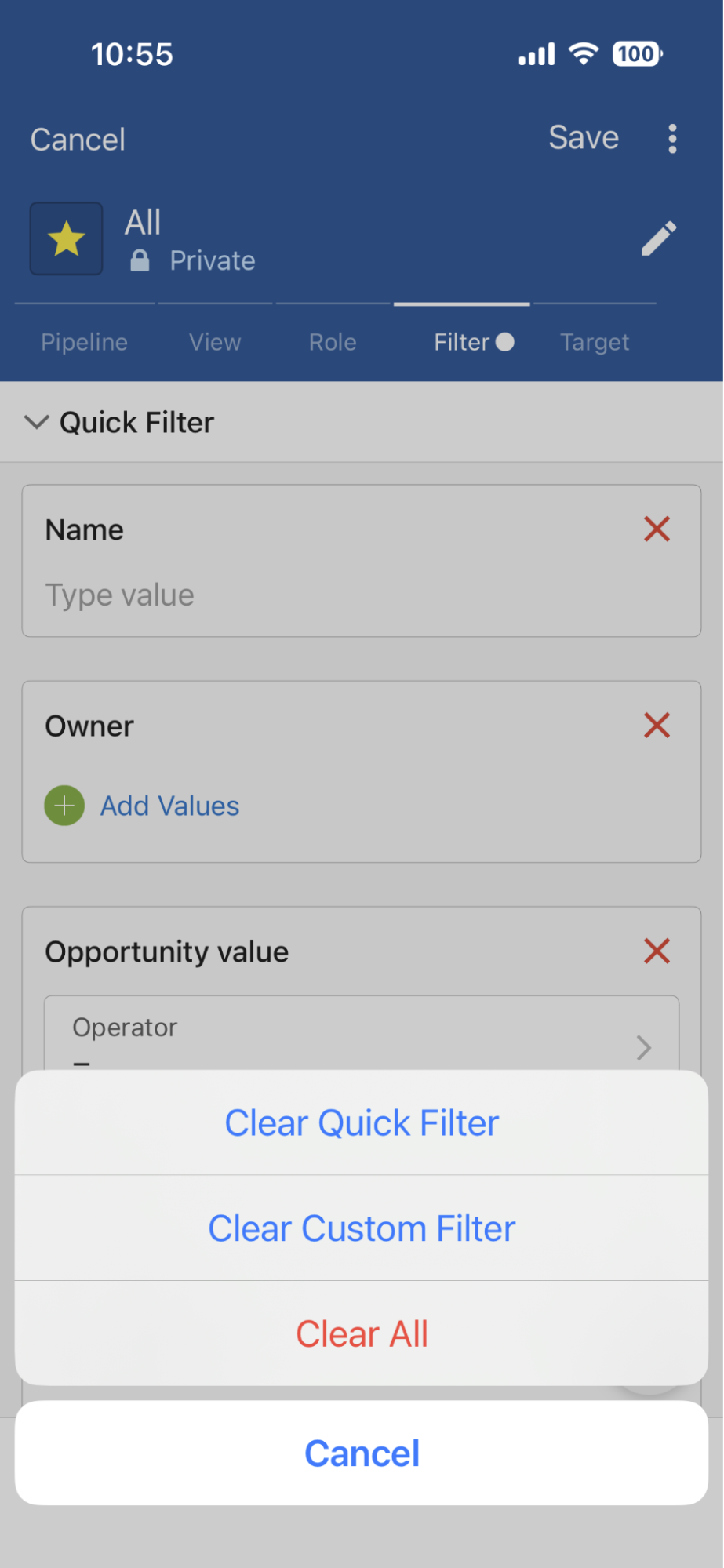
- Clear Filter has become a sticky button that provides options to clear Quick Filter, Custom Filter, or both with one tap.
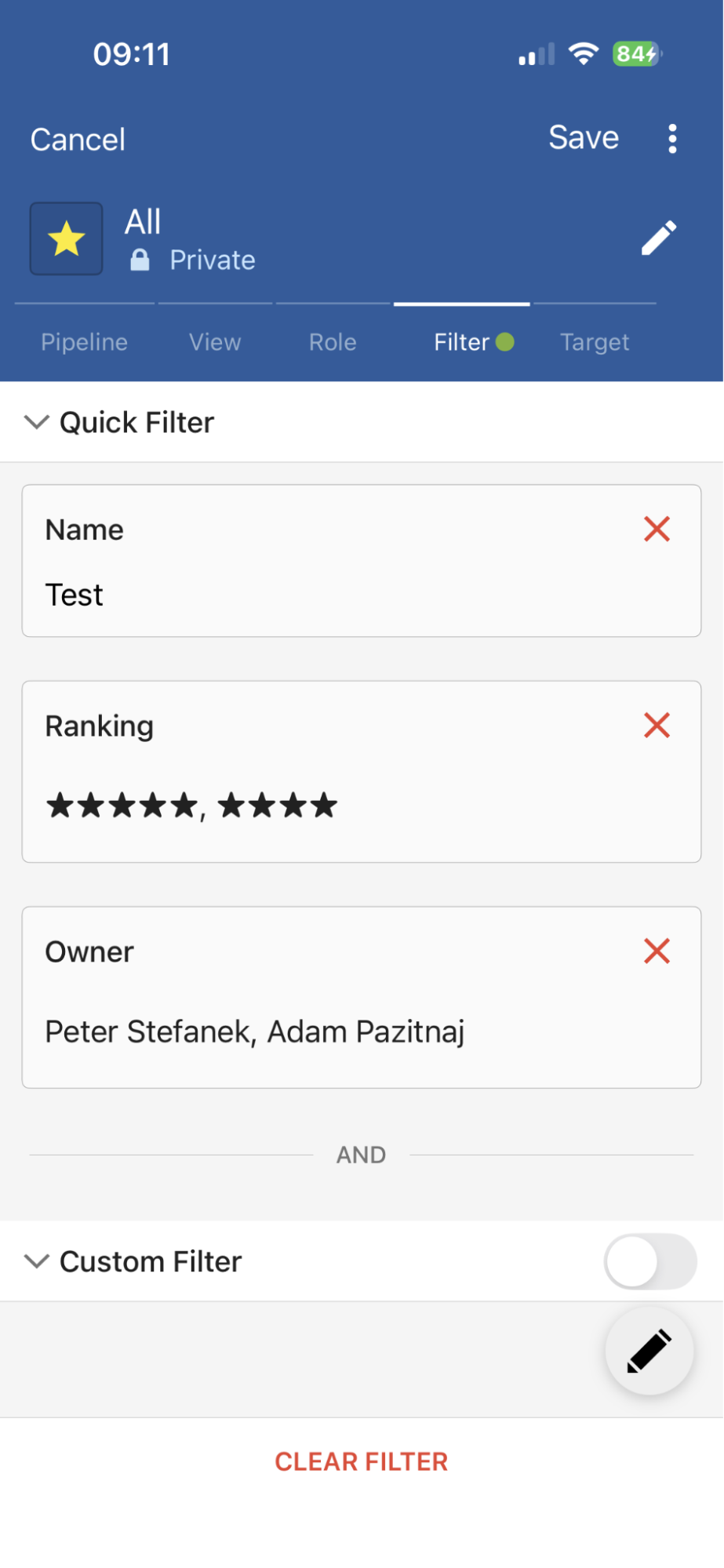
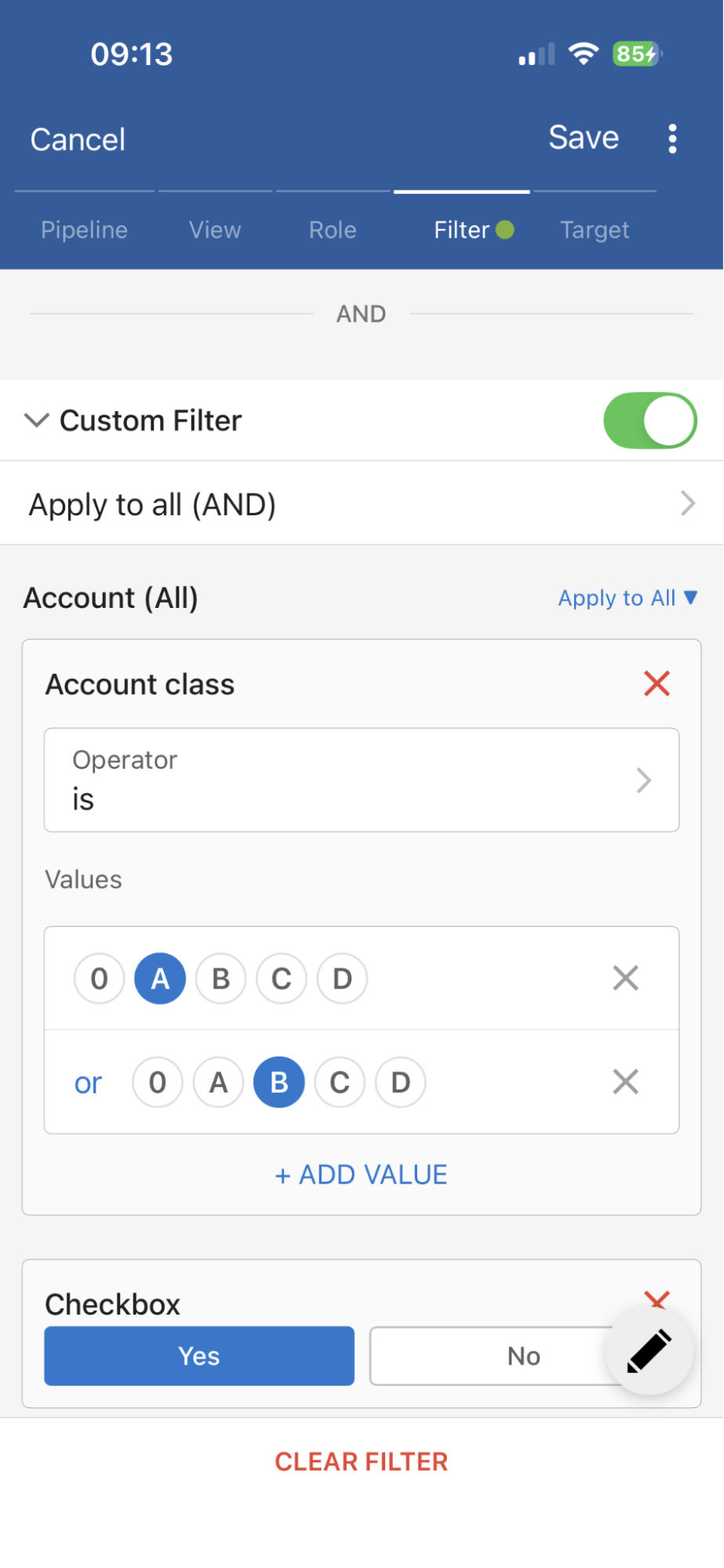
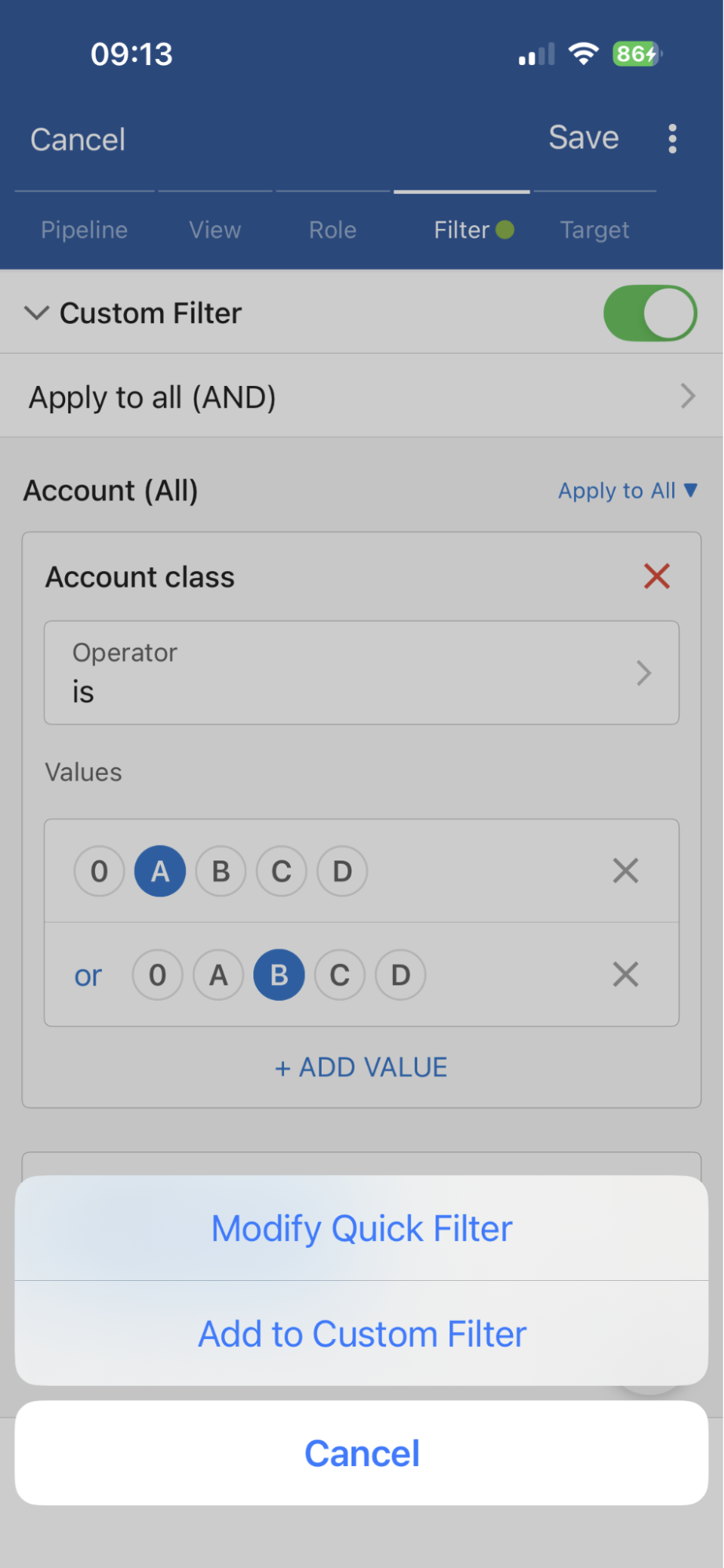
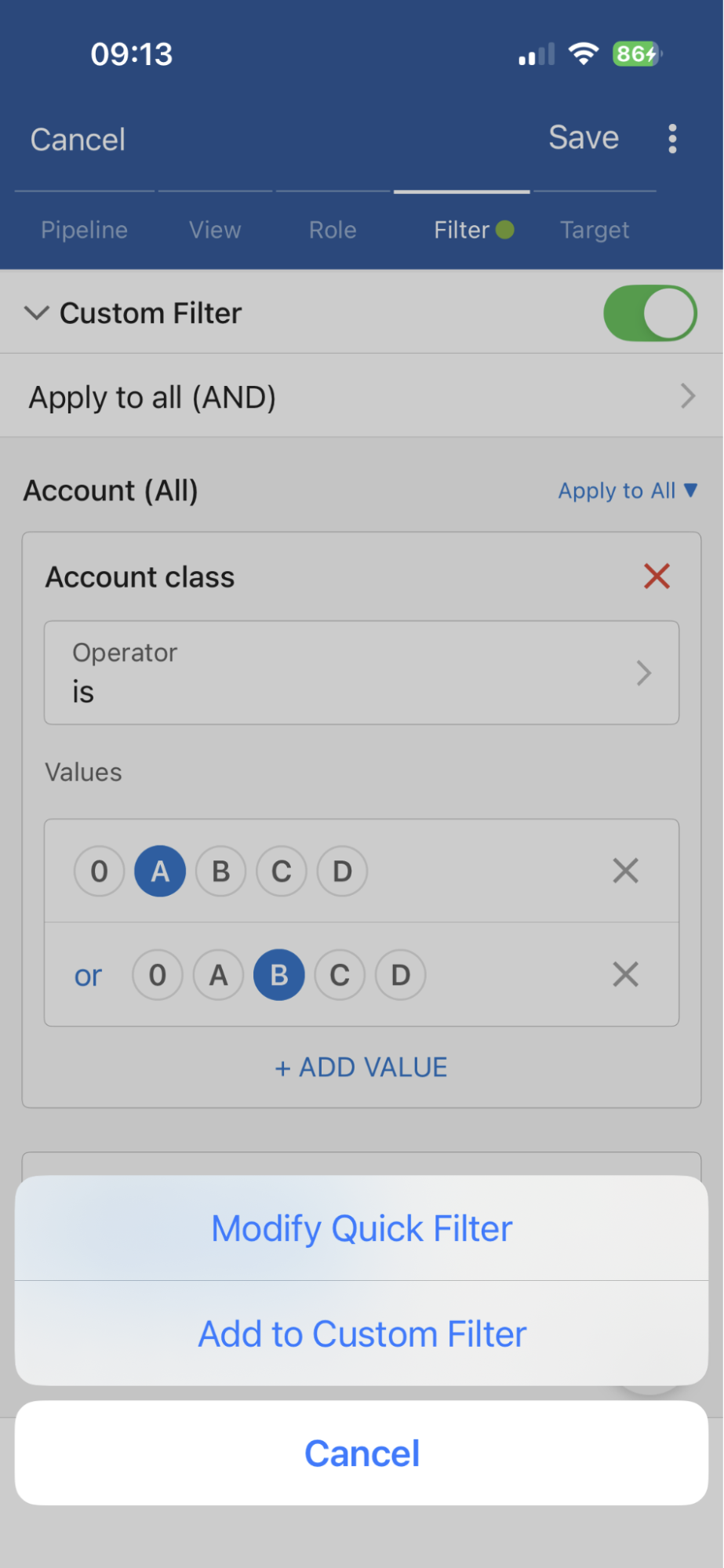
Both Filters can be managed via a “pencil” button that replaced the previously existing “+” button, offering options to “Modify Quick Filter” or “Add to Custom Filter“. ⤵
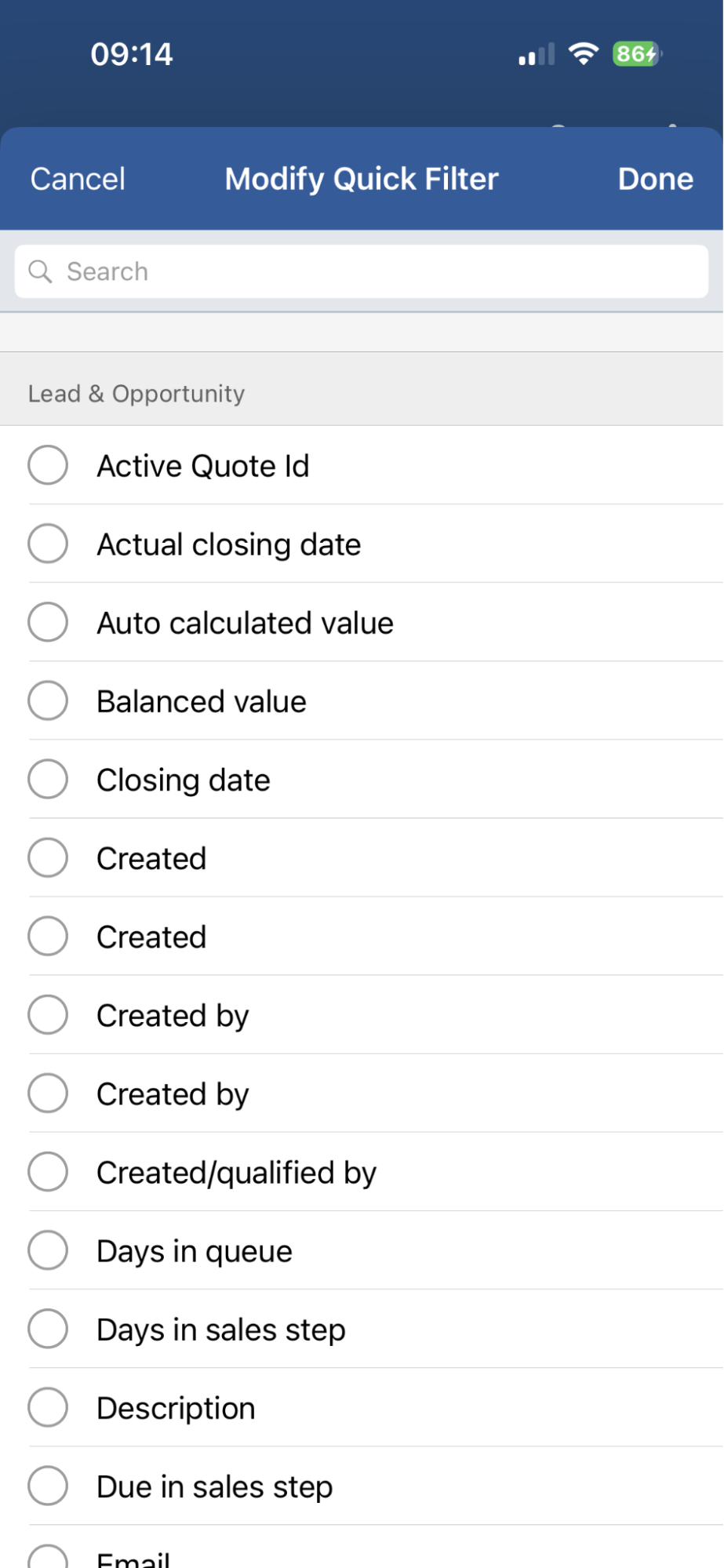
Modify Quick Filter: Users can select up to 12 fields. Once the limit is reached, remaining fields are disabled until a field is removed. Selected fields appear in the Quick Filter section, sorted alphabetically.
Add to Custom Filter: No limit on the number of fields. Behavior remains consistent with the previous version.
Note that the app evaluates conditions from both filters using an AND operator. If a user sets conflicting conditions for the same field in both sections, no records may be returned. ⤵
Fields in the Quick Filter use a compact visualization style with pre-defined operators, optimized for quick access. Custom Filter Fields mostly remain as they were previously, although some existing field types were updated to support empty states (e.g. checkbox).
The application also handles cases where fields in the Quick Filter and Custom Filter become unavailable (due to permission changes) or are deleted.
Fullsize Screenshots ⤵